How to Create a Fact?
Facts are fundamental elements that are used to analyze Conversations. Facts can be created on the Conversation Facts page.
To create a Fact:
Navigate to Measurements > Conversation Facts.
Click the Create button on the Conversation Facts page and add details in the Metadata section of the Fact Details tab.
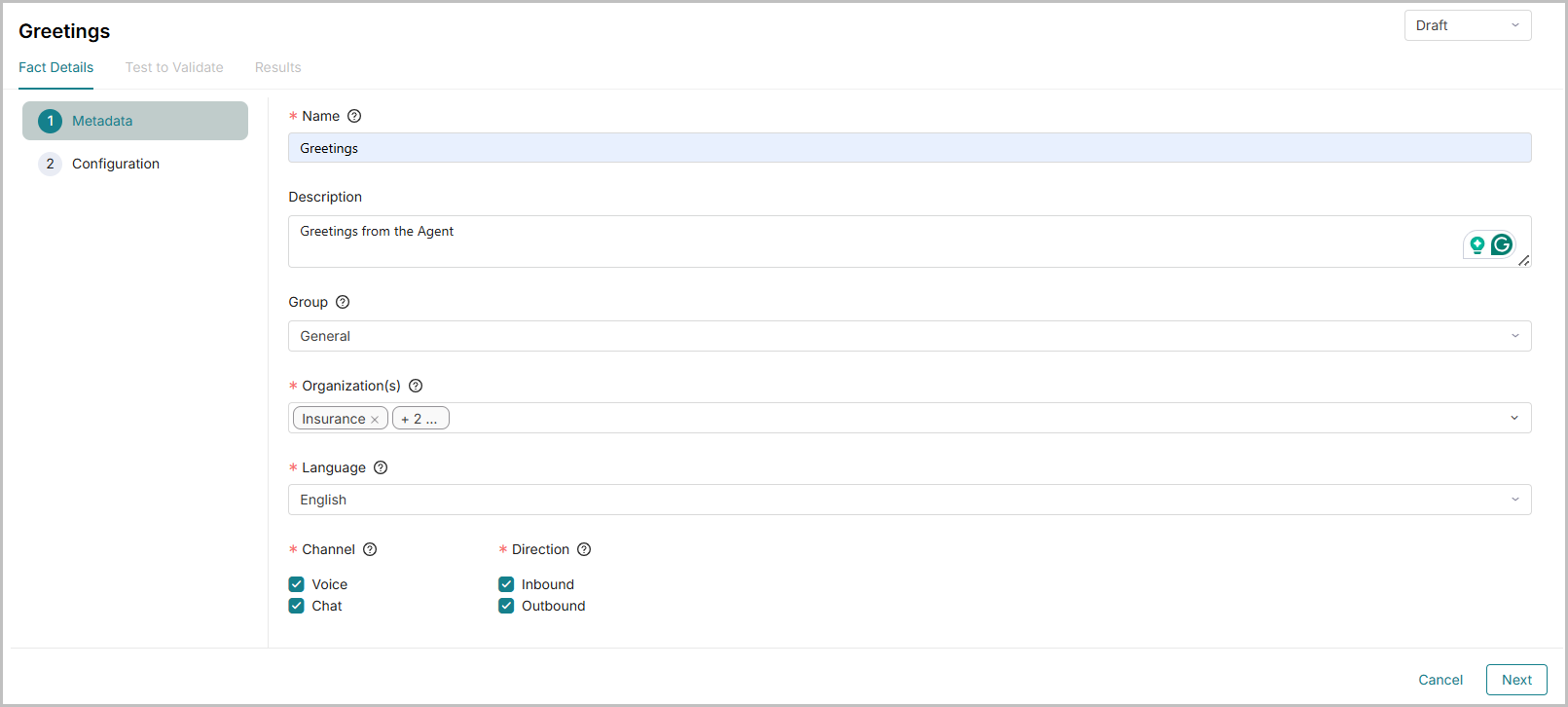
Enter a Name for the Fact.
Enter a brief Description about the Fact.
Select or create a Group to organize Facts based on common attributes (Example: Soft skills, Compliance). To create a new group, enter the group name and click the Add Item button.
Select one or more Organization(s) or hierarchies where the Fact can be used.
Note
Facts can only be processed in conversations that are assigned to the same Organization.
Select the Language of the conversation.
Select the Channel where the fact needs to be processed. Example: Voice, Chat.
Select the Direction of the conversation. Example: Inbound, Outbound.
In the Applicability Condition section, click + Add Rule to include rules. According to the rules, only relevant Facts are processed on the Conversations. The rules can be based on Metadata and Attributes. You can now add up to five rules per fact.
For example, when you create a rule using Metadata or an Attribute, then the Fact verifies whether the Metadata or Attribute is available in the Conversation. If available, the Fact is processed on the Conversation.
Metadata: Select the Metadata, operator, and value from the dropdown. The supported operators are Equals/Does Not Equal. Please note the value is case-sensitive. Each rule supports only one value.
Attribute: Select the Attribute, operator, and value from the dropdown. Currently, the only supported Attribute is Call Duration, measured in seconds.
Set the Match option to ALL or ANY to determine whether the Fact is applied to a conversation based on the configured conditions. Setting it to ALL ensures that all conditions are met, while ANY requires that at least one condition be met.
Note
By default, all existing and new facts are processed for both Voice and Chat conversations.
Click Next to add Configuration details.
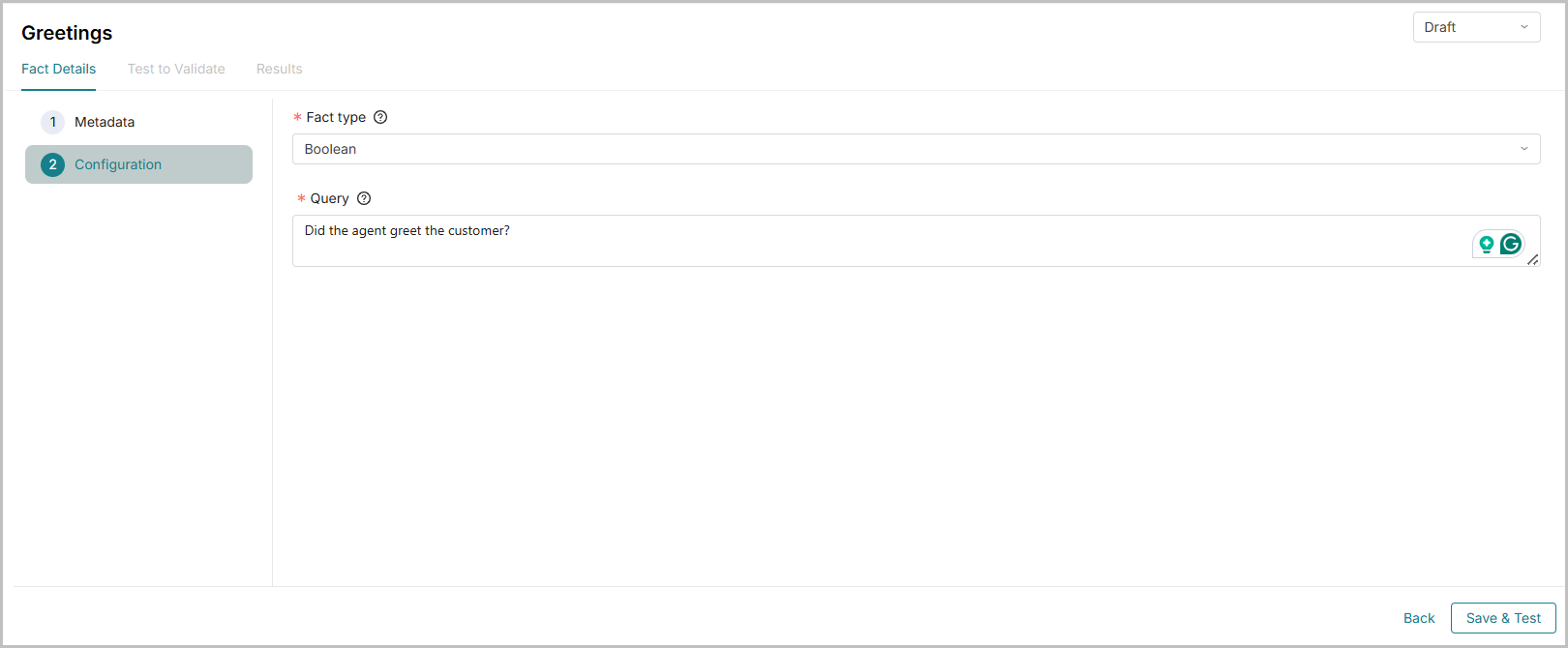
Select the Fact Type from the list of values: Numeric, Boolean, Text, List, or Composite. For more information, refer to Fact Types.
Enter the Query that serves as the key question for AI evaluation. Example: Did the Agent greet the customer?
Set the Status of the Fact. By default, the Status is Draft; change to Approved to map a Fact in Scorecards.
Note
Facts mapped to Scorecards cannot be modified.
Facts that are not mapped to Scorecards can be modified by changing the Status to Draft.
Click Save & Test to validate the Fact in a conversation. To save without testing, click Close.