Fact Types
LLM Facts are Facts that are evaluated by a large language model (LLM). The LLM supports the Fact response types: Boolean, Text, Numeric, and List.
Boolean: Boolean Facts output a “Yes” or “No”. For example, “Did the agent exhibit empathy in the call?”, or “Did the customer request a card cancellation?”. For more information, refer to Create Boolean Fact.
Note
Boolean Facts are used in scorecards.
Caution
When a Fact is created with Fact type as Boolean and a query containing a random name or number (invalid query), then the Agent’s score is calculated as zero.
Text: Text Facts allow the output of free text. Example: “Did the customer inquire about applying for a loan? What type of loan were they interested in?”. For more information, refer to Create Text Fact.
Numeric: Numeric Facts output a numeric value, with or without a unit. Example: “What was the claim amount mentioned?” or “How many times did the customer mention a competitor?”. For more information, refer to Create Numeric Fact.
List: List Facts allow the output of a list of pre-configured values. An option is provided for the LLM to give outputs that are not in the user-provided list. For more information, refer to Create List Fact.
Composite Facts: Composite Facts output a Boolean value (Yes/No). A Composite Fact is created by combining two or more approved Facts. For more information, refer to Create Composite Fact.
Exact Match Facts: Exact Match Facts output a Boolean value (True/False) based on the Key phrase match in the conversation. Example: When the keyphrase is given as "Thanks for calling.", and the speaker is Agent, then if the phrase is found, it returns True. For more information, refer to Create Exact Match Fact.
Fact Configuration Details
To configure a Fact, the following details need to be added.
Name: Name of the Fact
Description: Description of the Fact
Group: A Fact can be assigned to a Group. You can use the Group to filter the list of Facts.
Organization: The Organization is the first grouping under your Account/Tenant. A Fact can be mapped to multiple organizations.
Language: This is the language in which the conversation is spoken.
Channel: Voice and Chat communication channels that are supported.
Direction: This represents which type of call the Fact must be evaluated for – an Inbound call or an Outbound call.
Fact type: This represents the response type of the Fact, whether Boolean, Text, List, or Numeric.
Query: The most important field when creating an LLM-based Fact. This prompt is sent to the LLM for evaluation. Be as specific and descriptive as possible to ensure accurate, consistent results. To fine-tune the query, use the Test to Validate feature against a collection of sample conversations before evaluating a Conversation with the Fact.
Warning
Ensure a valid query is provided. When any gibberish value is given in the query, irrelevant results are returned in the Explanation.
Status: Whether the fact is in Draft or Approved status. Only Approved facts can be used to process conversations.
Create a Boolean Fact
A Boolean Fact type should be selected for Facts that require a YES or NO response when the Fact is processed on a Conversation. It returns a YES/NO response based on whether the condition mentioned in the query is met or not.
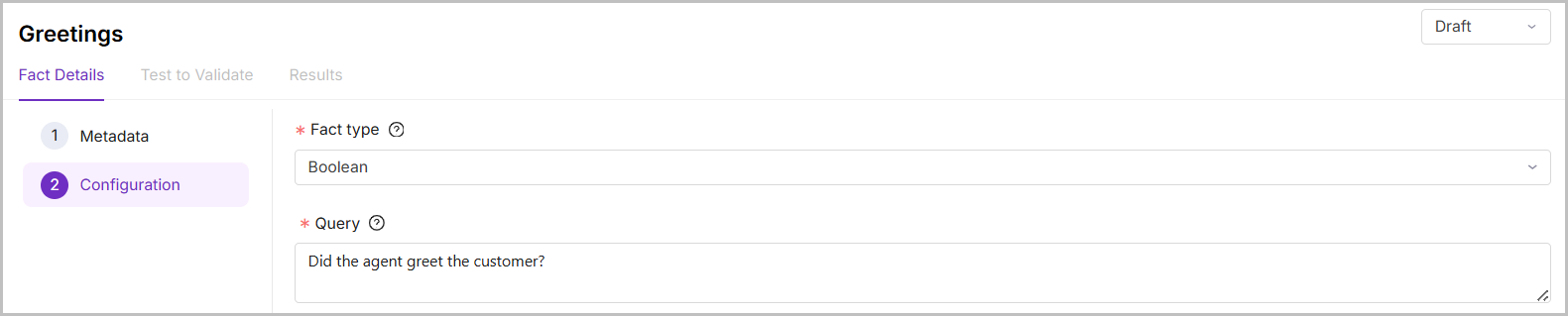
To Create a Boolean Fact:
In the Fact Configuration, select the Fact Type as Boolean from the dropdown.
In the Query section, enter your question.
Click Save & Test.
Create a Text Fact
A Text Fact type should be selected for Facts that allows free text as a response when the Fact is processed on a Conversation.

To Create a Boolean Fact:
In the Fact Configuration, select the Fact Type as Text from the dropdown.
In the Query section, enter your question, which allows a response in free text format.
Click Save & Test.
Create a Numeric Fact
The Numeric Fact type is selected for Facts that require a numeric value as a response when the Fact is processed on a Conversation. The numeric value can be with or without a unit
To Create a Numeric Fact:
In the Fact Configuration, select the Fact Type as Numericfrom the dropdown.
In the Query field, enter the question that requires a numeric response.
Click Save & Test.
Create a List of Values Fact
The List of Values Fact type is selected for Facts that require selecting an option as a response when the Fact is processed on a Conversation.
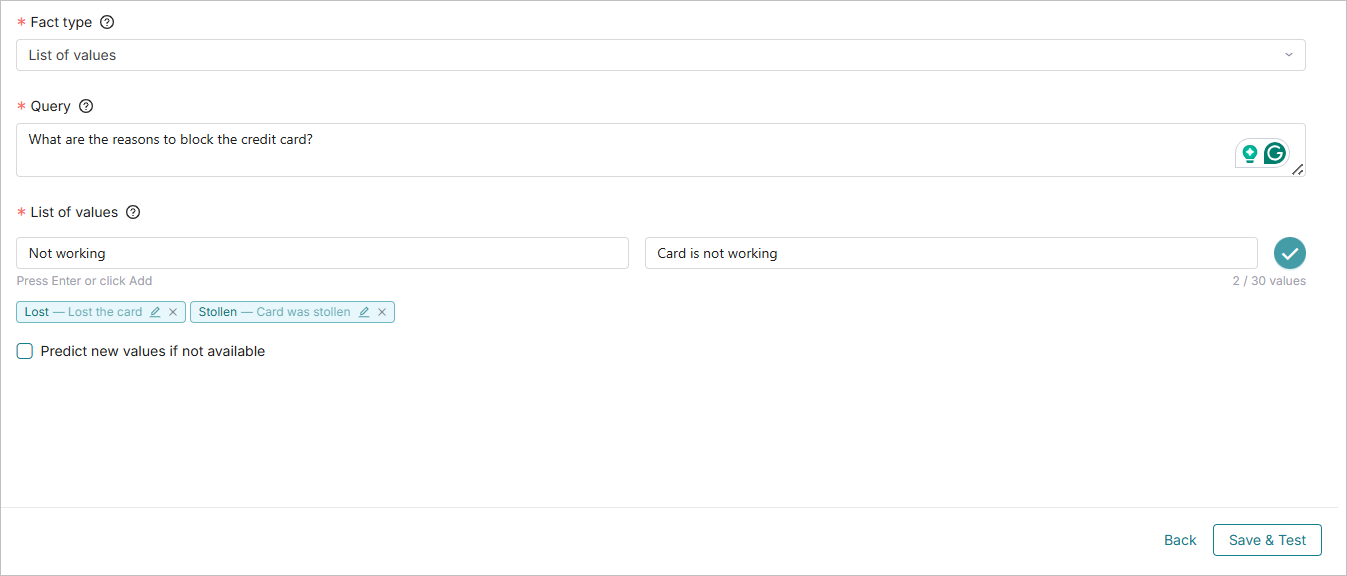
To Create a List of Values Fact:
In the Fact Configuration section, select the Fact Type as List of valuesfrom the dropdown.
In the Query field, enter your question that prompts the option value as the response.
In the List of values field, enter each response option (value) for the query.
In the Description field, enter the description for the list of values. This is an optional field. These descriptions are included in the LLM prompt to improve prediction accuracy.
Click ✓ (tick mark) to add the value.
Check Predict new values if not available, to allow the LLM to suggest new values relevant to the query that are not in the existing list.
Click Save & Test.
Note
Up to 30 values can be added per list fact.
Create Composite Fact
A Composite Fact is created by combining two or more approved individual or groups of Boolean, List, or Exact Match Facts. It returns a Boolean result (Yes/No) based on the applied criteria.
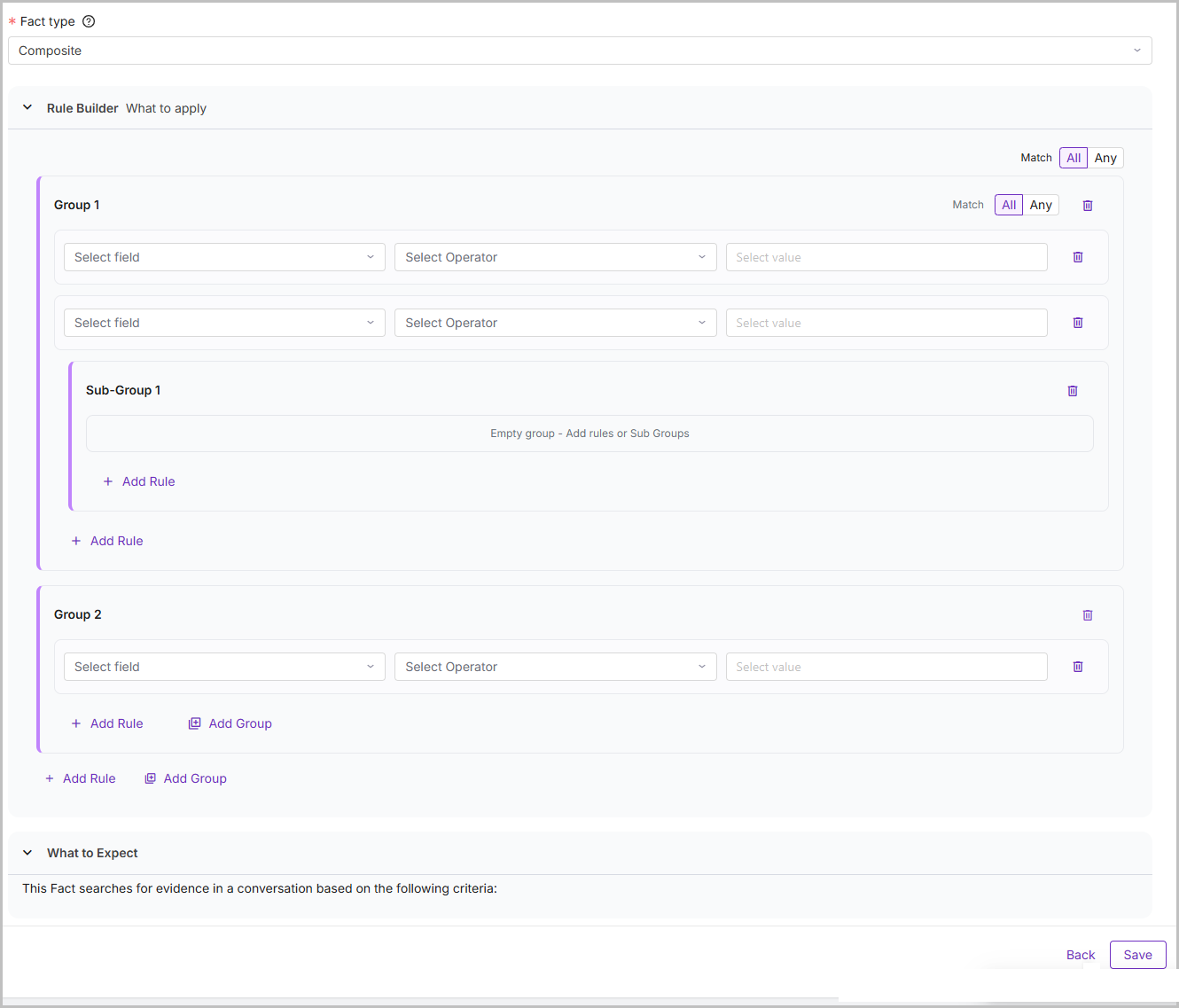
Component | Description |
|---|---|
Fact Type | Select the Fact type as Composite Fact from the dropdown. |
Select Fact | Select a Fact from the list. This list is based on the selected Organization(s). The list displays Boolean, List, and Exact Match Facts, which are currently supported. |
Select Condition | Select the Condition to match the value. |
Enter value | Enter the value. For the Boolean and Exact Match Fact, select True or False, and for List Facts, select a value from the dropdown. The List Facts values dropdown displays only the values configured on the Create Facts page. No newly predicted values are displayed. |
Select Operator | Select the AND/OR operator to connect one or more Facts/Rules. |
Add Rule | Click Add Rule to create a new Rule. A Rule contains a Fact joined by AND/OR operators to a value. Multiple Rules can be created and combined with Rules of other Groups or Sub-groups. To add multiple List Fact values, create a separate rule for each value. |
Delete Rule | Click Delete Rule to delete an existing Rule. When a Rule is deleted, all conditions associated with it are also deleted. |
Add Group | Click Add Group to create a new Group. A Group contains multiple Rules joined by AND/OR operators. Multiple Groups can be created and combined with other Groups, Sub-groups, or Rules. When the 'Add Group' option is used within a group, sub-groups are created for the parent group. |
Delete Group | Click Delete Group to delete an existing Group or Sub-group. When a Group is deleted, all Sub-groups and Rules associated with the parent Group will also be deleted. When a Sub-Group is deleted, all the Rules within the Sub-group are deleted, and the Rule within the parent Group of the deleted Sub-group remains intact. |
Save | Click Save to save the Composite Fact. |
What to Expect | This section outlines the criteria defined in the Composite Fact, which are used to search for evidence within a Conversation. |
Important
Currently, Composite Fact supports Boolean and List Facts.
A Composite Fact can have up to ten rules, including those across all Groups and Sub-groups.
A Rule can always be part of a Group or a Sub-group.
A maximum of five Groups can be added to a Composite Fact.
Each Group can have only one Sub-group.
A minimum of two Rules is required to create a Composite Fact.
Users can create a total of 300 Composite Facts, with limits of 150 in Approved status and 150 in Draft status.
Create an Exact Match Fact
The Exact Match fact type enables compliance and QA teams to verify that Agents read specific phrases verbatim during calls. The Exact Match returns a True/False result based on whether a configured phrase appears word-for-word in the transcript or not.
To Create an Exact Match Fact:
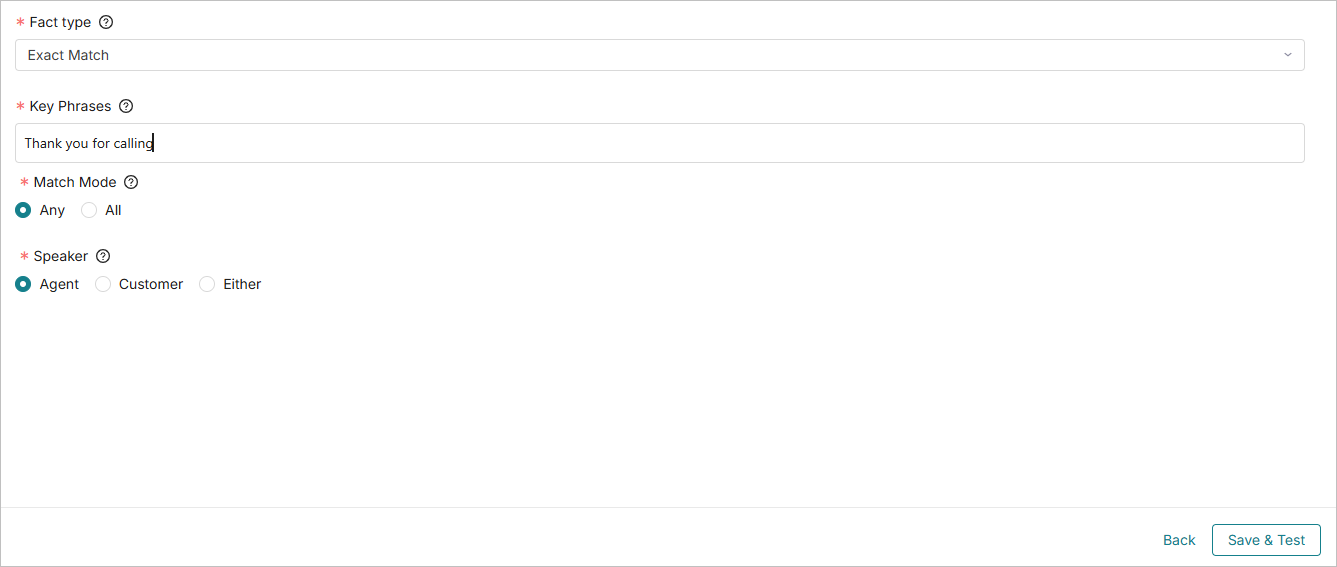
In the Fact Configuration section, select the Fact Type as Exact Match from the dropdown.
In the Key Phrases field, enter the phrase to be searched in the conversation. You can add one or more phrases separated by a comma.
In the Key Phrase, a minimum of one phrase is required, and a maximum of ten phrases can be added.
In a Phrase, a minimum of three characters is required, and a maximum of 500 characters can be added.
In the Match Mode field, you can select either ANY or ALL. If ANY is selected, the response True is returned when at least one phrase is matched. If ALL is selected, the response True is returned only when every phrase is matched.
In the Speaker field, you can select Agent, Customer, or Either.
Agent: The Key phrase is searched in the Agent conversation.
Customer: The Key phrase is searched in the Customer conversation.
Either: The Key phrase is searched in the entire conversation, irrespective of the speaker.
Click Save & Test.
Note
All files are mandatory. A maximum of 50 Exact Match Facts in each approved and draft status is allowed per tenant.