Filters
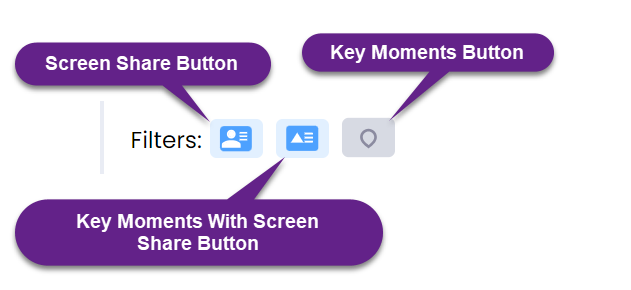
Select any of the filter icons to view them on the timeline track. Click to select and click again to deselect. The selected icons turn blue colored. The icons are grey colored when either they are deselected or when there is no content available. When there is no content available for any of the icons, they become inactive and can no longer be selected.
Screen Share Button:
Click it to show/hide the start of a screen share on the timeline track. Upon clicking the icon gets displayed on the timeline track at the point of time in the meeting where there are occurrences of start of a screen share. By default, the button is selected in the show position.
Key Moments with Screen Share Button:
Click to show/hide the key moments with screen share in the timeline track. Upon clicking, the icon displayed on the timeline track at the point of time in the meeting where there are occurrences of key moments with screen share gets hidden. Click again to show the key moment with screen share on the timeline track. By default, the button is selected in the show position.
Key Moments Button:
Click to show/hide the key moments on the timeline track. Upon clicking, the icon displayed on the timeline track at the point of time in the meeting where there are occurrences of key moments gets hidden. Click again to show the key moment on the timeline track. By default, the button is selected in the show position.