View Meeting
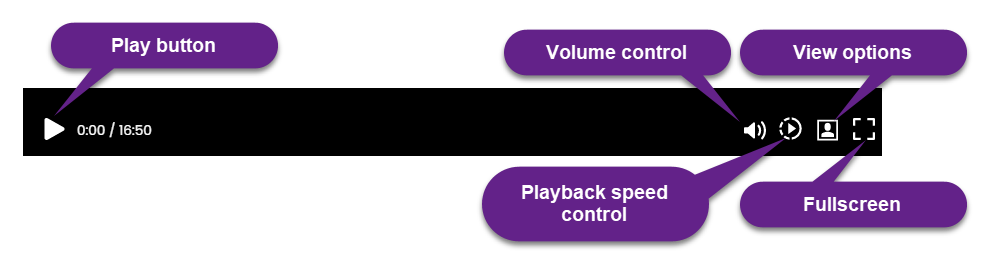
This is the video display area. It consists of the video player control positioned as a collapsible ribbon at the bottom. It appears only when you hover the mouse over the video display area. The Play/Pause button is positioned at the left. The Play/Pause button also appears at the center of the view when you hover the mouse over the video display area. At the right of the video player control ribbon the following options are available:
Play button:
Click to play the video. Click again to pause the video. When you hover above the view area another play button gets displayed at the center. This play button can also be clicked to play and pause the video
Volume control:
Use it to control the volume of the video
Playback speed control:
Use it to control the playback speed. The speed options are 0.5x, 1.0x, 1.5x, 2.0x, and 2.5x. By default, it is selected at 1.0x.
View options:
Three views are available by clicking the View grid:
Gallery View: Shows the participants only. The views shift dynamically between gallery view and shared view. Whenever there is content being shared in the meeting the shared view is shown.
Shared View: This displays the content that was shared by the presenter during the course of the meeting. Refer the Shared view section below. The views shift dynamically between gallery view and shared view. Whenever there is no content being shared in the meeting the gallery view is shown.
Mesh View: Shows people's faces and shows a detailed breakdown of their facial expressions and emotional states in the form of a mesh.
Full screen:
Shows the full-screen view.