Create a Scorecard
Creating a Scorecard is vital for evaluating the agents' and the team's performance. The following procedure outlines the steps to create a scorecard. Administrators, Analysts, and Quality Analysts can create a Scorecard.
Navigate to Measurements > Scorecard Designer.
Click the Create button. The Scorecard page appears.
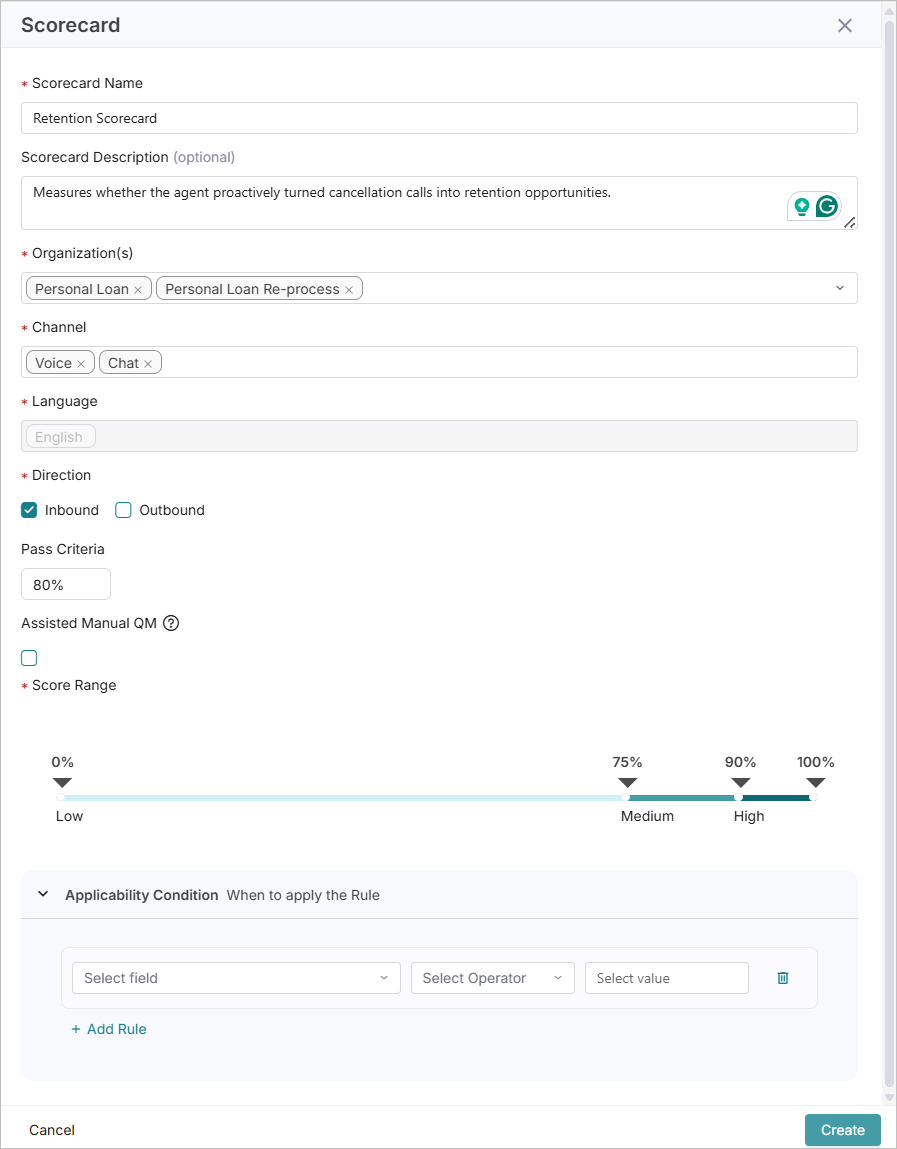
Enter the Scorecard Name.
Enter a Scorecard Description.
Select the Organization to assign the scorecard to. Multiple organizations can be selected if required.
Select the Channel in which the Scorecard can be processed. Example: Voice, Chat.
Select the Language of the conversation.
Select the Direction of the conversation channel: Inbound, Outbound, or both.
Enter the Passing Criteria. The Passing Criteria value is compared against the actual score to determine a pass or fail outcome on the scorecard. This optional field has a percentage value.
Check Assisted Manual QM if required. When enabled, Quality Analysts can view the auto-evaluated scores while performing manual evaluations.
Set the Score Range using the bar pointers. Scores are categorized as Low, Medium, or High based on the Score Range thresholds set here.
In the Applicability Condition section, click + Add Rule to include rules/conditions. According to the rules, only relevant Scorecards are evaluated in Conversations. The rules can be based on Facts, Metadata and Attributes. Up to five rules can be added.
For example, when rules are created by applying Fact/Metadata/Attribute, then the Scorecard verifies whether the Fact/Metadata/Attribute is available in the Conversation. If available, then the Scorecard will be evaluated on the Conversation.
Facts: Select the Fact, operator, and value from the dropdown. Currently supports Boolean, Exact Match, and Complex Facts.
Metadata: Select the Metadata, operator, and value from the dropdown.
Attribute: Select the Attribute, operator, and value from the dropdown. Currently supports Call Duration only.
Set the Match option to ALL or ANY to determine whether the Scorecard is applied to a conversation based on its configured conditions. Setting it to ALL ensures that all conditions are met, while ANY requires that at least one condition be met.
Click the Create button. The draft scorecard will be available on the Scorecard Designer page.
Note
By default, all existing and new Scorecards are applicable to both Voice and Chat conversations.