Configure Scorecard
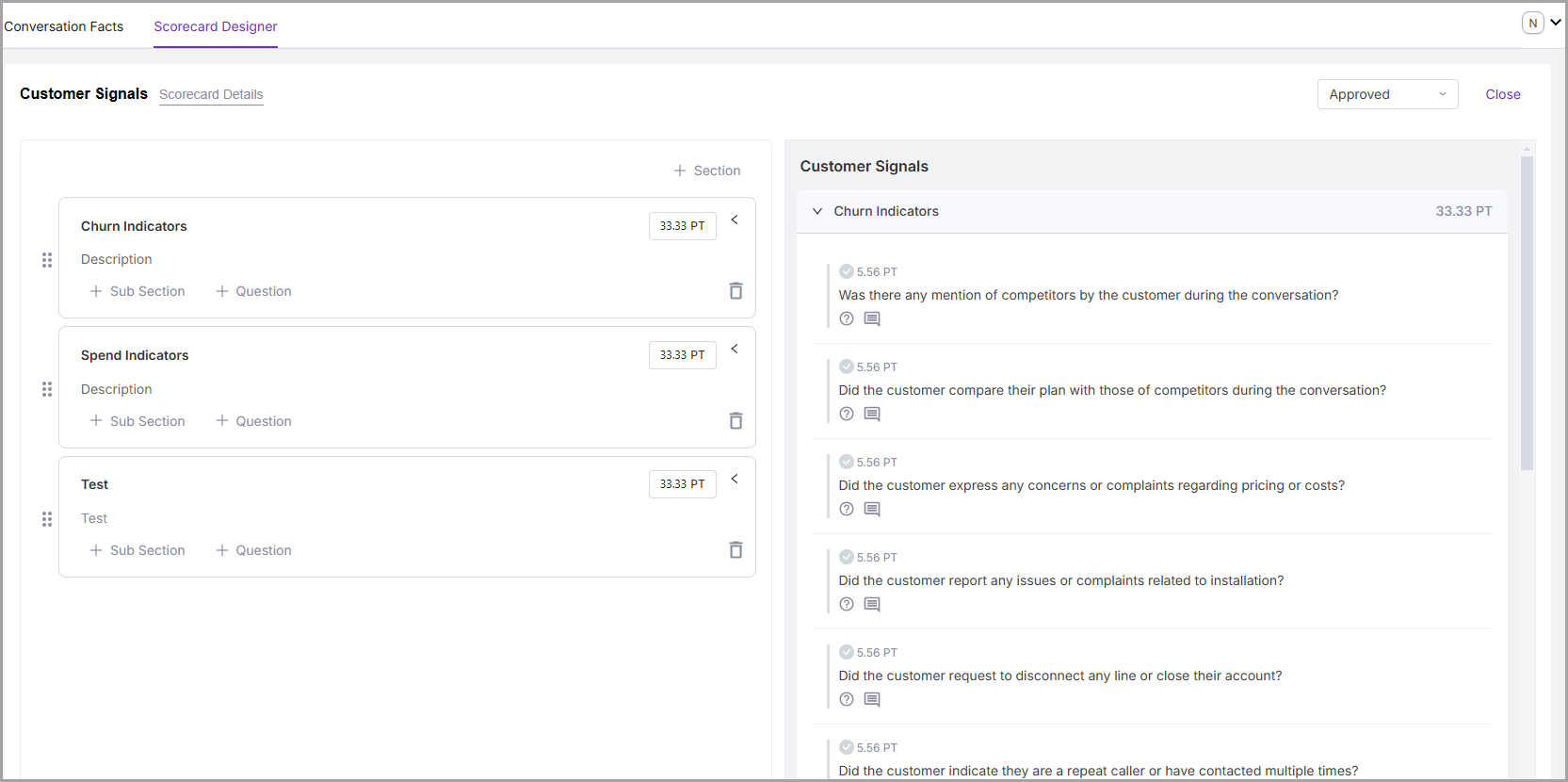
The Scorecard Designer screen displays both approved and draft scorecards. To edit any scorecard, click the Edit button next to the desired scorecard. The Scorecard Details screen appears.
Note
To edit a Scorecard in “Approved” status, you must first change its status from Approved to Draft.
Create New Section
Scorecards are divided into sections and sub-sections, each with a designated weight for automated scoring. The system initially assigns equal weight (value) to each section, summing up to a total of 100 points. You can manually adjust the weight of any section, and the system will automatically recalculate the weights of the remaining sections.
To create a section:
Click +Section
Enter the section name and description
Click Create.
Create New Subsection
To create a subsection:
Navigate to the section for which the subsection needs to be created.
Click + Sub Section.
Enter the subsection name and description.
Click Create.
Note
You can create multiple subsections and questions under a section or subsection. The weight of each subsection is automatically distributed equally based on the number of subsections, summing up to the section’s total weight. Adjusting the weight of any subsection will prompt the system to recalculate the remaining weights.
Edit Section or Subsection and Scores
To edit, click the Name or Description of the Section or Subsection and Score value.
Delete Section or Subsection
Deleting a section or subsection will also delete its questions. If necessary, move the questions to another section or subsection before deletion.
Click the Delete icon next to the section or subsection.
Note
When a section or subsection is deleted, the system recalculates the weight of the remaining sections or subsections.
Create Question
To create a question:
Navigate to the Section or Sub section in which the Question needs to be created.
 |
Select + Question.
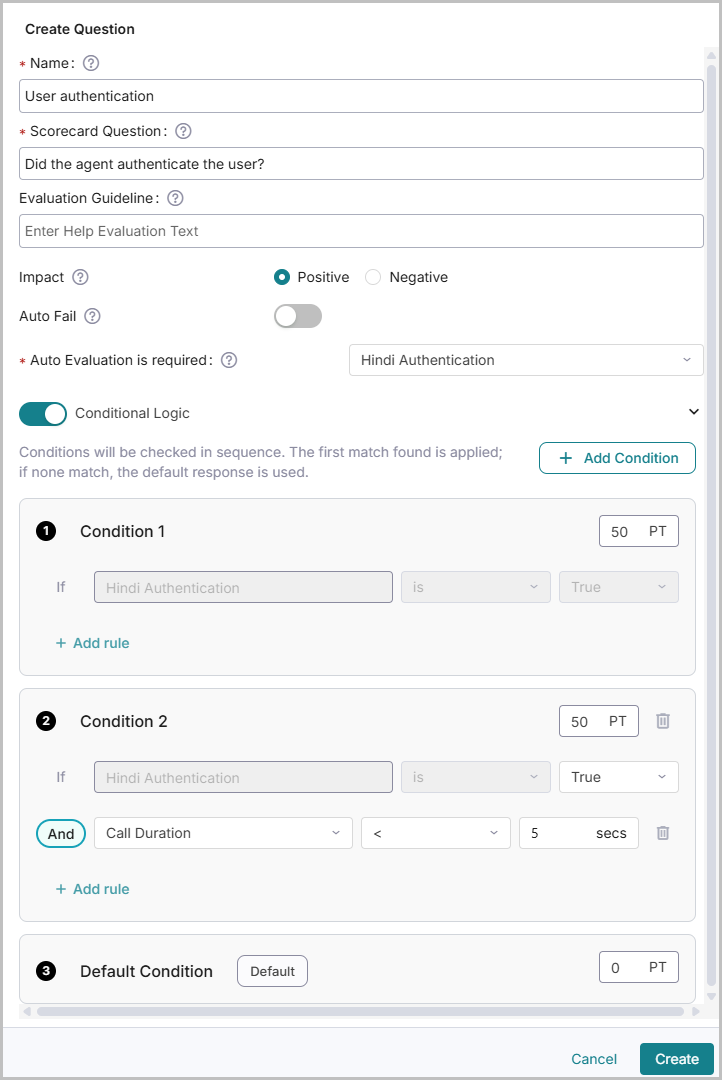
Enter the Name and Scorecard Question. Name represents the name of the question, and Scorecard Question contains the actual question used for scoring.
Enter the Evaluation Guideline to help the Quality Analyst evaluate a question. The content you enter in the Evaluation guideline will be displayed on the Evaluation screen for the Quality Analyst.
Select the Impact of the question (Positive or Negative).
Positive: Add points if the answer is Yes.
Negative: Deducts points if the answer is Yes.
Enable Auto Fail if necessary. Autofail is applicable to the base fact selected in the Auto Evaluation.
When Auto Fail is enabled for a Negative impact question and the answer is Yes, the entire scorecard fails, and its score becomes zero. When Auto Fail is enabled for a Positive impact question, and the answer is No, the score for that specific question will be zero.
Example: If Auto Fail is enabled for the Negative impact question, “Did the agent use frustrated words?” and the answer is Yes, then the entire scorecard fails, and the score becomes zero. Even if one Negative impact question fails, the entire scorecard becomes zero, irrespective of the other questions' answers.
In Auto Evaluation, select the Fact to map to the question. Currently supports Boolean, Complex, and Exact Match Facts.
Note
Only Facts mapped to the scorecard’s assigned organization(s) are displayed.
Enable Conditional Logic only when you need to evaluate Conversations based on multiple conditions. By default, Conditional Logic is disabled. No Conditions can be added when disabled.
Conditional Logic can be enabled only when a Fact is selected in Auto Evaluation. When the Conditional Logic is enabled, you can configure up to five conditions and five rules in each condition. Upon enabling Conditional Logic, the Boolean Fact, Exact Match Fact, or Complex Fact selected in Auto Evaluation is added as the first Rule of each Condition with a value set to True. This Rule is fixed and cannot be modified.
In the Rules, you can select a Fact, Metadata, and an Attribute. Use the search box to find a Fact or Metadata. Conditions and Rules are applied to conversations in the order they appear.
The Default Condition is also included among the five conditions. When none of the condition responses match, the Default Condition's score is used as a fallback. You can adjust this Default Condition's score to fit your evaluation needs.
Click + Add Condition to add a new Condition.
Click + Add rule to add a rule within a condition. From the Select Rule dropdown, you can select a Fact, Metadata, and an Attribute.
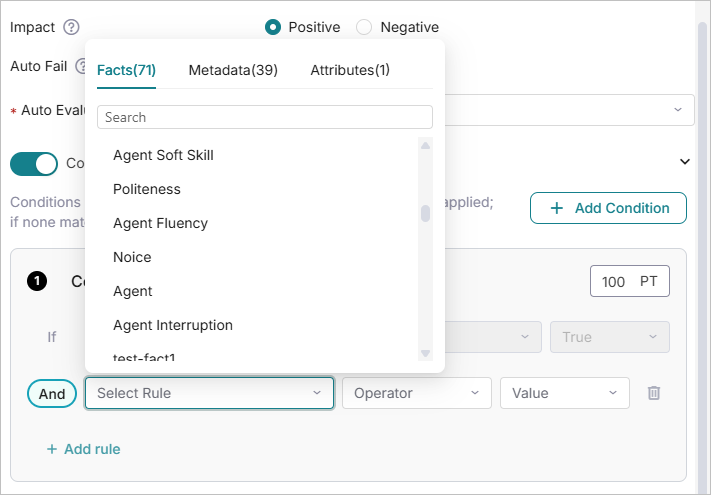
When a Fact is selected, the only available Operator is IS, which is chosen by default, and its value can be set to either True or False. The same fact cannot be added more than one time. The Facts display the list of approved Boolean, Exact Match, and Complex Facts that are available for the Organization, Direction, and Channel combination.
When Metadata is selected, all metadata configured for the tenant is displayed. Select a metadata field, choose an operator, and enter a value.
Note
To configure Metadata, contact your Uniphore Support Representative.
When the Attribute is selected, you can choose an operator from the dropdown and enter the value in seconds. Call Duration is the only Attribute currently supported.
Click Create.
Note
The weight of each question and subsection is automatically distributed equally within the section’s total weight. Manually adjusting the weight of any question or subsection will prompt the system to recalculate the remaining weights, ensuring the total does not exceed the section’s assigned weight.
When Conditional Logic is applied, scores are dynamically adjusted based on defined conditions rather than fixed weightage.
Edit Question
Click the ellipses (...) icon and select Edit. The Update Question window will appear. Edit the required fields. Refer Create Questions for guidance.
Delete Question
Click the ellipses (...) icon and select Delete.
Note
When a question is deleted, the system recalculates the weights of the remaining subsections or questions.
Scorecard Status
Only approved scorecards will be used to evaluate conversations. After configuring a scorecard, a Quality Analyst or Business Analyst must change its status from Draft to Approved.