Company
Use this tab to identify your business details.
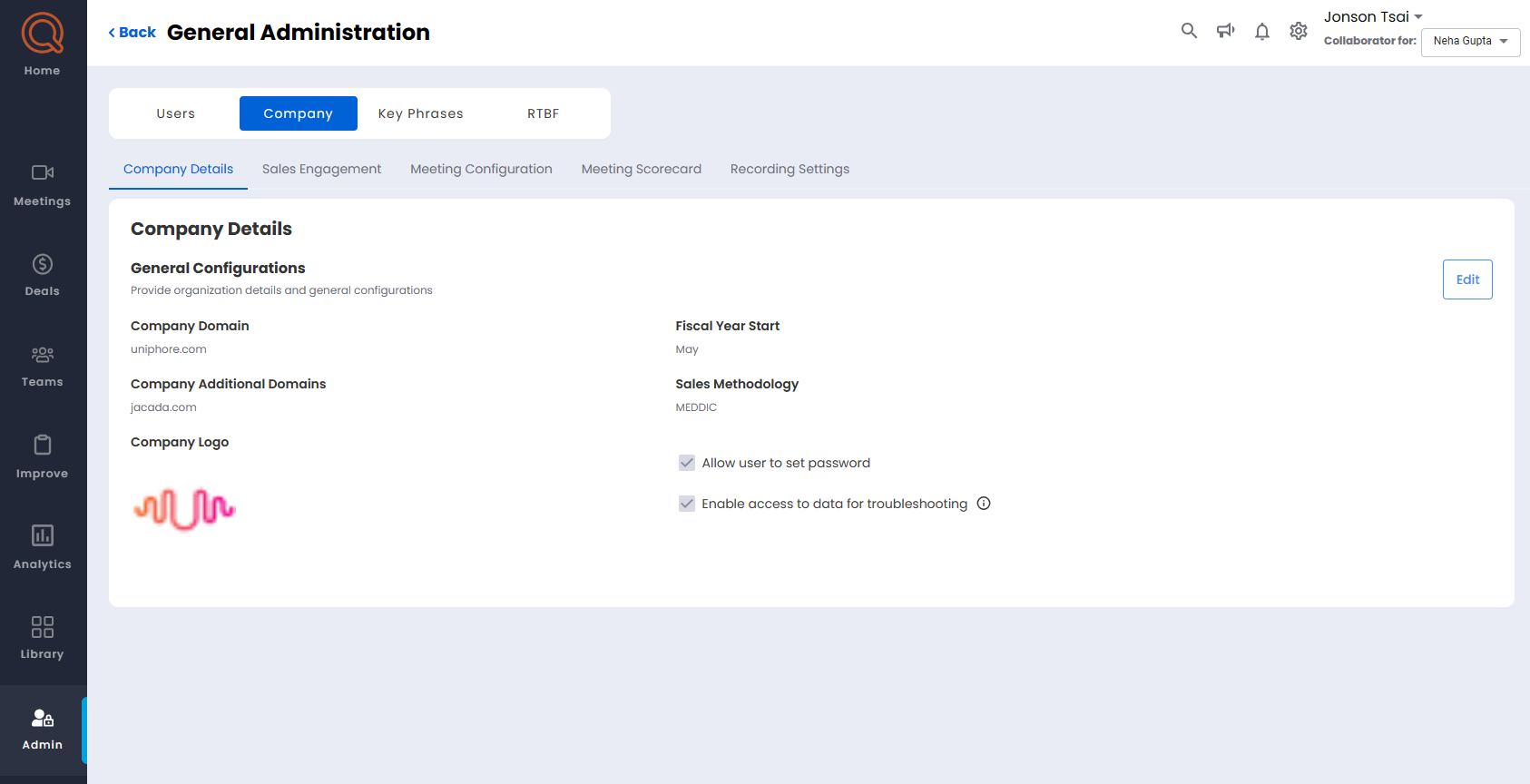
Company Details - General Configurations
The admins need to fill the details that follow.
Company Domain:
Provide your company domain here such as
xyz.com.Company Additional Domains:
Provide your company's additional domains here such as
xyz.com,abc.cometc.Fiscal Year Start dropdown:
Select the fiscal year start month from the dropdown that's followed in your country/company.
Allow user to set password checkbox:
Select this checkbox if you want to authorize your users to set their own password instead of only using passwords set by the admin.
Enable access to data for troubleshooting checkbox:
You must select this checkbox if you want to authorize the Uniphore engineers to access your data for a maximum period of 24 hours for troubleshooting. With this option selected your data never leaves your secure network nor is it exported or saved externally. You are required to select this checkbox in extreme situations like data corruption etc. Usually troubleshooting can be done without access to data.
Click on the Edit button to fill the details. After filling the details click Save or Cancel as required.
Sales Engagement - Meeting Duration
Minimum Meeting Duration:
Determine the minimum length of the sales engagement meeting (duration of the meeting) that should be recorded.
Click on the Edit button to fill the details. After filling the details click Save or Cancel as required.
Meetings Configuration - Meeting Visibility
Here the admins can decide which user roles will see which meeting. Here the user roles are broadly classified as:
Admin:
By default, the admin can see all the team meetings
Managers:
By default, the managers can see only their teams meetings
Sellers:
By default, the sellers can see only their personal meetings.
When you click the Edit button a radio button All meetings can be seen by everyone is shown at the bottom. Select this radio button if you want all your users to see all the meetings. After selecting the radio button All meetings can be seen by everyone click Save or Cancel as required.
The Default radio button is selected by default.
Meeting Scorecard
Here an Admin can view the content (default questions) of the scorecards. Every question has a percentage of weight along with a toggle switch to turn off or turn on the question. You can edit the weight of a question, however, the total weight of the questions cannot be lesser or greater than 100%. Also, the admin can add custom questions and assign score.
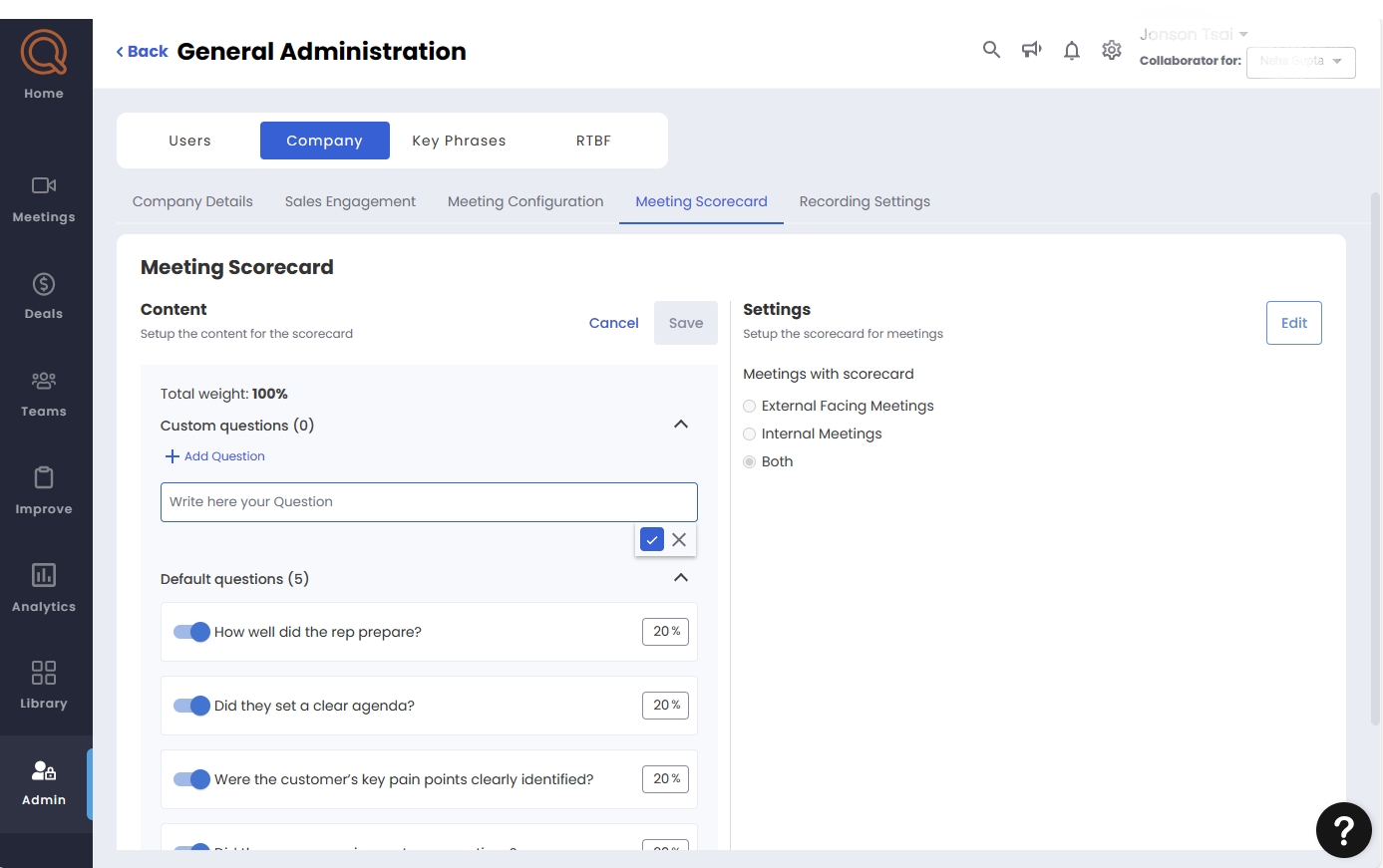
In Settings, click Edit to assign the scorecard to External Facing Meetings, Internal Facing Meetings, or Both.
Recording Settings - General Recording Options
General Recording Options:
Here you can configure whether the bot will join and record the internal meetings or not. The External meetings checkbox is selected by default and cannot be deselected. Select the Internal checkbox if you want your uses to record the internal meetings as well. Even if this check box is not selected the users can individually record the meetings from either My Settings and/or Meeting Preparation.
Click Edit button to select the Internal Checkbox and to assign the recorder name in the Preferred Recorder name dialogue box. Click Save or Cancel as required.
Recording Setup
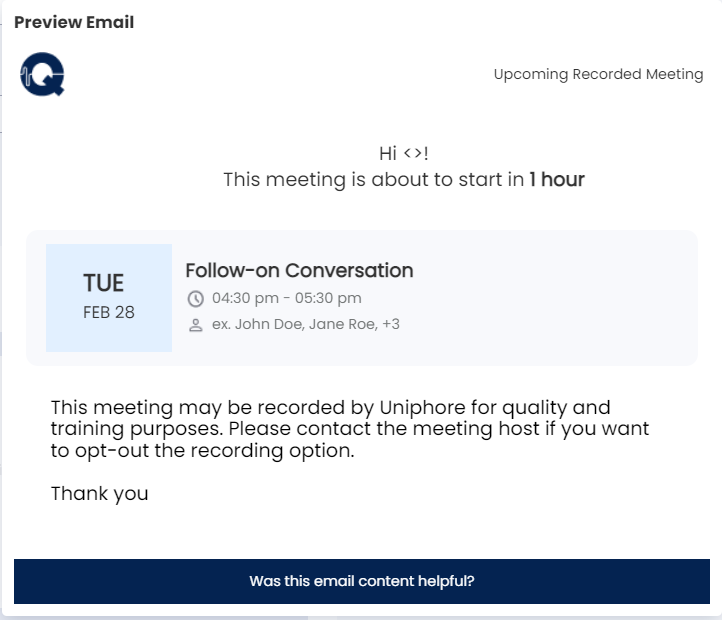
Here you can configure whether to send "meeting will be recorded" notification to your meeting participants. To send this notification select the "meeting will be recorded" checkbox. The meeting participants receive this notification 24 hours before the meeting start time. By default, it is unselected. Click the Edit button to add your message in the "Additional Text" dialogue box. The "Default Email Reminder Message" cannot be edited. Click Save or Cancel as required.
Click on the lens icon besides the "meeting will be recorded" checkbox to preview the email notification that will be sent to the meeting participants.