Users
Use this tab to add new users and set roles for them. Internal users having the organizations CRM accounts are added by default.
The add functionality is used to add users who don't have CRM accounts.
The internal users have full access to meeting records. They can share, clip, and insert comments in the meeting records.
The external users have limited access to videos and can view transcripts.
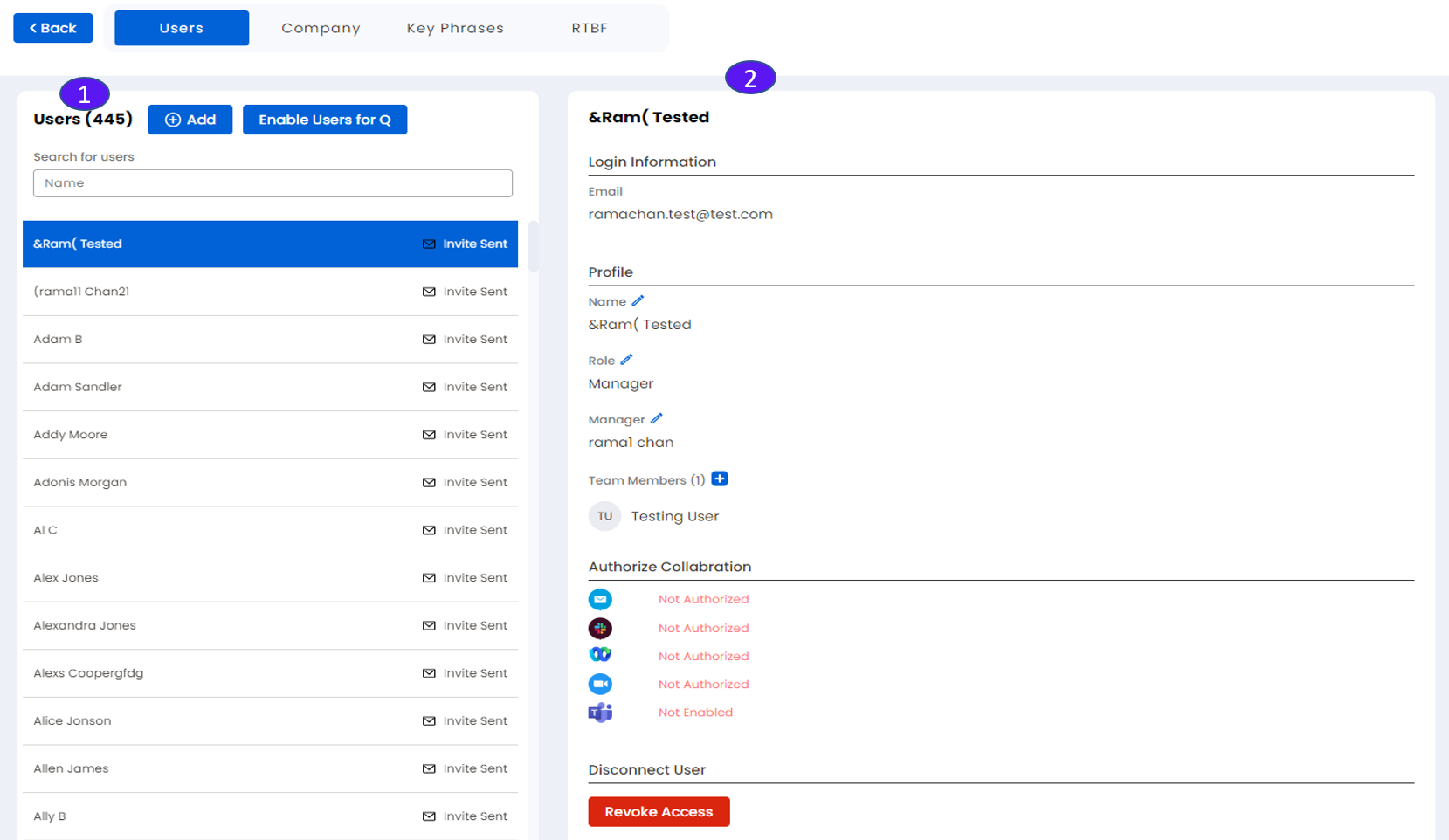
1. Users List Pane
Users are typically imported from the Importing Customer Information in the Connect your CRM Service tab.
Click Add (+) to add a user.
Click Enable Users for Q to send an invite to users who are already imported from the CRM service. The invite sent icon appears near the username.
Click a user to edit their information (right pane).
2. User Information pane
Edit the user information that follow:
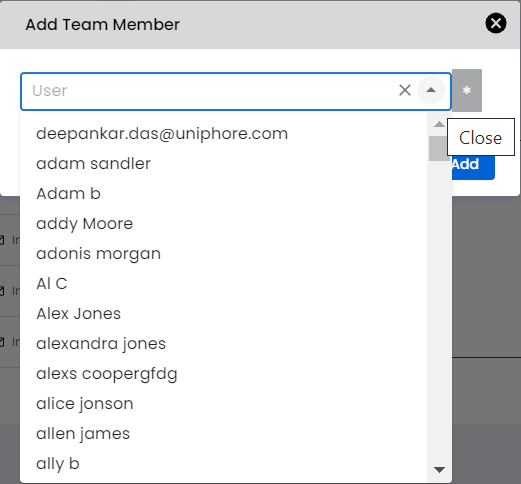
Profile: Username, Role, Manager name and Team Members. Click the (+) icon near Team Members to add team members already imported from the CRM service. The add Team Member dialog box is displayed as shown below. Select a user to add from the dropdown list. Click Add. Click cancel (X) icon to close the dialog box.
Profile: Role (Seller, Manager, or Admin)
Authorize Collaboration: Authorize email (Google, Microsoft Office 365), Slack, Webex and Microsoft Teams (done by admin).
Disconnect User: Click Revoke Access to disconnect a user.
Note
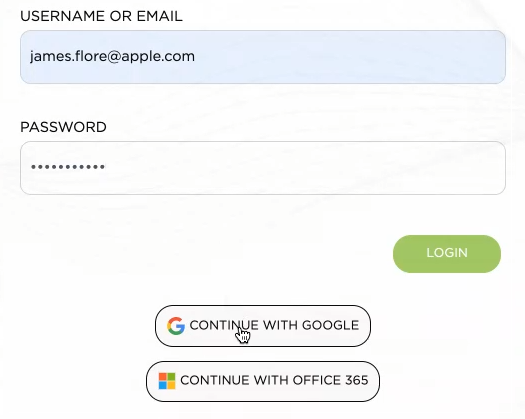
For login, most users do not have to enter their Uniphore “Sales Interaction Agent” login/password. They can use their corporate Gmail or Office 365 accounts for SSO. During on boarding, new users will get an email notification that guides them through the login process.