Audit Logs
Important
Only account Administrators have access to the Audit Logs.
The platform audit log is a comprehensive compliance and security feature that tracks and stores all user and system actions across the platform to meet legal preservation requirements and data retention policies. The feature captures detailed information, including user identity, timestamps, API calls, AI prompts/responses, and model IDs.
Key Capabilities
End-to-End Traceability - Capture and log all AI inference decisions, model interactions, and decision-making pathways.
User and System Activity Tracking - Track all user actions, system operations, and automated processes to ensure organizational accountability.
Enhance Security - Track suspicious activity and respond to incidents using detailed forensic data.
You can access this feature from the Business AI Cloud's home page.
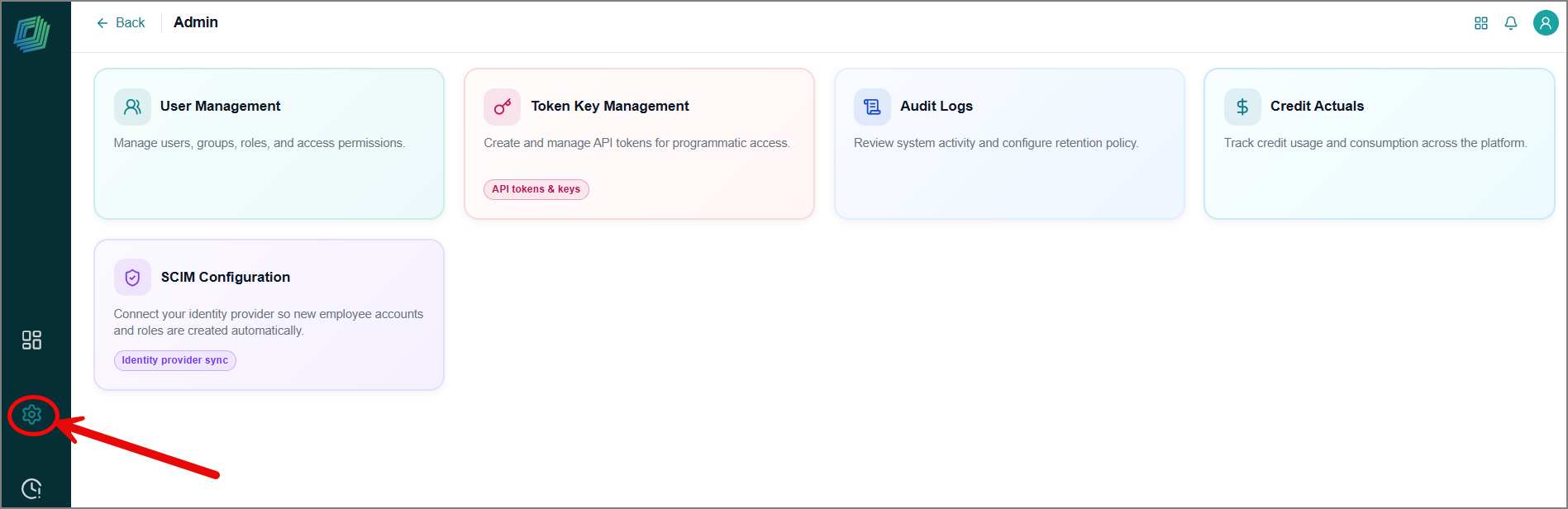
Click the Admin icon in the left-side panel.
The Admin page opens.
Click the Audit Logs card to view the complete platform logs for the past 180 days.
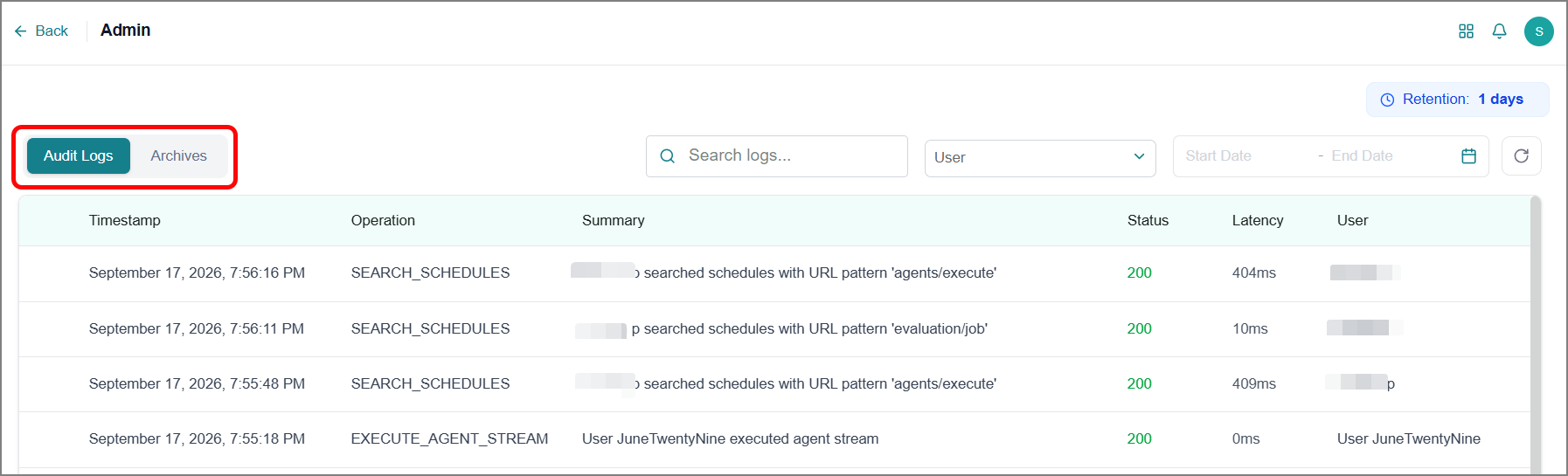
Audit Logs tab - View the last 30 days of logs.
Archived tab - View the last 5 months of logs.
Click the Refresh Logs
 icon to view the latest logs.
You can update the log retention period to keep the log for the preset period.
Click the Edit Policy
 icon.
icon.Enter the new retention period (number of days).
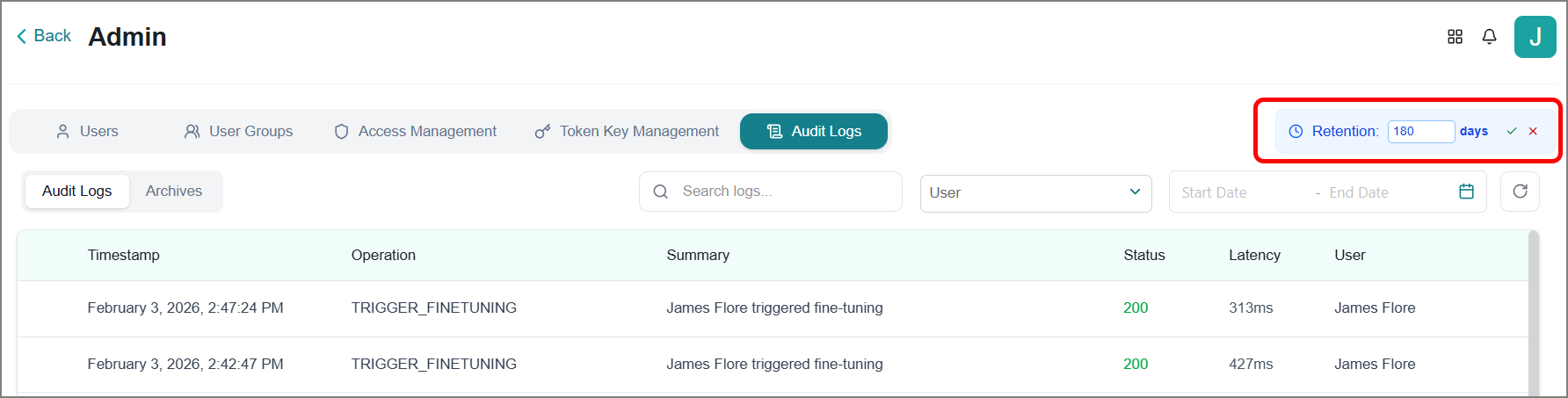
Click the OK
 icon to save.
The updated retention period takes effect immediately and applies to all future logs, per the configured timeline.
Filtering Logs
The platform makes it easy to locate specific logs with flexible filtering options:
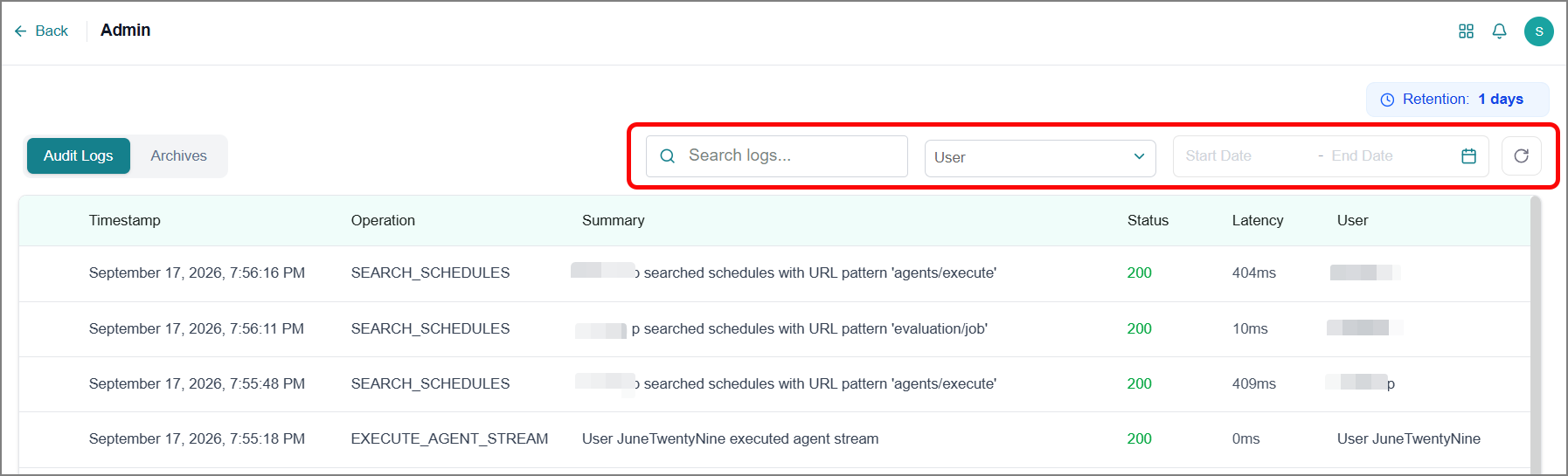
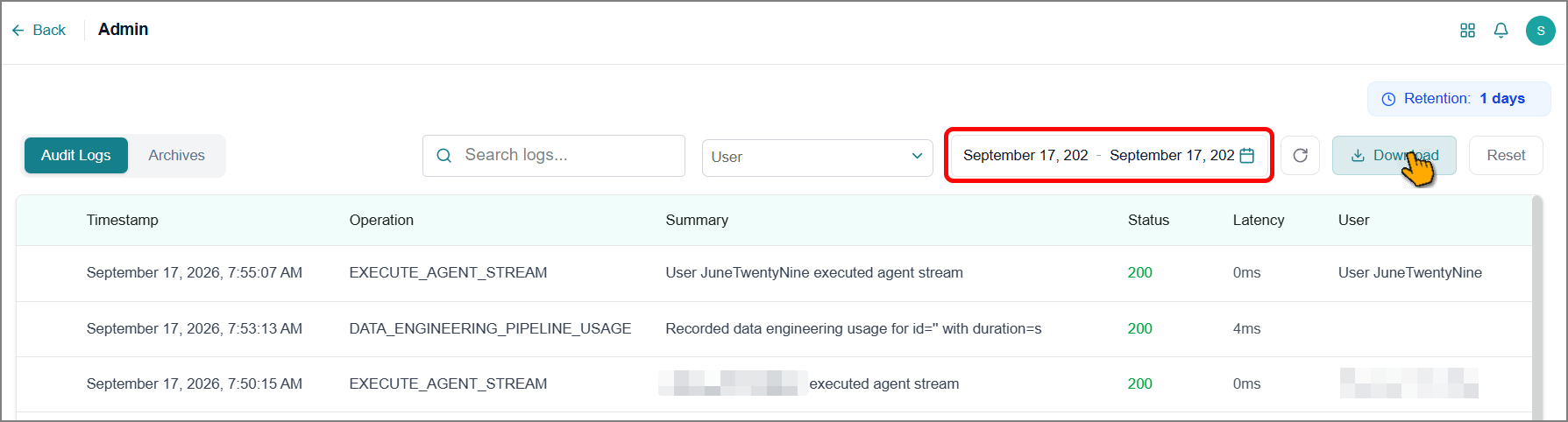
Search Box - Type keywords to quickly find relevant log entries.
Filter by User - Select specific users from the dropdown to view their activities.
Date Range - Choose start and end dates and times to focus on specific periods.
Click Download to export the filtered data.
Download Archived Logs
The platform automatically archives audit logs at the end of each month, preserving your historical data for long-term access in accordance with the predefined retention policy. You can view and download these archived logs whenever you need to review past activities or prepare compliance reports.
To access archived logs:
Click the Archives tab.
All archived data is organized by month.
Select a month from the dropdown to narrow your search.
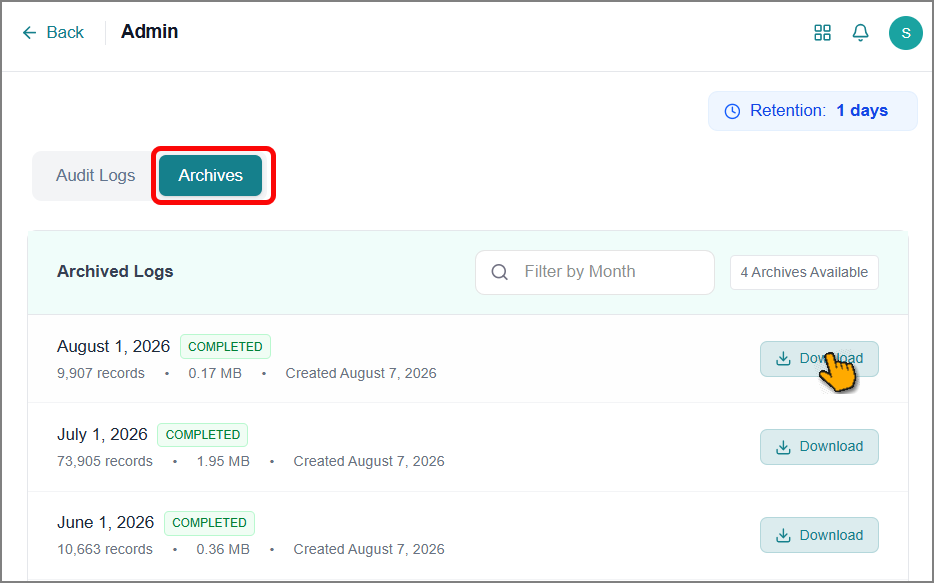
Click Download.
The logs are exported as JSON files to your local system.