Access Knowledge (KaaS)
Reach out to the implementation team to obtain the customer-specific organization name, username, and password required to access the Knowledge (KaaS).
Uniphore's Super Admin creates a new user by assigning them to the appropriate organization, creating a username, and generating a temporary password. Once the user is provisioned, they receive two emails from the Uniphore support team: one with a secure link to reset their password, and another with the organization name.
Caution
You must reset the temporary password before logging in, in accordance with password security policies.
To access the platform:
Go to https://ng.uniphore.com.
The login page opens.
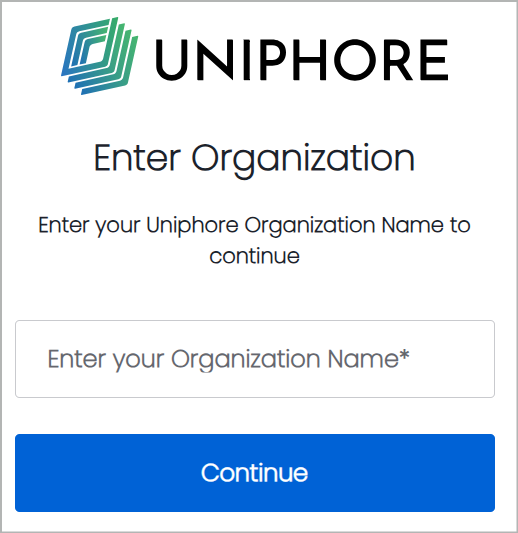
Enter the organization name that was provided to you.
Click .
The welcome page opens.
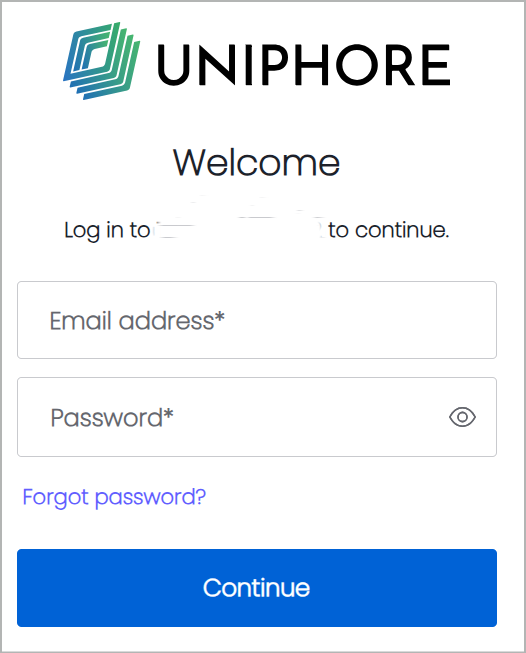
Enter the Email address that is registered as your username with Uniphore.
Enter the Password.
Note
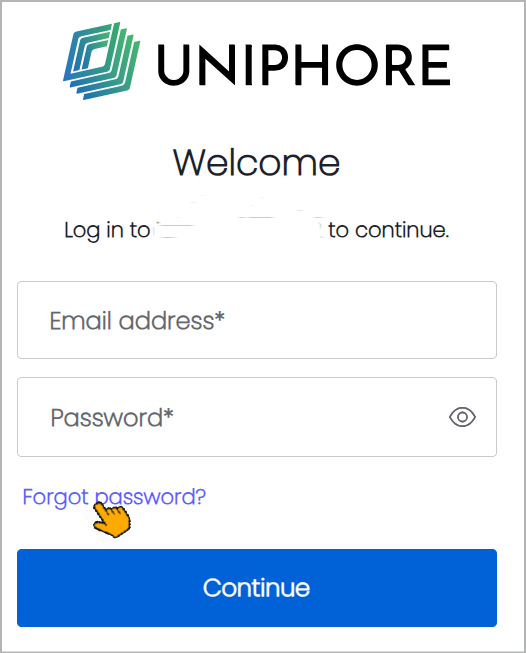
If you need to reset or have forgotten your password, select the Forgot Password?.
If prompted, select the I’m not a robot checkbox.
You may be required to complete additional verification steps.
Click .
Upon successful sign in, you're redirected to the main page of your Knowledge (KaaS) platform.
Forgot Password
The forgot password feature enables users who have forgotten their passwords to initiate a request for a new password.
To utilize this feature:
Go to the Knowledge (KaaS) Log in page.
Enter the organization name.
Click Continue.
Click Forgot Password?
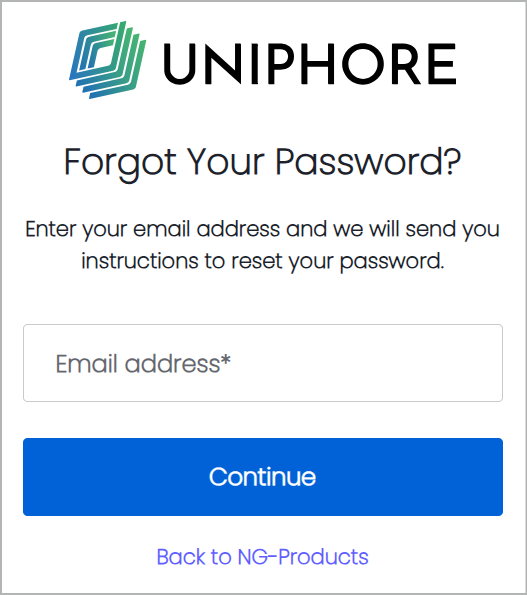
The Forgot Your Password page opens.
Enter your Email address.
Note
The email address must match the one registered with Uniphore at the time the user was created under the tenant.
Click Continue.
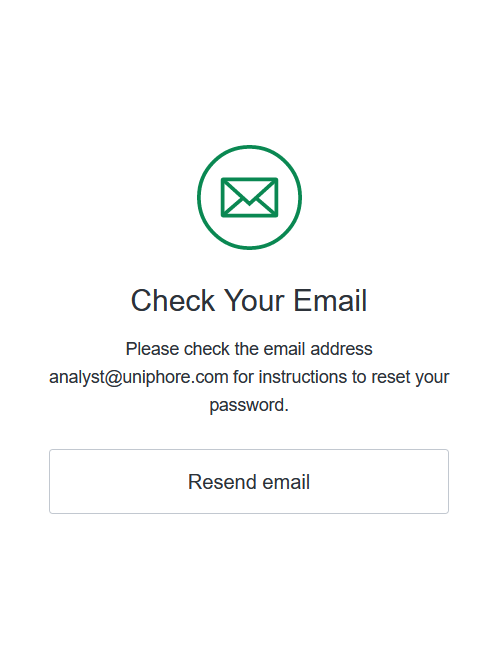
A confirmation message is displayed and the link to reset the credentials is sent to your email.
Note
If you do not receive the email, click Resend email in the confirmation message.
Go to your email and click the password reset link or the Confirm button.
The Change Your Password dialog appears.
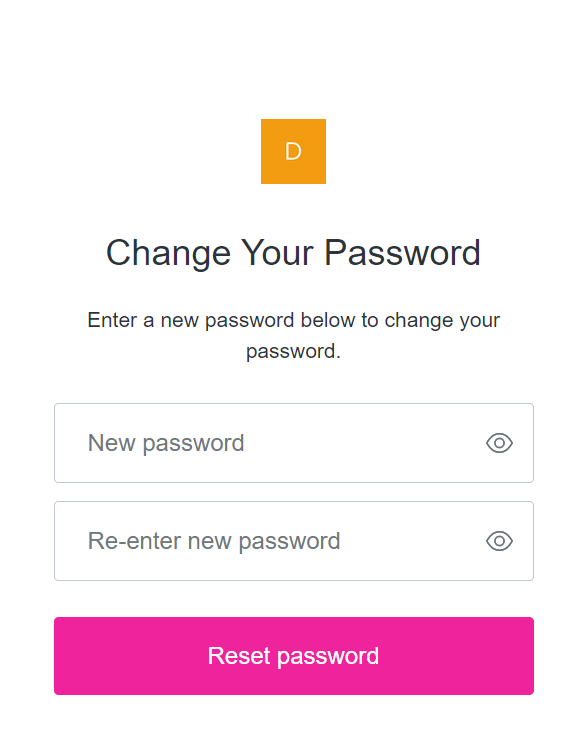
Enter the New password and Re-enter new password once again.
Caution
The new password must meet the Password Security requirements.
Click Reset Password.
The Password Changed confirmation message appears.
Password Security
To ensure the security of your account, your password must be at least 12 characters long. In addition, it must meet at least three of the following requirements:
Lower case letters (a-z)
Upper case letters (A-Z)
Numbers (0-9)
Use special characters (e.g., % $ # ! )