About Workspaces
A workspace is a logical container that stores the transcripts and discovery results for a particular project, line of business, or use case. All Process Intelligence activities, including transcript uploads, discovery runs, and process category results, are managed and organized within a workspace.
Creating a New Workspace
A workspace is used to organize transcripts and run discovery analysis to identify process categories, personas, and workflow insights.
Click + Workspace to create a new workspace.
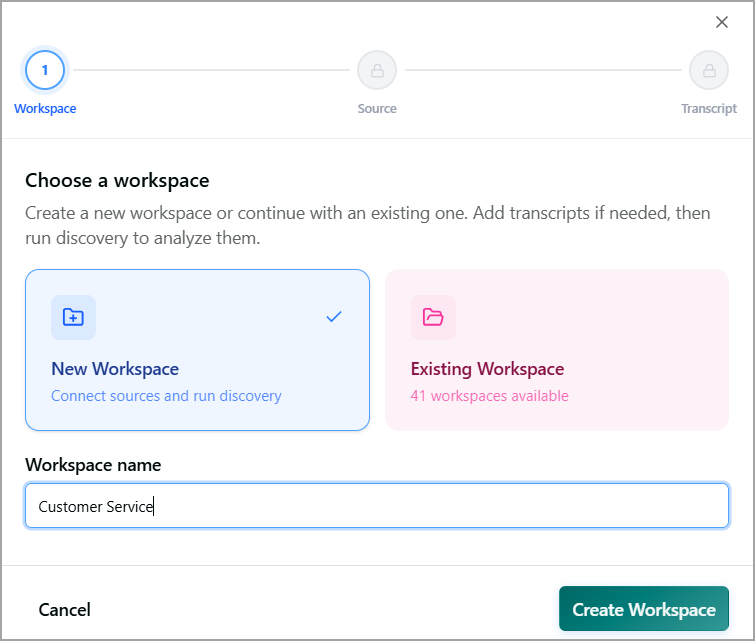
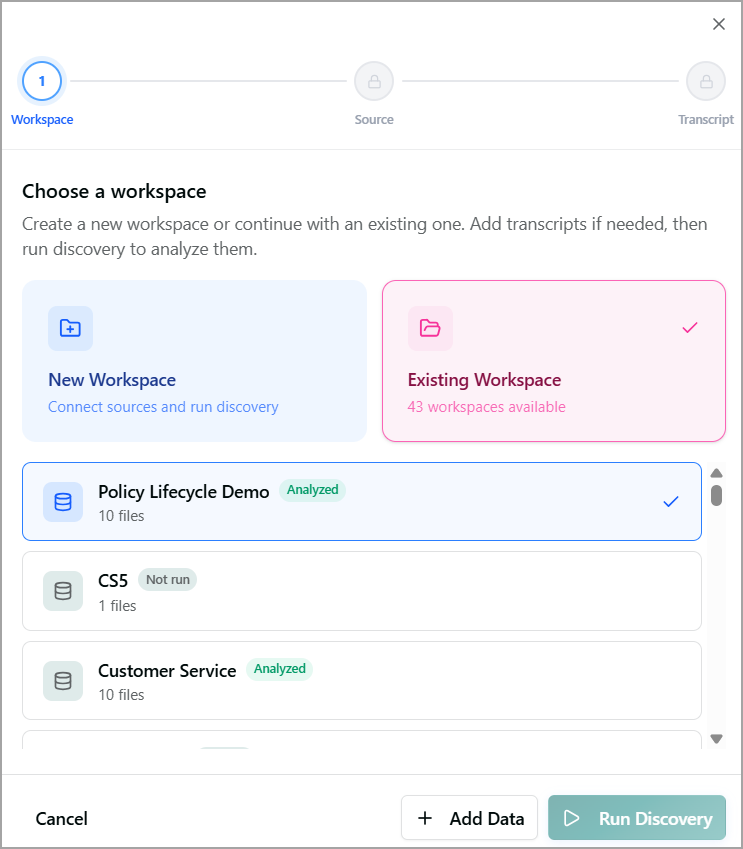
Click the New Workspace tile and mention a Workspace Name that describes the scope of your analysis (for example, Policy Lifecycle or Telecom Tier-1 Support), and then click Create Workspace.
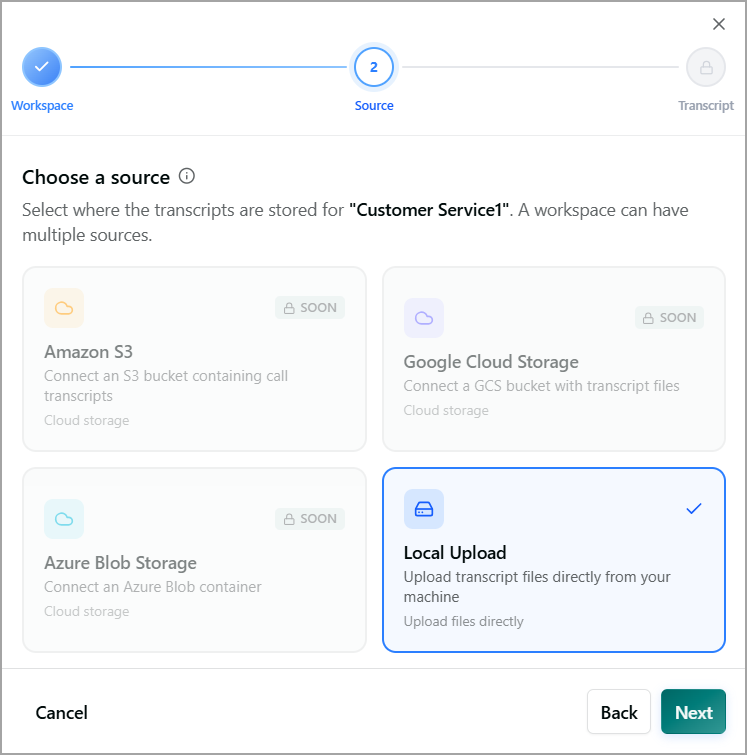
Select the source containing the transcripts to be analyzed and click Next. A workspace can contain transcripts from one or more sources.
Note
The current release supports only Local Upload as a transcript source.
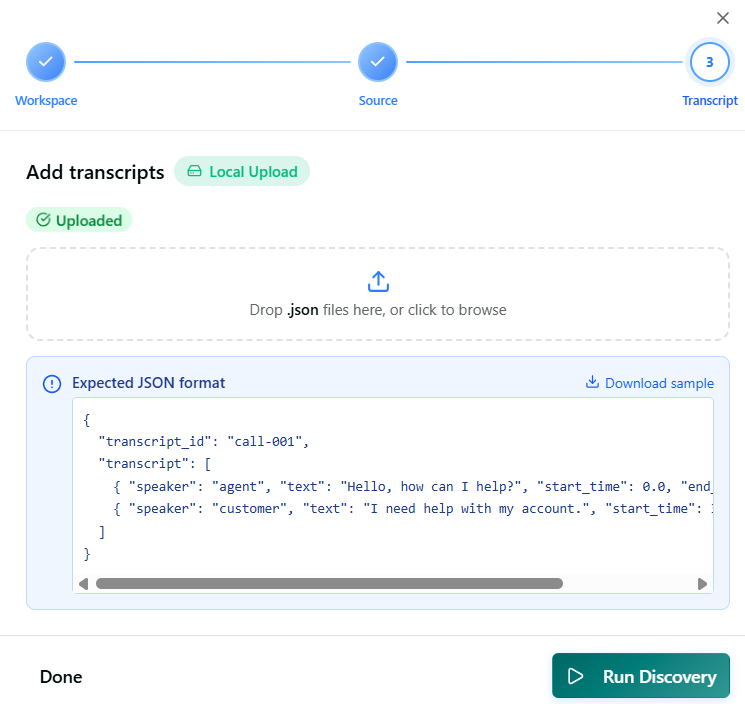
In the Add Transcripts screen, upload a transcript file in any one of the ways:
Drag and drop - Drag the .json file into the upload area.
Browse - Click anywhere within the upload area, select the .json file from your computer, and upload it.
The selected transcript file name is displayed below the Expected JSON format section. Note that the transcript file must meet the following conditions:
The transcript file must be in JSON (.json) format.
The file structure must follow the supported transcript schema. To validate the file structure before uploading, click Download Sample to download a sample JSON file and use it as a reference when preparing your transcript file.
Click Upload file. After the file is uploaded successfully, the newly created Workspace is displayed in the Workspace Selector dropdown list.
To remove the selected file, click Close on the file tile or click Clear All above the uploaded file list.
Click Run Discovery to begin analyzing the uploaded transcripts. While the analysis is running, the workspace status displays Discovery in Progress next to the workspace selection list.
When the analysis is complete, a Discovery complete badge appears next to the workspace name. You can then view the following insights:
Process Categories – Displays the discovered process categories as cards on the Process Categories tab. Categories are grouped based on common intents and workflow patterns identified across the analyzed conversations.
Persona Archetypes – Displays automatically identified customer personas on the Persona Archetypes tab. These personas represent common caller types, their objectives, and recurring challenges identified from the analyzed conversations and discovered process categories.
ROI Analysis – Displays an estimated business impact of automating or optimizing the discovered processes on the ROI Analysis tab. This analysis helps identify opportunities for improving operational efficiency and reducing costs.
Selecting a Specific Workspace
Use the Workspace Selector dropdown list below the transcript discovery status to switch between available workspaces.
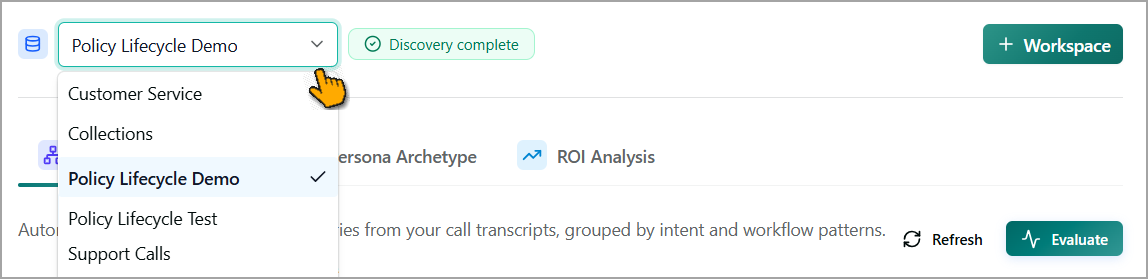
When you select a workspace, the Process Categories, Persona Archetypes, and ROI Analysis tabs are automatically updated to display insights and analysis results for the selected workspace only.
Adding Transcripts and Running Discovery on an Existing Workspace
You can add new transcripts to an existing workspace and update its analysis results.
Managing Workspaces
The Manage Workspace dialog enables you to view, search, select, rerun discovery, and delete Process Intelligence workspaces. It also displays the current discovery status and the number of transcripts available in each workspace.
Click Manage Workspace (
 ) next to the Workspace Selector dropdown. The Manage Workspace dialog is displayed on the right side of the page.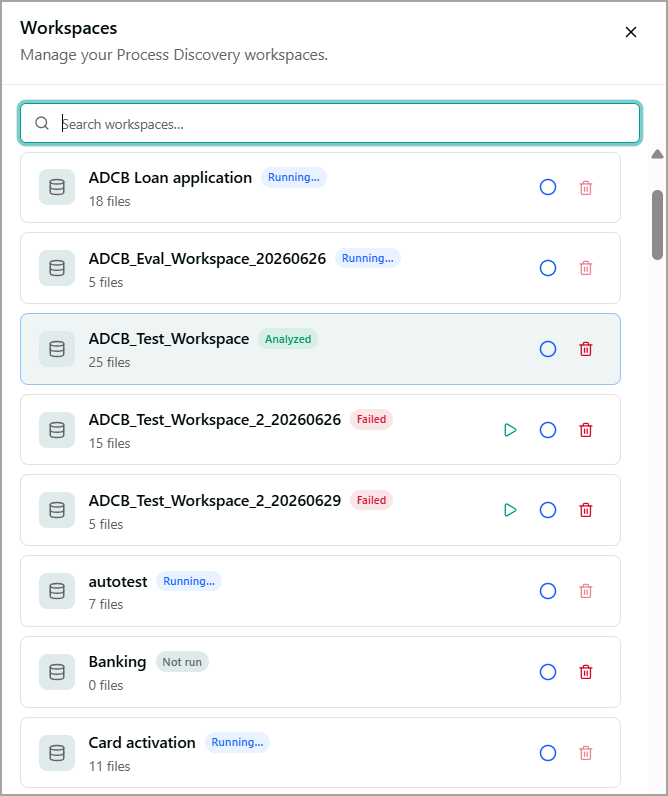
For each workspace, the current discovery status and the number of uploaded transcripts available are displayed. The following discovery statuses are supported:
Running - Indicates that process discovery is currently in progress.
Analyzed - Indicates that process discovery completed successfully.
Failed - Indicates that the process discovery run was unsuccessful. You can rerun the analysis after resolving the issue.
Not run - Indicates that process discovery has not yet been run for the workspace.
When the workspace list is long, you can locate a specific workspace by entering a few letters from its name in the Search field, located at the top of the list.
For each workspace, you can perform the following actions:
Run Discovery (
 ) – Starts or reruns process discovery for the selected workspace. This action is available for workspaces with a Failed status or when discovery needs to be rerun.
Select Workspace – Select the radio button to make the workspace active. The selected workspace is loaded on the Process Intelligence page.
Delete Workspace (
 ) – Deletes the selected workspace and its associated transcripts, discovered processes, and generated SOPs.