Understanding Session Variables
Session Variables are variables that are created using the X-Console. Once created, they are available for use in any Flow in the account. (Unlike User Variables, they cannot be modified using the X-Designer.)
Session Variables are mainly intended for storing values that will be used in multiple Flows. Two types of Session Variables are available:
Customer Session
 variables that you can use in all Flows, which are reset whenever a Flow is run.
Agent Session
 variables that are available to all Agent sessions, i.e., when an Agent is using the Agent application, and which are reset only after the Agent logs out of a session.
Note
Agent Session variables are not valid for Flows running self-service applications like Mobile Web, Web Self-Service or Customer Assistant.
When you create a Session Variable, any initial values set in the X-Console will be automatically assigned in the X-Designer. A Session Variable can then be updated by events that take place during a Flow. For example, when a Chatbot is used the Session Context Session Variable will be updated as the conversation progresses.
Session Variables are an important and powerful part of Flow design. They can supply important runtime information, determine whether input is saved in the database, and help to route a customer journey or a call.
For more details about using Session Variables, click here.
To view details about any variable in the X-Designer, click on its name in the in the Variables listing, found in the Solution Explorer.
Pre-Configured Session Variables
X-Console comes with a set of built-in, 'out-of-the-box' Session Variables, listed in the following table.
The Session Type of a pre-configured variable cannot be changed.
Some pre-configured variables are set as Read-Only and are used to automatically supply key information at runtime. A Read-Only variable is assigned a value when a Flow starts and cannot be altered while the Flow is running. For more on using Read-Only values, click here.
When using Session Variables in a Flow, you can assign them an initial value before the Flow is published. After you publish a Flow, the Session Variables associated with it cannot be modified, appended or removed.
From the X-Console, you can delete any pre-configured variables which you don't need.
Note
In addition to pre-configured Session Variables, X-Designer elements can access several internal server values: Random Number, Current Date and Empty String. For details on their access and use, click here.
Variable Name | Type | Read-Only | Initial Value/Description/Notes |
|---|---|---|---|
Usage Notes: (1) This built-in Read-Only variable is accessible only by X‑Platform Mobile Self-Service applications. (2) This built-in Read-Only variable is accessible only by X‑Platform Web Self-Service applications. (3) This built-in Read-Only variable is not accessible by any X‑Platform applications. | |||
Access Token | Text | ✓ | Token returned by Oauth2 following request. |
Accuracy (1) | Number | ✓ | Accuracy value of the reported device GPS reading. |
Agent email | Text | Email address of the relevant Agent. | |
Agent Skill | Text | Value as defined by Tenant. Example: Beginner | |
Altitude (1) | Text | ✓ | Altitude reported by the device GPS. This value is set when the |
Altitude Accuracy (1) | Number | ✓ | Accuracy of the reported device altitude, also provided by the GPS. This value is set when the |
Android ID (1) | Text | ✓ | The unique hex string that identifies the current Android device. |
Bearing (1) | Number | ✓ | Compass direction in degrees reported by the device GPS. This value is set when the |
Bot Output | Dynamic | Stores the most recent output from a Chatbot session. | |
Brand (1) | Text | ✓ | Name of the brand for which the software is customized, if any. Example: Samsung |
Call Now Phone Number | Text | Initial Value: " | |
Call Now Target Description | Text | Initial Value: " | |
Call Return Number Entered (3) | Text | ✓ | Stores the number entered by the Flow user during the callback request. |
Camera is Available (1) | Boolean | ✓ |
|
Click-to-Call Caller ID (3) | Text | ✓ | Stores the Call Now target phone number that was displayed to the Flow user. (Relevant when the handling method is DNIS Service Application.) |
Conversation ID | Text | Stores the Conversation ID of the current Chatbot instance. | |
Conversation Parameters | Dynamic | Stores call-centric data (e.g., phone number, call ID, ANI, DNIS, IVR inputs, etc.) collected by the Real-Time Guidance Agent AI Agent Application at the start of a customer call. Available throughout the call. | |
Conversation Summary | Dynamic | Stores data collected by the Real-Time Guidance Agent AI Agent Application during a customer call. Available when an Agent submits the call summary following a customer call. For details on this mechanism, click here. | |
Conversation Disposition | Dynamic | Stores AI-predicted Disposition values collected by the Real-Time Guidance Agent AI Agent Application during a customer call. Available when an Agent submits the call summary following a customer call. For details on this mechanism, click here. | |
Current Environment | Text | The currently active multi-environment mode, i.e., DEV, TEST or PROD. | |
Customer ID | Text | Value defined by Tenant. | |
Customer Profile | Text | Value defined by Tenant. | |
Device Name (Legacy) | Text | ✓ | Currently-supported mobile browsers do not report this information. This variable will always be empty. |
Device OS | Text | ✓ | Replaces Device-Type (used for mobile application version validation). Example:
|
Device OS Version | Text | ✓ | Replaces Os-Platform-Version (used for mobile application version validation). Example: 5.1.1. |
Device Platform (1) | Text | ✓ | The model of the device. Example:
|
Device Serial ID (1) | Text | ✓ | The serial number of the device. |
DNIS Group | Text | The pool designated to supply the phone number for a customer to call. This value is used by the DNIS Manager. Example: sales, technical support, southwest, etc. | |
DTMF | Text | ✓ | A unique number that is generated by the server when Voice Settings are set to DTMF. |
Engine Response | Collection of Text | Stores the current response data from the NLP engine during a Chatbot session. | |
External Session Id | Text | Stores the ID of the current external session. | |
First Name | Text | First name of the customer or caller. | |
historySearchId | Text | A unique identifier defined by the Call Center and passed in a URL parameter, or allocated to a Flow variable. Used by Agents to search for a specific Flow's history. Note: The name of any variable to which historySearchId is allocated should not contain any spaces. | |
ICCID (3) | Text | ✓ | Integrated Circuit Card ID of the SIM card in the device. |
IMEI (1) | Text | ✓ | International Mobile Equipment ID of the device. |
IMSI (1) | Text | ✓ | International Mobile Subscriber ID of the device. |
Intent Probability | Number | Initial value: 0 Stores the Intent probability value returned by the NLP engine during a Chatbot session. | |
Interaction Unique ID | Text | ✓ | Stores the unique ID for the current Flow generated by X-Console. |
IP Response | Dynamic | Stores the complete response content of an Integration Point. | |
JMA Module Version | Text | ✓ | Used for mobile application version validation. |
JMA Version | Text | ✓ | Used for mobile application version validation. |
Language | Text | Language set for the current Flow. This value is set when a | |
Language Detected by LID | Collection of Text | List of languages detected from Self-Service Agent user input. This value is set when the Language Identification Needed toggle is activated in the Uniphore Voice Connector (UVC) facility. For details, click here. | |
Last Name | Text | Last name of the customer or caller. | |
Latitude (1) | Text | ✓ | Latitude in decimal format, reported by the device GPS. This value is set when the allowLocation flag appended to the access URL has been set to true. For details, click here. |
Locale | Text | ✓ | The current language locale. Example: en-US, es, fr |
Longitude (1) | Text | ✓ | Longitude in decimal format, reported by the device GPS. This value is set when the |
Manufacturer (1) | Text | ✓ | Name of the device manufacturer. Example: Samsung |
Navigation Current Page (2) | Text | ✓ | Name of the currently active Flow page. |
Navigation Start Time (2) | Date | ✓ | Time when the user initiated the current Flow. |
Non Audit | Boolean | Initial Value: False Used by the Do not audit variable setting. Determines whether user input will be saved in the database and the log files. For more details, click here. | |
Phone Number | Text | Phone number of the calling device. | |
Promise ID | Text | ✓ | The unique ID of a detected Real-Time Guidance Agent Promise. |
Protocol Version | Text | ✓ | Internal API version of a client that is running on the X‑Platform Server. |
RPA Bot ID | Text | ✓ | Stores the ID of the RPA Bot running in Attended Mode. |
RPA Message | Text | Stores the last message returned by the RPA Bot in the event of an error or timeout. | |
RPA Status | Text | Stores the last status code returned by the RPA Bot. | |
Satisfaction Score | Number | Initial Value: 0 Stores the satisfaction score returned by the Flow. | |
Screen DPI (1) | Number | ✓ | Initial Value: 0 DPI value of the user screen. |
Screen Height | Number | ✓ | Initial Value: 0 Height in pixels of the user screen. |
Screen Width | Number | ✓ | Initial Value: 0 Width in pixels of the user screen. |
Sentiment Analysis Score | Number | Initial Value: -2000 Last value returned by the configured sentiment analysis service. | |
Session Context | Dynamic | Current Session Context value returned by the NLP engine during a Chatbot session. For details on this mechanism, click here. | |
Session User Sentences | Collection of Text | The collection of user sentences for the current current Chatbot session. For details on this mechanism, click here. | |
SIM State (1) | Text | ✓ | The current SIM card state. |
SIP Phone Number | Text | The phone number that will be used when transferring a Self-Service Agent chatbot end user to an Agent. (Passed to the SIP telephony connection.) For more details on using this variable, click here. | |
SIP Skill Group | Text | The functional group or skill level required when transferring a Self-Service Agent chatbot end user to an Agent. (Passed to the SIP telephony connection.) For more details on using this variable, click here. | |
SIP Transfer URL | Text | The URL end point that will be used when transferring a Self-Service Agent voice call to an Agent. (Passed to the SIP telephony connection.) For more details on using this variable, click here. | |
SourceTelephonyID | Text | Used by Self-Service Agent: The unique ID provided by the external telephony source. | |
Speed | Number | ✓ | Initial Value: 0 Speed of motion as reported by the device GPS. This value will be non-zero only when the |
SummarySubmitServiceFlowStatus | Text | Stores the service flow status values (Error, Completed, Running, and Canceled) used in the conditions of a Decision Point. | |
Target Telephony Queue | Text | During call routing, stores a Queue ID to help make the Queue ID name more user-friendly. | |
Time Stamp | Date | ✓ | Start time of current Step displayed as a date. |
Time Zone | Text | ✓ | Offset value in minutes from GMT (UTC) of this device. Example: A device in New York (EDT) might return the value -300 (i.e., -5 hours * 60) |
UserID | Text | Used by Self-Service Agent:
| |
User Input | Text | Stores the latest user input value. | |
UserRoles | Collection of Text | ✓ | Stores the user roles defined for the current account user. |
USelfServe Containment | Boolean | Used by Self-Service Agent: Indicates whether the current Session was successfully contained in accordance with the use case that is defined for the relevant VA/Bot. | |
WiFi (1) | Boolean | ✓ | Initial Value: False Indicates whether WiFi is currently being used. |
Read-Only Variables
A Read-Only variable is a special kind of Session Variable that may be used in Flows. During runtime, it will not retrieve any value and cannot be changed or allocated with values by a user. The Read-Only toggle is active when the variable is opened in the Variable Editor:
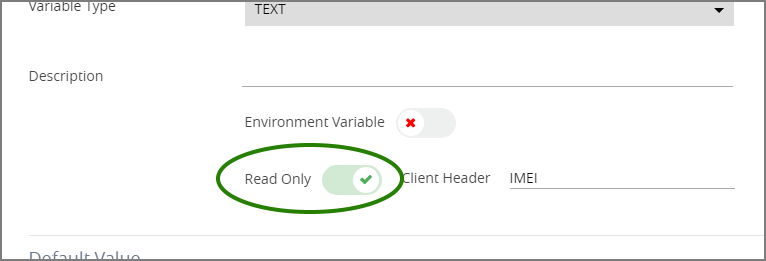 |
You can change the Read-Only state of any variable. Simply switch the toggle between active and inactive.
Read-Only variables are populated automatically just before a Flow is run. They are often used to obtain pre-Flow information about the Flow user's device (e.g., operating system, screen size, location, etc.).