Types of Executions
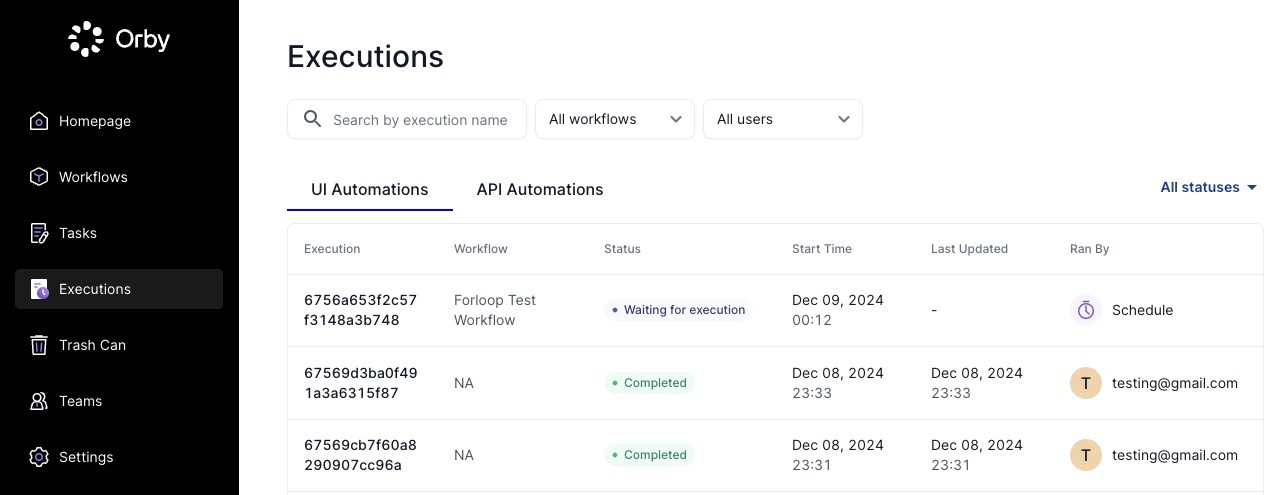 |
This page contains the list of executions for both UI automations and API automations.
For UI Automations executions, admins and users will see the latest executions on top, with Execution ID, Workflow name, Status and Start Time, when and who it was executed by. Clicking the row will take users to the execution details page. In addition, users can search by execution name (e.g., report ID for Concur workflows) or filter by workflow, status and users assigned.
When viewing the details, admins and users will see the name and timestamp of the execution, followed by the execution status banner. The summary provides a list of data on execution duration and whether human review was performed. The executed steps will be highlighted in green. On hover, the user can see that a screenshot could be available for the step. In addition, the execution for loops will be numbered in “Execution 1”, “Execution 2” and so on.
There are two ways of executing an UI automation workflow: manual run or scheduled run
For manually running a workflow, click “Run“ in the workflow page or from the extension panel
For scheduled run, go to the “Schedule“ tab and add a one-time or recurring schedule
Adding machine for scheduled workflow runs
Users can set up machines and connect their UI automation extensions to run scheduled workflows
Scheduled workflows now only run on machines
How to create a machine:
Users should first install the latest chrome extension (v12.0.0 and above) on the target machine (usually a VM). They do not need to log in.
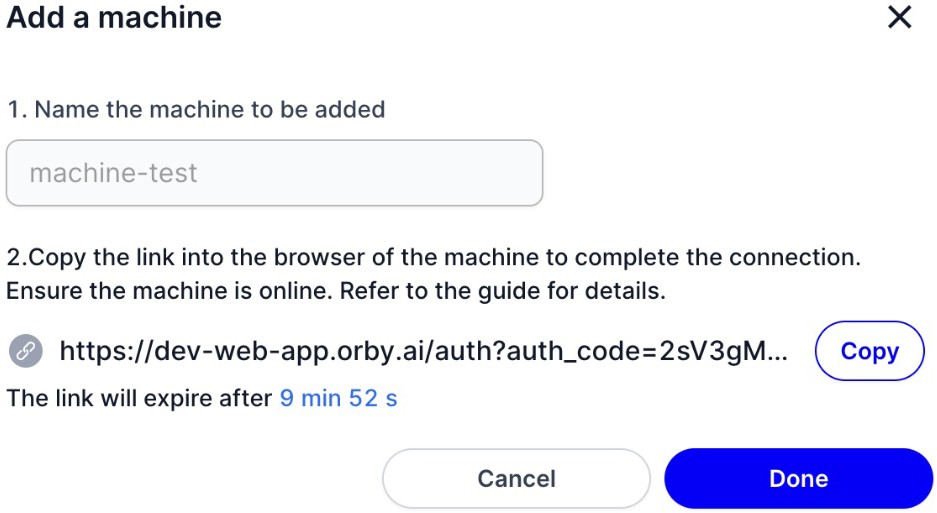
Users can create a machine in the Orby web app under Settings/Machines. Once a machine is created, users are provided with a link. They can copy that link and paste it in a chrome browser for the machine they are trying to authenticate as long as the UI automation extension is already installed (authentication is not required). After copying the link, click Done to close the modal.
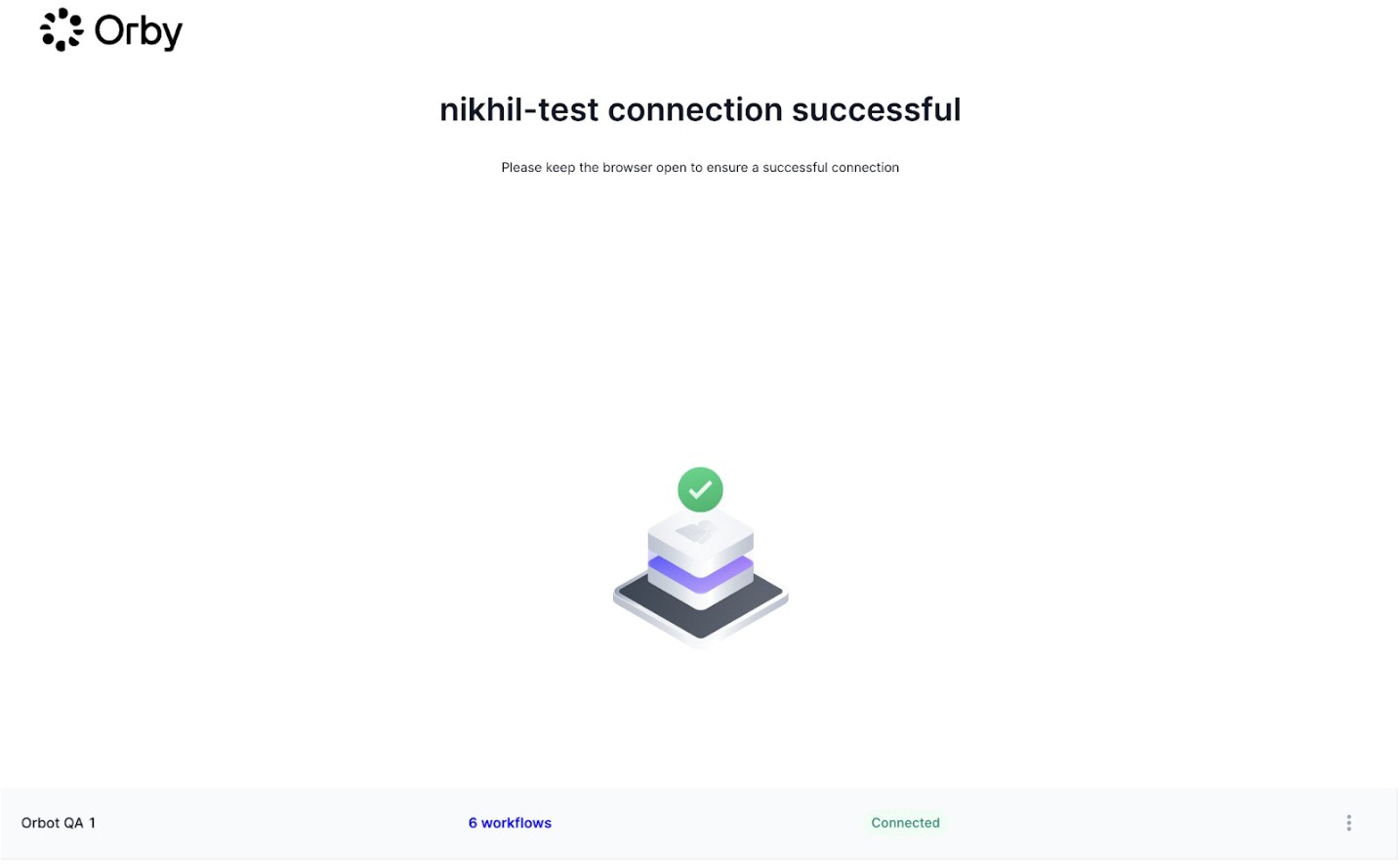
The chrome extension will authenticate the machine and it will show up as connected in the browser of the machine
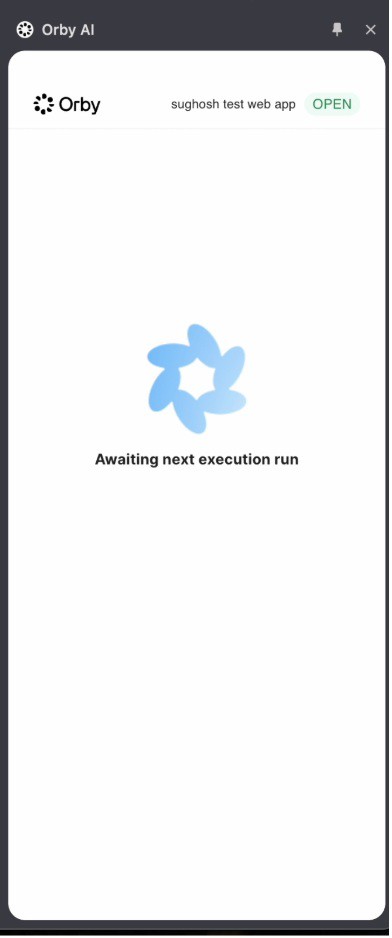
Now in the workflow schedule page, a user can configure a schedule and assign machines to execute the schedules. This is an example of the extension in an authed machine:
 |
Notes
Machines can’t manually run workflows, only scheduled workflows User must keep the machine window open for workflows to run
For API Automations executions, admins can see the latest executions on top with the file name as execution name, workflow name, status and last updated time.
For executions with ‘Completed‘ or ‘Pending Review‘ statuses, clicking the row will take admins to the annotation editor
Blocked executions: when the initial learnings are required or the quota has been met for a workflow, the execution status for tasks will show up as “Need Attention“, user should click the ‘Review tasks‘ action to filter out the list of tasks that should be prioritized to review, in order to unblock other tasks
For all executions, deleting the execution will delete the executions and related tasks generated by the execution.