Testing Audio and Transcript Files Using the AI Agent Assist Application
Real-Time Guidance Agent provides a built-in facility that enables a Business User or a Manager to upload and test audio and transcript files directly in the AI Agent AssistApplication to observe the performance of various AI sub-components (i.e., Intents, Flows, Promises, etc.) when running or testing Experiences. This helps to ensure that the configuration of AI sub-components meets client requirements without the need to configure any external telephony system integrations.
Tip
A Business User acting as an Agent can upload and test audio and transcript files when running or testing Experiences, allowing them to demonstrate the AI Agent Assist Application in accordance with client requirements without the need to configure any Telephony System integrations. This capability is available only when running in DEV and TEST environments.
The Upload and Test feature is not available in the AI Agent Assist Application when running in the PROD environment.
The Business User is usually a Flow Admin, Account Admin, Business Analyst, or Quality Analyst.
Testing an Experience against the Uniphore Natural Language Processing (NLP) engine on a regular basis and making configuration modifications to your AI Model can greatly increase the accuracy of AI Results and efficiency of your AI Model.
Enabling the Upload and Test
In order to use the Upload & Test Audio File feature, an Account Administrator or Flow Administrator must enable it for the associated AI Agent Assist client application:
From the X-Console Resources menu section, select Applications. The Applications page is displayed.
Locate and click the Name of the relevant Agent AI Assist Application. The Details panel for the Application is displayed.
Click the Client Settings tab. The Client Settings panel is displayed.
In the Menu section, locate the Upload & Test field and ensure that the toggle to its right is turned on (green).

Click Save. The Upload & Test Audio File feature is now enabled for the selected AI Agent application.
Uploading and Testing Audio and Transcript Files
The Test Audio/Transcript File Facility can analyze the AI sub-components configuration and mapping of Intents and Alerts to the relevant Flows, Entities to the Session Variables, and defined Call Summary Template for the specific Business Process. In the AI Agent Assist Application, an Account Administrator, Flow Administrator or Business User acting as an Agent can upload an audio file or transcript file for an Experience and analyze all real time capabilities.
To log into the AI Agent Assist Application as an Administrator or Agent, follow the steps below:
Login to AI Agent Assist Application as an Administrator:
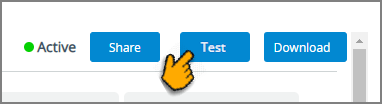
From the Applications associated with Agent AI Assist channels, click the Test button to immediately view the relevant AI Agent Application.
Login to AI Agent Assist Application as an Agent:
From the Applications associated with Agent AI Assist channels, click the Share button to produce a URL link to the selected Application.
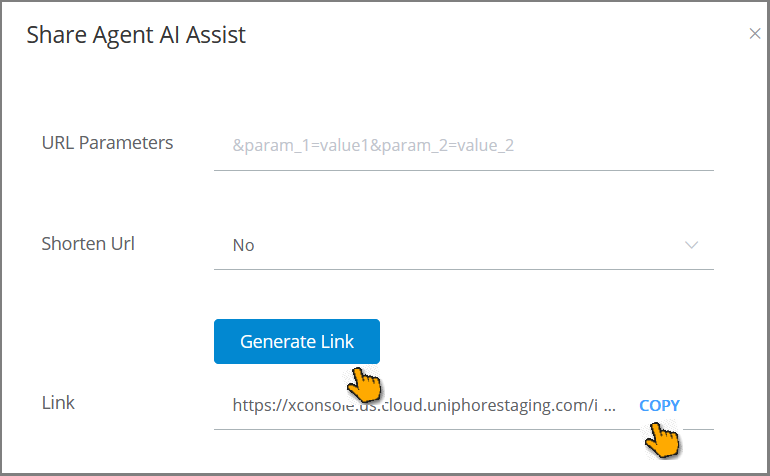
Click Generate Link to share the Application. Then, copy the resulting information and paste it into your Browser to access the AI Agent Application.
Click the Upload & Test icon in the AI Agent toolbar. The Upload & Test Panel is displayed.
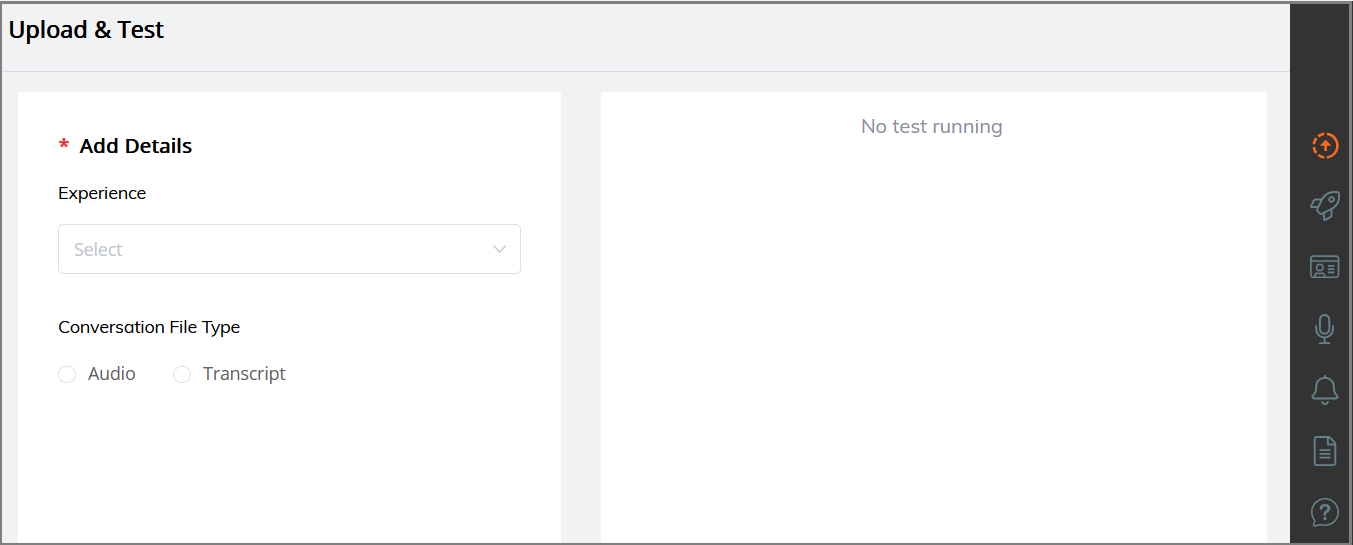
From the Experience drop-down list, select an Experience which manages unique subsets of AI data components for Business Processes.
Select any one of the Conversation File Types to view the test results:
Audio - Allows you to test the AI results from an audio file (.wav).
Transcript - Allows you to test the AI results from a complete conversation of transcript file (.txt).
Note
By default, the transcript file is tested using a Voice method, similar to audio call testing.
If you want to test the transcript file with a Chat method, contact your Uniphore Support representative.
For more information on testing transcript file with a Chat method, click here.
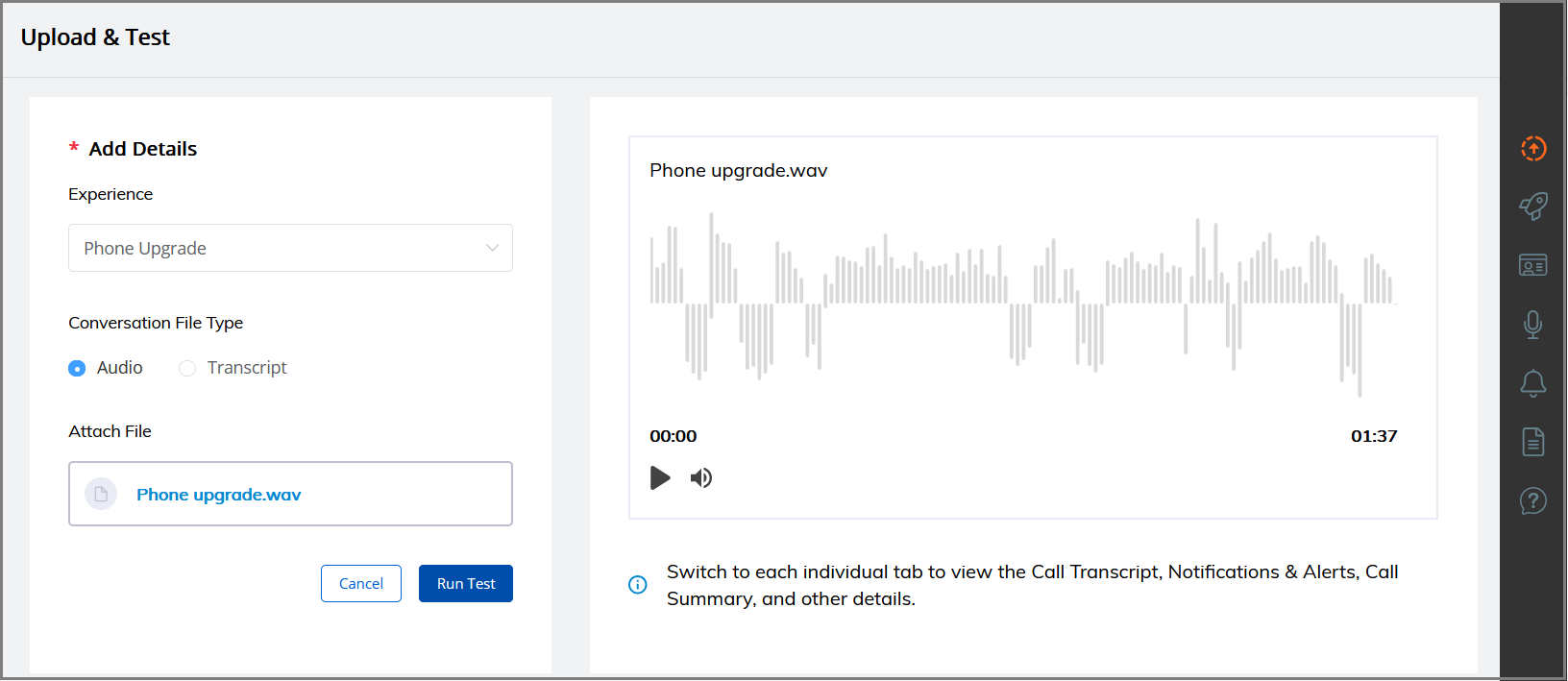
In the Attach File section, upload an audio or transcript file and click Run Test.
For more information on testing audio file, click here.
For more information on testing transcript file, click here.
If necessary, click the Notes (
 ) icon at the top right corner of the page. The Agent Notes window is opened from the left side. In the Notes section, you can quickly jot down any information that you want to refer to later.
For more information on adding Notes, click here.
After analyzing and making corrections to the AI results for the processed audio file or transcript file, click Submit Summary button in the Call Summary or Generative AI-based Call Summary page to submit the summary.
If the Agent does not submit the summary for the previous tested audio or transcript file, and a new test audio or transcript file is in the queue, a notification is displayed.
For more information on submitting Summary, click here.
Click the Reset button to clear the selected data from the Upload & Test panel and then test a new audio or transcript file.
Testing an Audio File
In the Attach File section, upload an audio file in any one of the ways:
Click Choose File. The window to select file will open. Select and upload the audio file.
Drag and drop the audio file to an empty space.
Note
The audio file must be in .wav format, with a maximum file size of 100 MB.
The uploaded audio file name is displayed, after successful uploading.
To clear the selected data from the Upload & Test Panel, click Cancel.
Click Run Test. The audio file will be played.
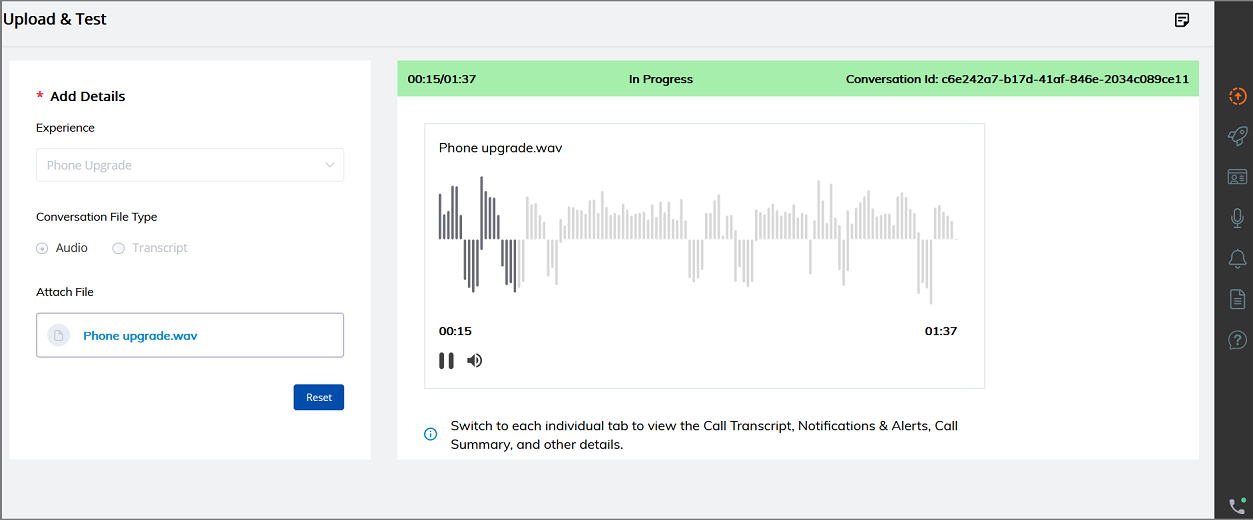
The total ongoing call duration and the time period in which audio is playing are displayed at the top of the Upload & Test panel and at the bottom of the audio player. The auto-generated conversation ID and status of the audio (In Progress or Ended) are also displayed at the top of the panel.
The status shows "In Progress" while the audio is running. The status is changed to "Ended" once the audio has finished.
When the audio is in progress, U-Assist will listen to the conversation and begin performing its analysis and displaying the run time capabilities as soon as the customer's goal is determined. Click on each button in the Agent Toolbar to access the following capabilities:
Recommended Flows
AI-based Alerts to assist the Agent
Transcript of the conversation
Auto-generated Call Summary or Generative AI-based Call Summary
Promises (i.e., promise-type intents) being automatically detected
Instant answers to any Frequently Asked Questions using the Knowledge Assist Q&A bot
Note
The GenAI Summary will be generated after the call.
If necessary, click the Play button to pause or replay the audio. When you pause the audio, you can see the transcription and run time information generated in a paused state. When you continue to play the audio, U-Assist will resume its analysis and display the transcription and run time information from where the audio was paused.
Testing a Transcript File
In the Attach File section, upload a transcript file in any one of the ways:
Click Choose File. The window to select file will open. Select and upload the transcript file.
Drag and drop the transcript file to an empty space.
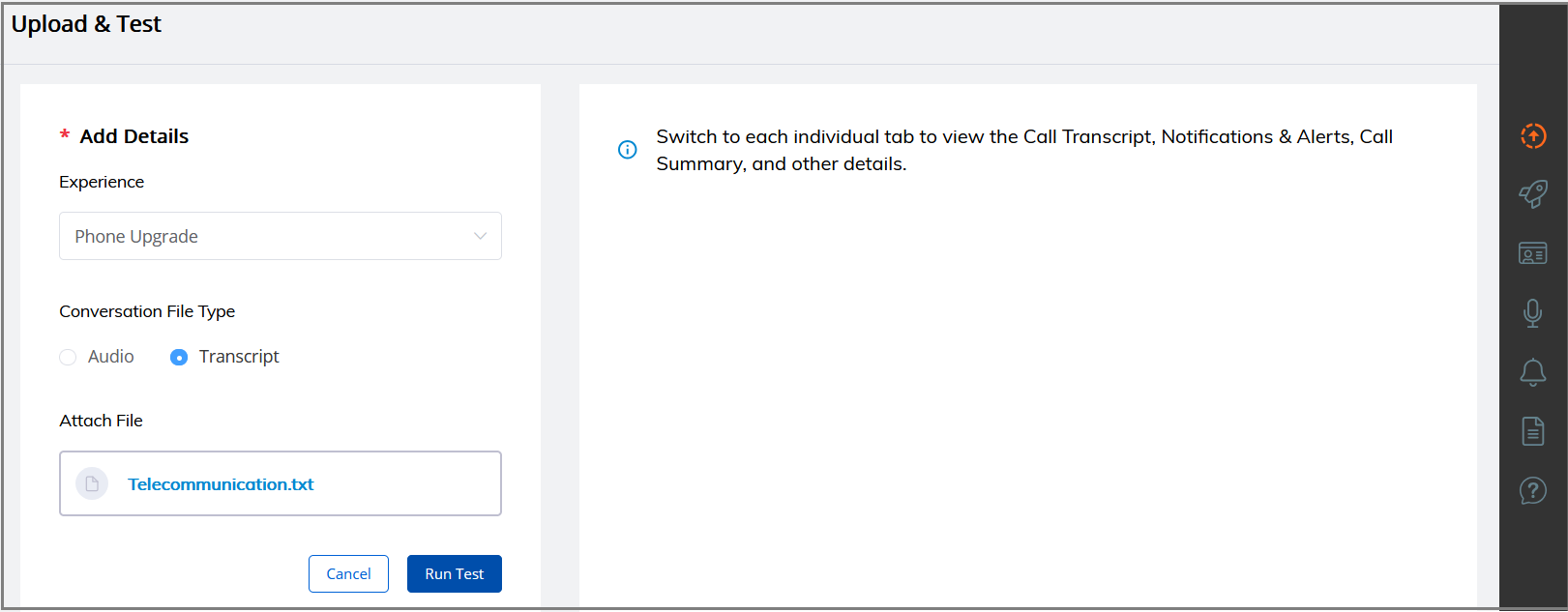
Note that the transcript file must meet the following conditions:
The transcript file containing transcripts must be in .txt format.
It must use the standard line-by-line conversation format used for all U-Assist transcripts, for example:
Agent: Hi my name is James Bond how can i help you
Customer: I need to check my credit card statement
Agent: Sure i can help you with that
It should not exceed 100 MB in size.
The uploaded transcript file name is displayed, after successful uploading.
To clear the selected data from the Upload & Test Panel, click Cancel.
Click Run Test. U-Assist will begin performing its analysis and displaying the run time capabilities as soon as the customer's goal is determined. Click on each button in the Agent Toolbar to access the following capabilities:
Recommended Flows
AI-based Alerts to assist the Agent
Transcript of the conversation
Auto-generated Call Summary or Generative AI-based Call Summary
Promises (i.e., promise-type intents) being automatically detected
Instant answers to any Frequently Asked Questions using the Knowledge Assist Q&A bot
Note
The GenAI Summary will be generated after the call.
Testing a Transcript File via Chat
The testing of a transcript file via Chat allows an Account Administrator or Business User acting as an Agent to upload and test multiple transcript files at the same time when running or testing an Experience.
Note
To enable chat support for your account, contact your Uniphore Support representative.
With this feature enabled, the AI Agent Assist application displays a Conversation Side Panel to list all currently uploaded transcripts.
Select the Conversation File Type as 'Transcript'. You can view the selection methods to test the transcript:
As Voice Conversation - Allows testing the Transcript with a voice conversation.
As Chat Conversation - Allows testing the Transcript with a chat conversation.
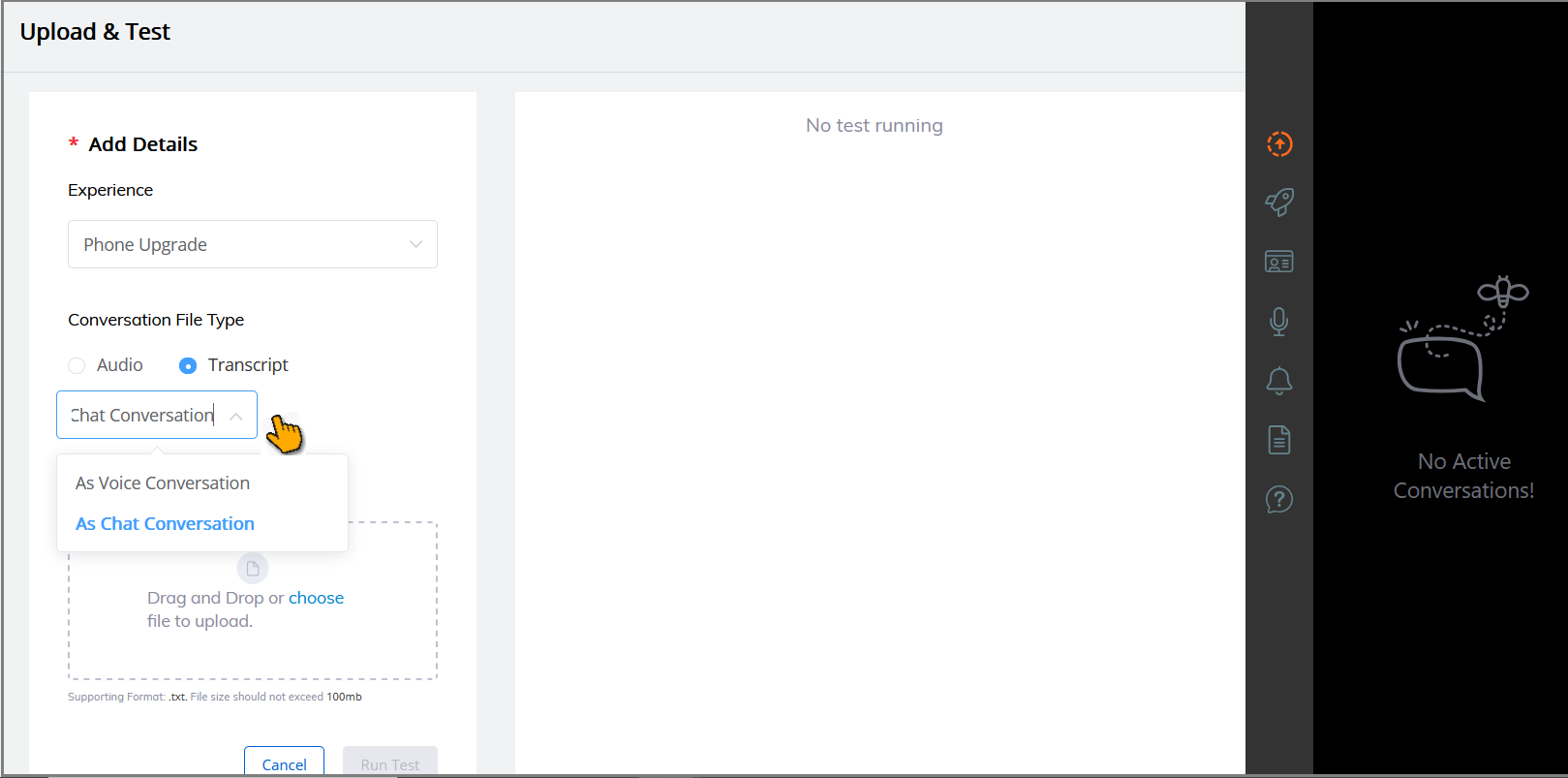
Select the Run as Chat Conversation from the dropdown.
Repeat the steps mentioned here to upload every transcript file. You can see the uploaded transcript files in the Conversation Side Panel:
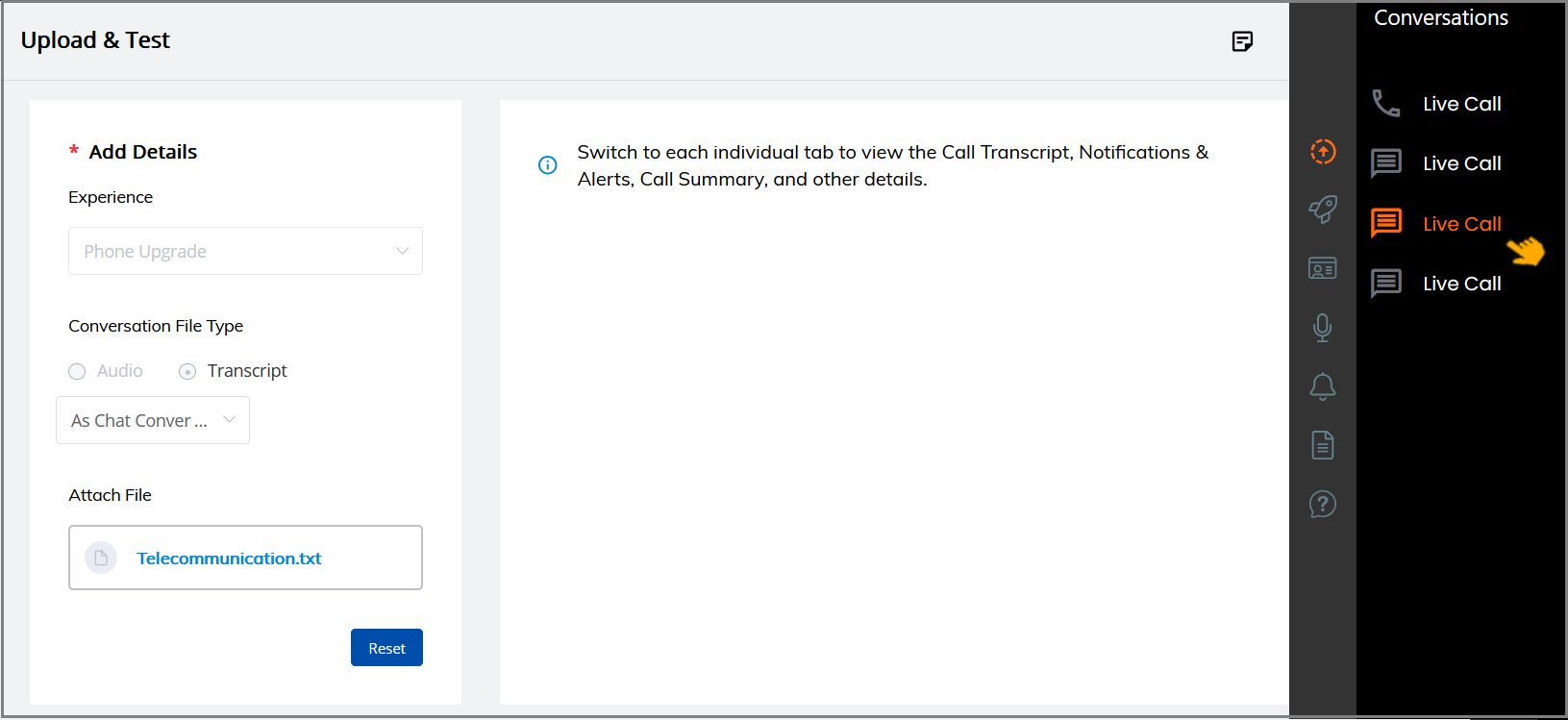
The icon appearing at the left of a conversation indicates its type:
 - Conversation via Chat.
 - Conversation via Voice.
Note
If the Agent does not submit the summary for the previous tested transcript via Voice, a notification will be displayed when a new test transcript file with a Voice method is in the queue.
Click the specific conversation from the Conversation Side Panel to view it's in-call and after-call capabilities.