Speaker Track
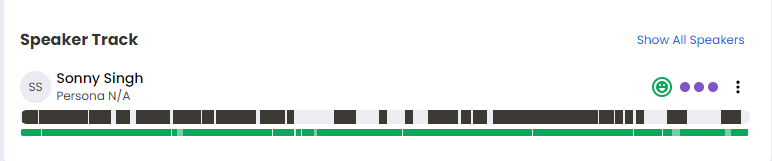
Shows the meeting participants speech track with the following information:
ID:
Participant name
Participant Blocks:
Shows track location when the participant is talking. Clicking a block plays the meeting video at that particular location in the meeting timeline
Sentiment:
Speaker's sentiment shown as Positive, Neutral or Negative
Engagement: Speaker's engagement shown as High or Low.
Click Show All Speakers/Show Less Speakers to view all the speakers or a single speaker.
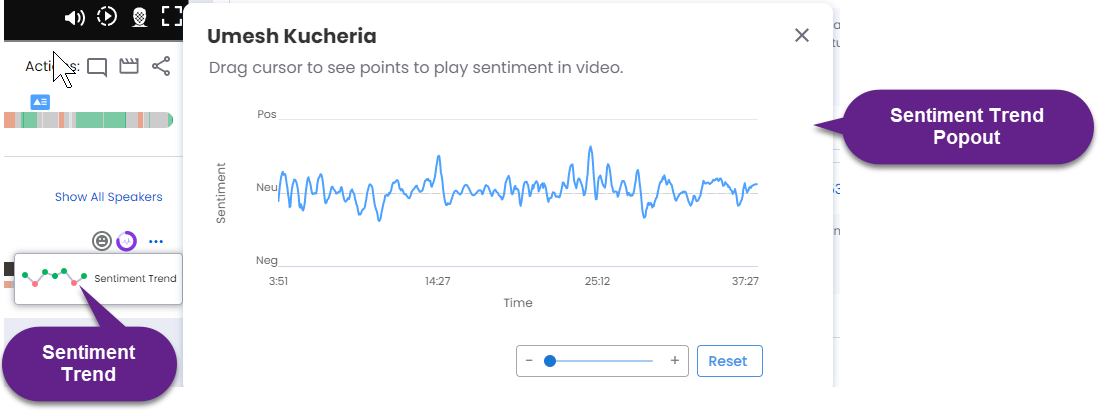
Click the vertical ellipsis icon to view the Sentiment Trend and Edit Persona selection options.
Click the Sentiment Trend option to view the sentiment trend pop out that shows the sentiment trend detailed graph. Click at any point on the graph to play the meeting starting at that point.
Click the Edit Persona option to view the Edit Contacts slide out.
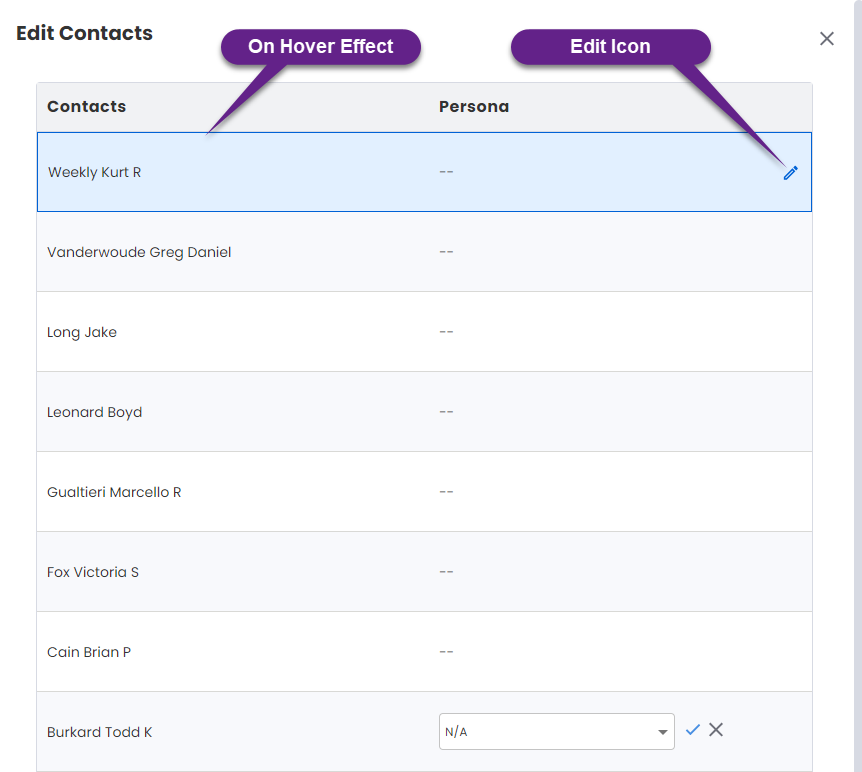
When you hover above a contact it gets highlighted in blue, and the edit icon becomes visible. When the edit icon is clicked the persona selection drop down-box is shown.
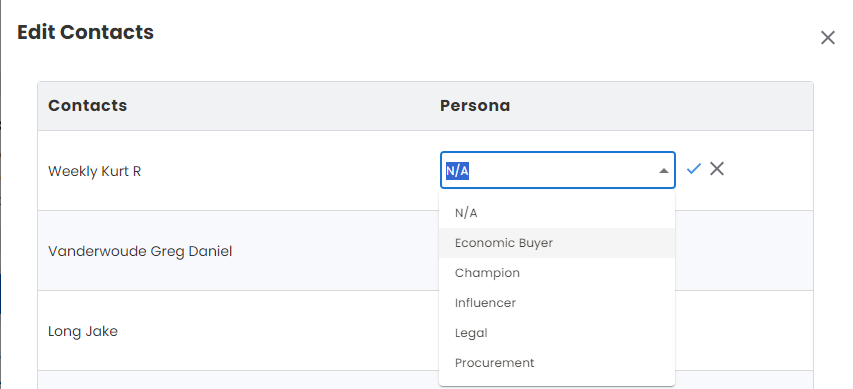
Click the open icon (downward pointer) at the right of the drop-down box to view and select the available personas. After selecting the desired persona click the green tick mark to save the selection or click the cross mark to cancel the selection. After the green tick mark is clicked a success message appears.

The personas that can be assigned to a contact are:
Economic Buyer
Champion
Influencer
Legal
Procurement