Search, Filter, Review, and Export Audit Logs
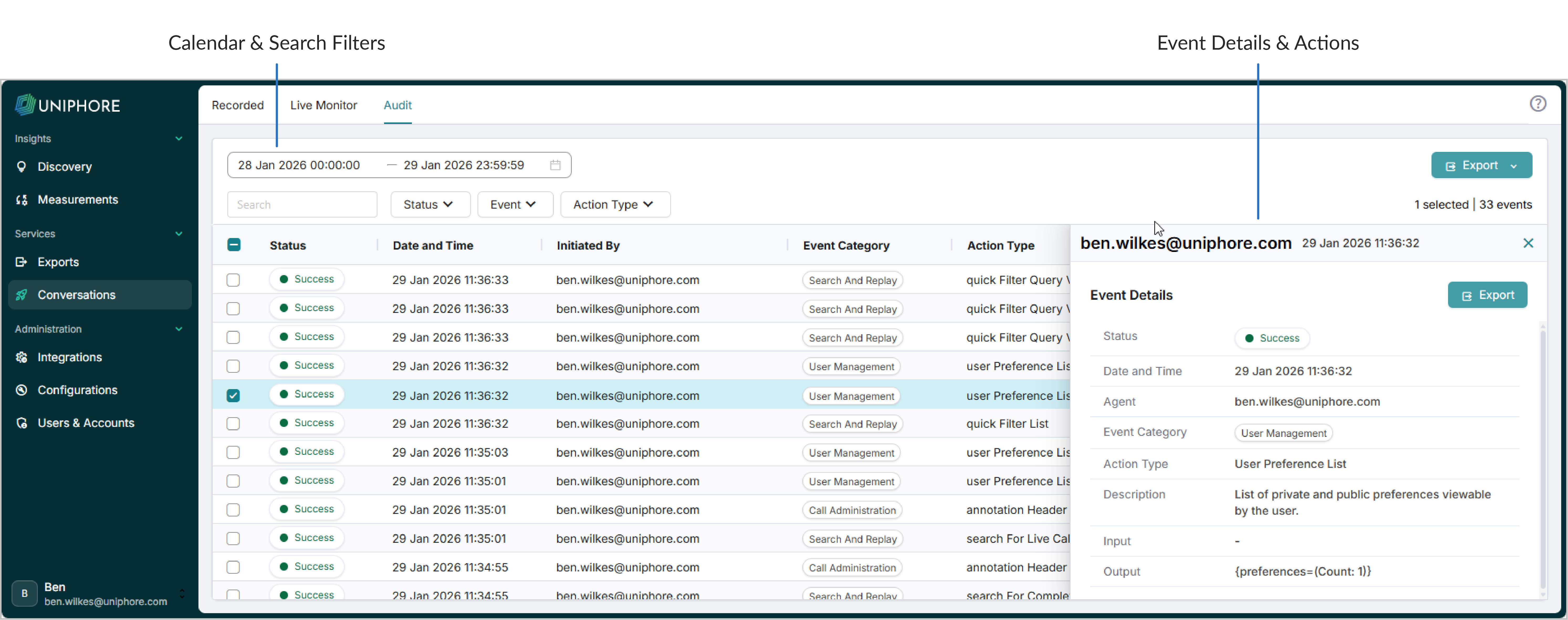
If you’re familiar with Communication Recording Agent Search and Replay, the search and filter capabilities in the Audit page are pretty similar.
To monitor Audit Logs:
Go to Conversations and click the Audit tab in the menu at the top of the screen.
Use the following features to review your Audit:
Search: Start typing in the Search box to search for any data from the audit log entry's details.
Select Date: Change the date range you’re searching across, click the Calendar, and set your dates.
Filter: Use the Status, Event, and Action Type filters to filter results:
Use Status to filter by whether or not the action that resulted in the audit log entry was successful or not.
Use Event to filter by category.
Use Action Type to filter by the type of action performed that led to the audit log entry being created.
Review: Click the arrow to the right of an Audit Log record to display details in the Event Details panel. From here, you can review the details or export the record.
Export: Select one or more Audit Log records. If you're exporting a single record, click Export in the Event Details panel. If you're exporting more than one record, click Export in the top right and choose either Export Selected or Export All. Audit logs are exported as .xlsx files.
Caution
Since data is exported to an unencrypted, accessible format, this data should be regarded as “uncontrolled”, so you may want to implement additional data protection measures for these files.