Quick Search
This one is pretty easy, as you’d expect, but have a quick look at the step-by-step information so that you don’t miss any of the handy features available.
To search and replay recordings:
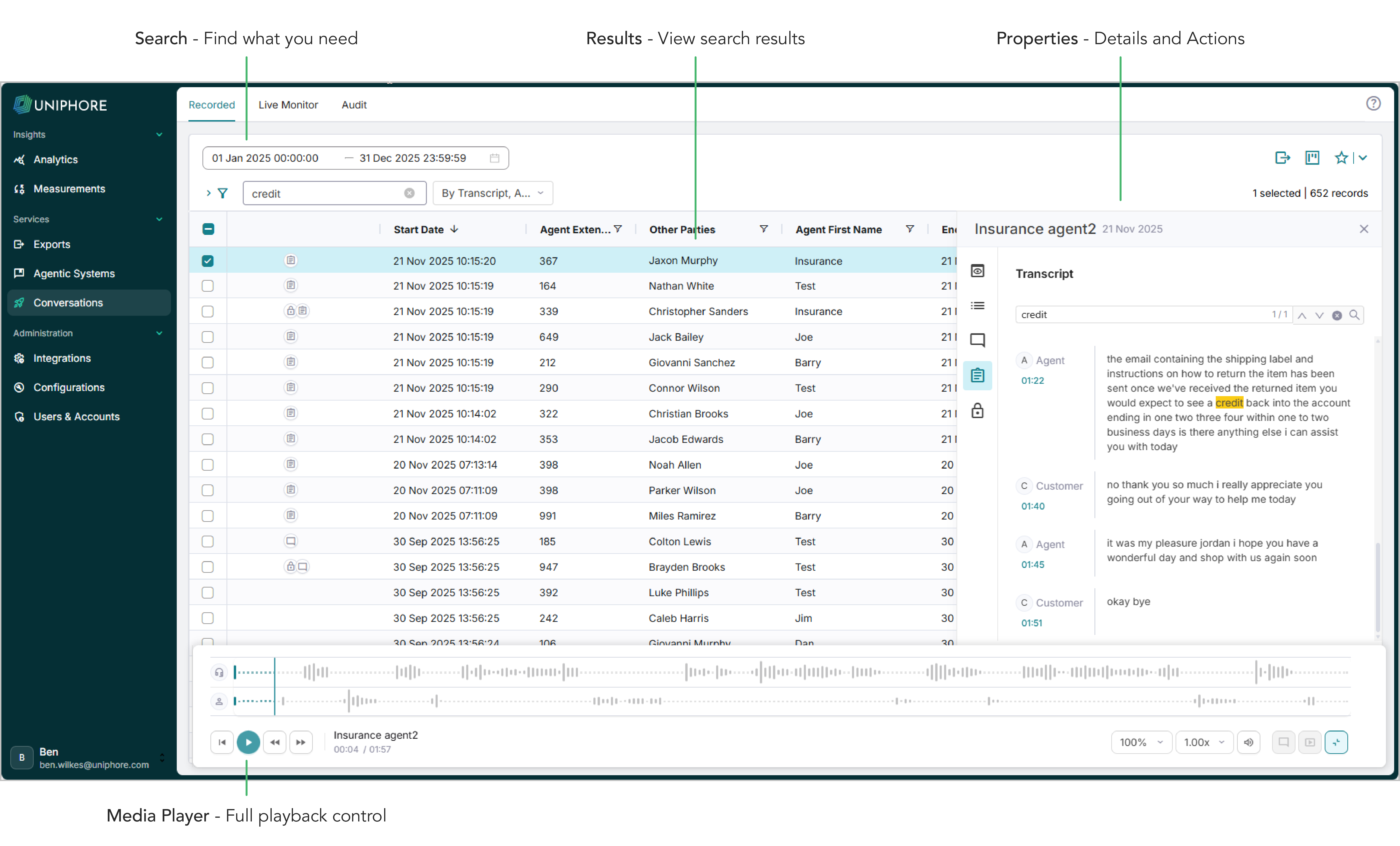
Go to Conversations > click Recorded at the top if you’re not there already.
Use the dropdown to the right of the Search bar to determine if you want to search across standard conversation metadata (by Metadata), such as Agent First Name, Third Party Name, etc, or across Annotations, Lock Reasons, and Transcriptions (by Transcript, Annotation & Lock Reason).
Start typing in the Search Bar to search for matching details of the calls you wish to see. Anything matching your search is listed in the Results panel, and suggested matches are also displayed to save you time. Text searches are not case-sensitive. This search filters their conversations for annotations, transcripts, and metadata values that include the entered text.
To change the time and date range you’re searching across, click the Calendar and set the dates for what you need.
Tip
In the calendar, you can also select a “quick-pick” option like Last Week or Last Month.
To quickly replay a recording, just click the item in the Results panel and use the media player to replay the call.
When you click an item in the Results panel, details and actions are shown in the Properties panel. From here, there are a few different pages with different details and actions - Preview, Details, Annotations, Transcript, and Locks.
That’s it, all quite easy, and if that’s all you want to do, then you’re done. However, if you want to make full use of the Recorded tab and the integrated Media Player, then continue reading for more details.