Manage Conversations with Legal Holds
A Compliance Admin must first create a Legal Matter to apply as a Legal Hold. The Compliance Admin can then apply a Legal Hold to one or more recordings by linking it to a named Legal Matter with a stated reason.
Add a Legal Hold to a Conversation
To add a legal hold to a conversation:
Open a conversation.
Select the Legal Hold
 icon on the left side of the preview window.
Click Apply Legal Hold.
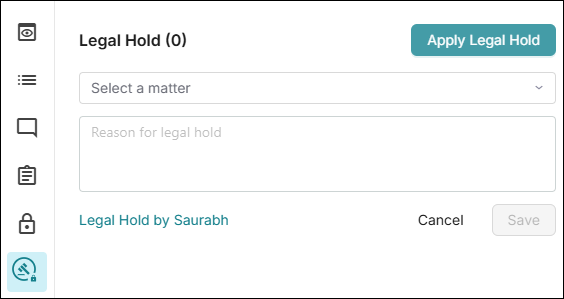
Select a Legal Matter from the dropdown.
Enter a Reason for the legal hold.
Click Save. A confirmation message appears stating the conversation has been placed on legal hold.
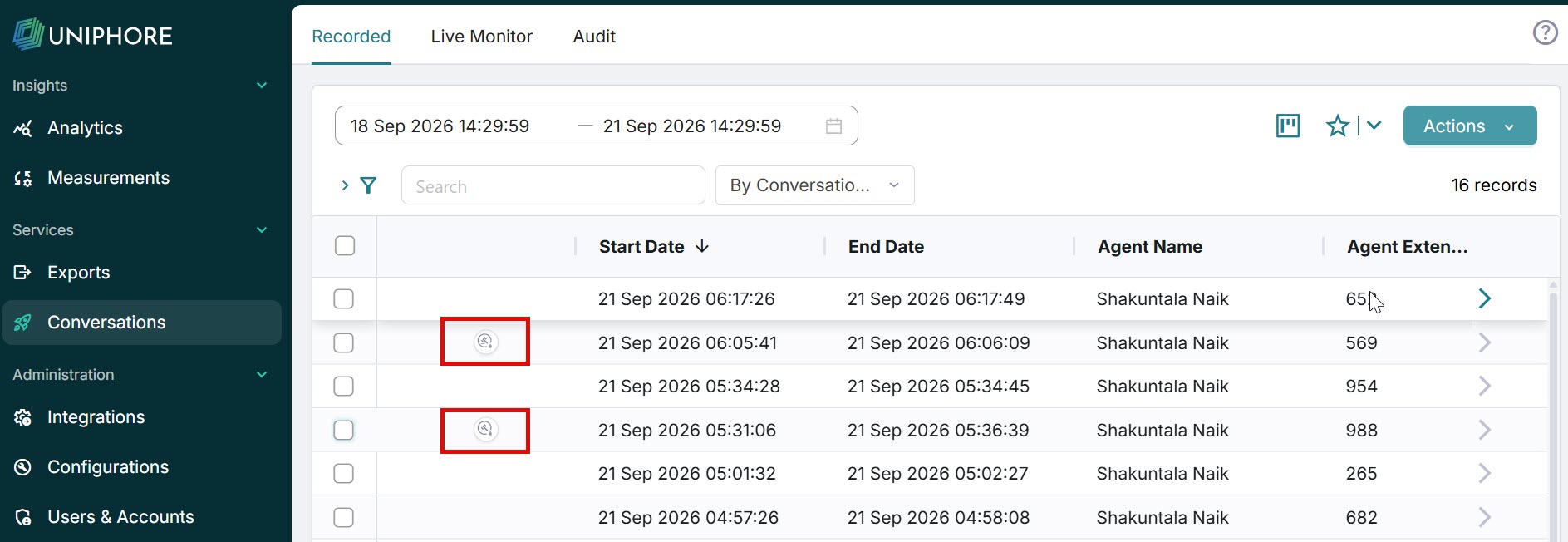
A Legal Hold icon appears on the conversation line.
Note: A recording under Legal Hold cannot be deleted, purged, or moved by any purge policy, retention policy, or manual delete action, regardless of whether a Lock is also present.
Search for a Legal Hold
You can search for a conversation with a Legal Hold by the Legal Matter Name or Reason (full or partial).
Remove a Legal Hold from a Conversation
Only the Compliance Admin who created the hold can release it. Account Admins and Uniphore Super Admins cannot release a Legal Hold without the Compliance Admin role privilege.
Open a conversation.
Select the Legal Hold
icon on the left side of the preview windowClick the Lock icon to the right of the Legal Matter name. A window will appear asking if you want to release the Legal Hold. Releasing this hold removes protection against deletion or purging.
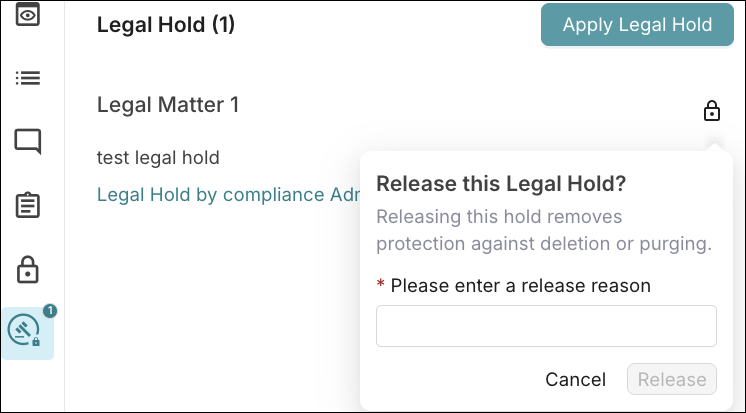
Enter a release reason.
Click Release.
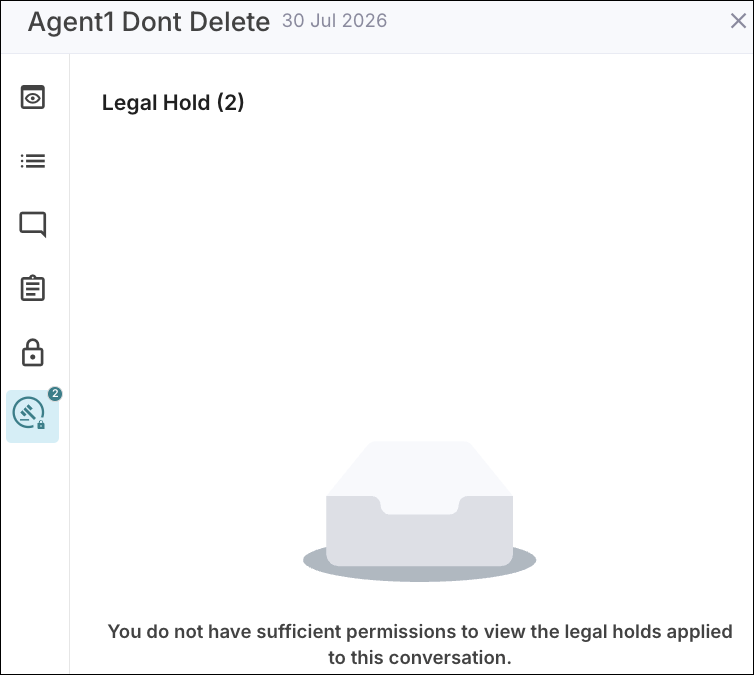
Note: Only the Compliance Admin who created the hold can view or release it. A note will appear if you do not have sufficient permissions to view a legal hold applied to a conversation.