Key Topics
The Key Topics tab is divided into two categories of topics:
Methodology (Default selection)
Industry
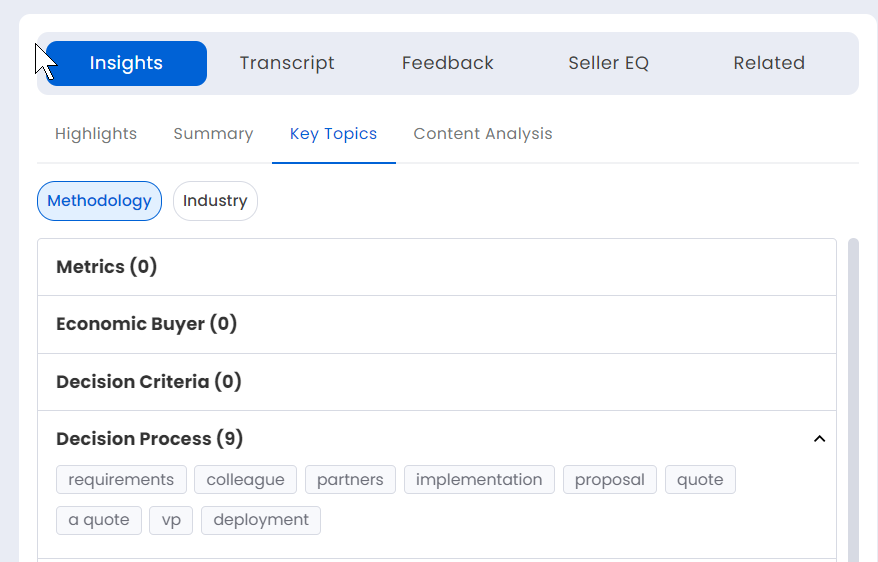
By default, the topics listed under methodology and industry, are expanded. These topics can be collapsed.
Methodology
The topics that are related to the MEDDIC sales methodology are only displayed here. This helps the users to track the appropriate usage and implementation of sales methodology. Thereby, providing insights for a better leverage and correct adoption of sales methodology. This in turn enhances the probability of successful deal closures.
Some of the various sales methodology topics are listed below:
Decision Criteria
Decision Process
Economic Buyer and Budget
Pricing
Solution and Feature
Confusion and Objection
Differentiation And Competition
Goals And Pain Points
Small Talk
The keyword(s) associated to a topic are displayed below the topic as clickable buttons which can be collapsed by clicking on the topic or upward arrow icon on the right. The same can again be expanded by clicking on the topic or downward arrow icon on the right. By default, the topics are displayed in the expanded position.
When the subtopic is clicked the associated details window pops out.
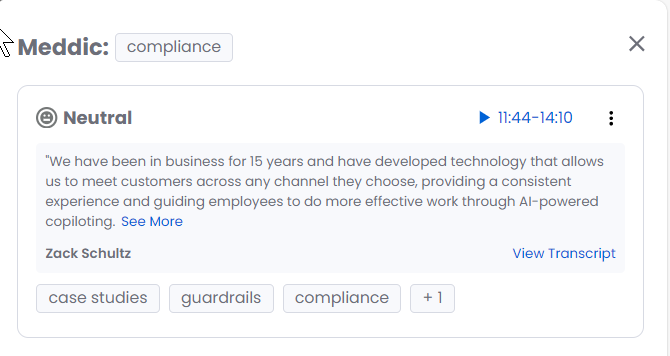
A summary of the key moment transcripts is displayed in the details window which is captured using generative AI. The key moment transcripts are displayed along with colored sentiment emojis. This reduces the time and effort involved in going through the complete transcript of the key moment. The complete transcript of the key moment can also be viewed by clicking on View Transcript. Click on See More/See Less to expand/collapse the listed key moment items. The details window can be closed by clicking the close (X) at the top right. Alternately, click anywhere outside the details window to close it
The speaker's name is shown below the transcript
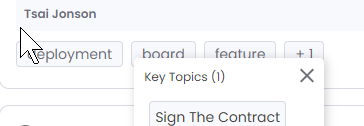
The associated key topics are displayed below the speaker name. A maximum of three key topics are displayed. The rest can be accessed by clicking the + icon
You can click the play button to view the key moment in the meeting. Only the associated key moment video is played back. The duration of the key momemt is displayed besides the play button
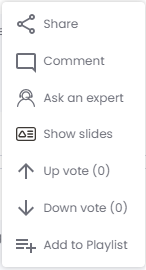
Click on the vertical ellipsis icon to access the options that follow:
Click the Add button to add to a playlist.
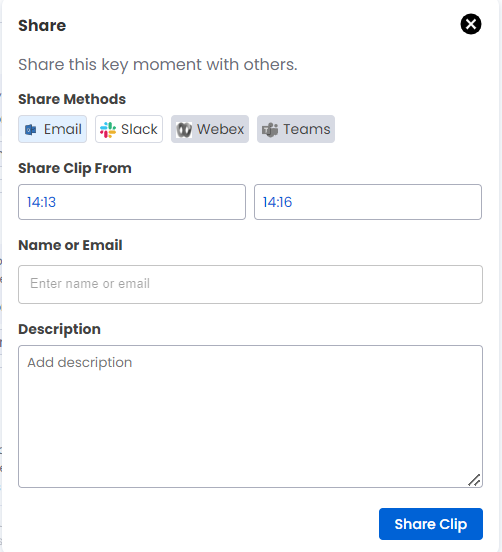
Share: Share this key moment via Email, Slack, Webex or Teams (Webex and Teams will be available soon). Enter the name or email to either choose from the available list or add a contacts email in the Name or Email dialog box. Enter the description in the Description dialog box. Click on Share Clip to share the clip.
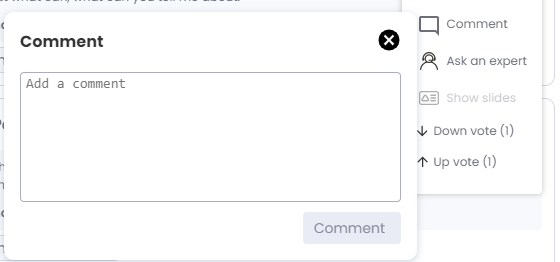
Comment: Add a comment for this key moment.
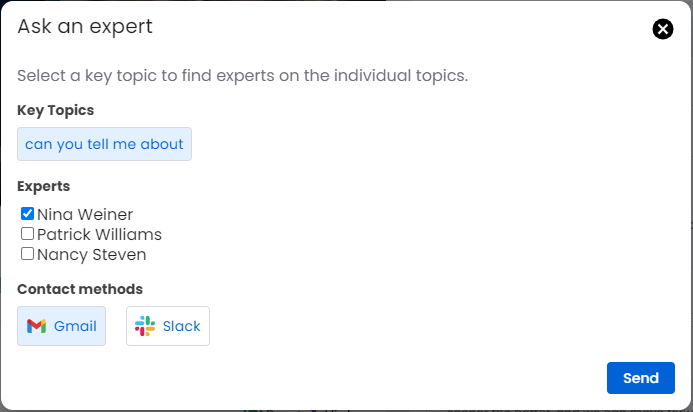
Ask an expert: Ask for an opinion about a key topic(s) from an expert from the available list of experts. Choose either Gmail or Slack from the contact methods.
Show slides: Currently this option is disabled. Will be enabled soon.
Up vote: Click to up vote the key moment. The number of up votes is displayed as a number within parentheses.
Down vote: Click to down vote the key moment. The number of down votes is displayed as a number within parentheses.
Add to Playlist:
Click to add the key moment to a playlist. When you click this option the Add to Playlist window pops out.
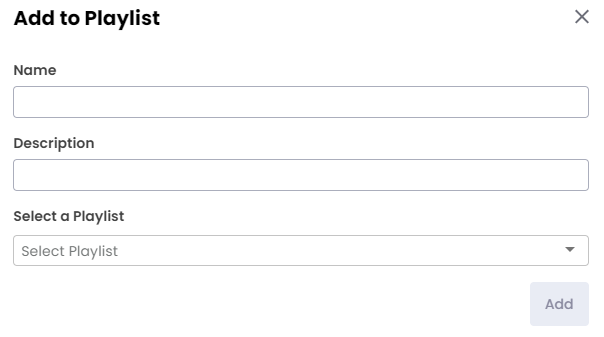
Enter the Name and Description fields.
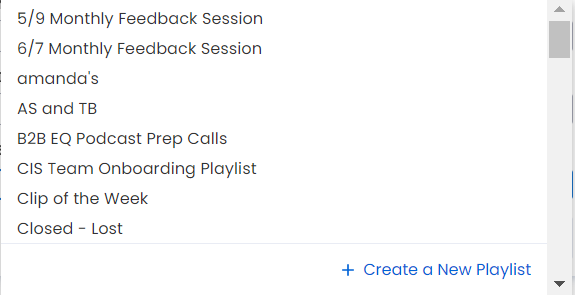
From the Select a Playlist dropdown select a playlist or click + Create a New Playlist to create a new playlist.
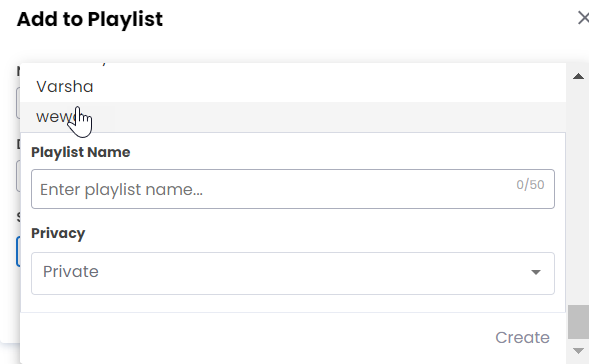
When you click + Create a New Playlist the Playlist Name and Privacy fields are displayed. Enter these fields and click Create.
Click the Add button to add to a playlist.
Industry
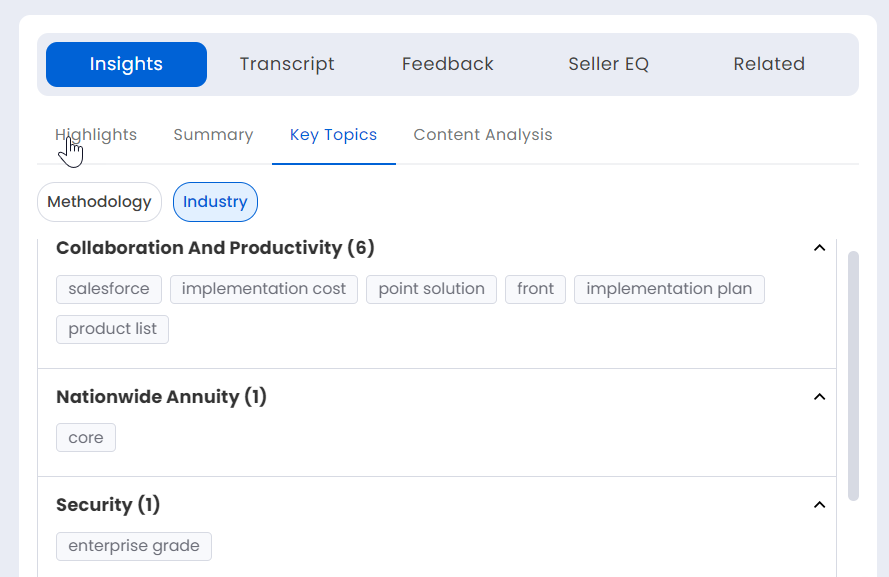
The topics that are related to an industry are displayed here. This helps the users to track the appropriate usage and implementation of industry related topics. Thereby, providing insights for a better leverage and correct adoption of industry related topics. This in turn enhances the probability of successful deal closures.
Some of the various industry related topics are listed below:
Collaboration And Productivity
Analytics
Security
Insurance
Translation Services
Data Privacy
The keyword(s) associated to a topic are displayed below the topic as clickable buttons which can be collapsed by clicking on the topic or upward arrow icon on the right. The same can again be expanded by clicking on the topic or downward arrow icon on the right. By default, the topics are displayed in the expanded position.
When the topic or keyword button is clicked the associated details window pops out.
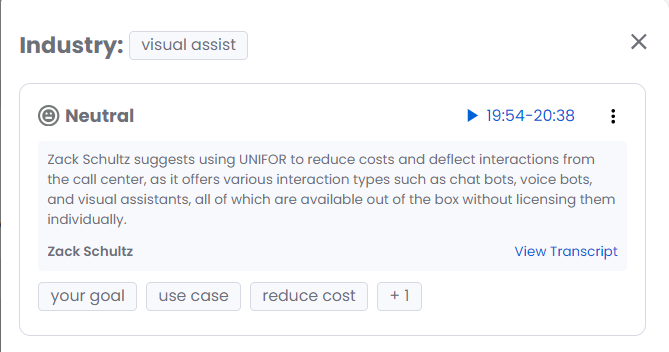
A summary of the key moment transcripts is displayed in the details window which is captured using generative AI. The key moment transcripts are displayed along with colored sentiment emojis. This reduces the time and effort involved in going through the complete transcript of the key moment. The complete transcript of the key moment can also be viewed by clicking on View Transcript. Click on See More/See Less to expand/collapse the listed key moment items. The details window can be closed by clicking the close (X) at the top right. Alternately, click anywhere outside the details window to close it
The speaker's name is shown below the transcript
The associated key topics are displayed below the speaker name. A maximum of three key topics are displayed. The rest can be accessed by clicking the + icon
You can click the play button to view the key moment in the meeting. Only the associated key moment video is played back. The duration of the key momemt is displayed besides the play button
Click on the vertical ellipsis icon to access the options that follow:
Share: Share this key moment via Email, Slack, Webex or Teams (Webex and Teams will be available soon). Enter the name or email to either choose from the available list or add a contacts email in the Name or Email dialog box. Enter the description in the Description dialog box. Click on Share Clip to share the clip.
Comment: Add a comment for this key moment.
Ask an expert: Ask for an opinion about a key topic(s) from an expert from the available list of experts. Choose either Gmail or Slack from the contact methods.
Show slides: Currently this option is disabled. Will be enabled soon.
Up vote: Click to up vote the key moment. The number of up votes is displayed as a number within parentheses.
Down vote: Click to down vote the key moment. The number of down votes is displayed as a number within parentheses.
Add to Playlist:
Click to add the key moment to a playlist. When you click this option the Add to Playlist window pops out.
Enter the Name and Description fields.
From the Select a Playlist dropdown select a playlist or click + Create a New Playlist to create a new playlist.
When you click + Create a New Playlist the Playlist Name and Privacy fields are displayed. Enter these fields and click Create.