Highlights
1. Key Moments
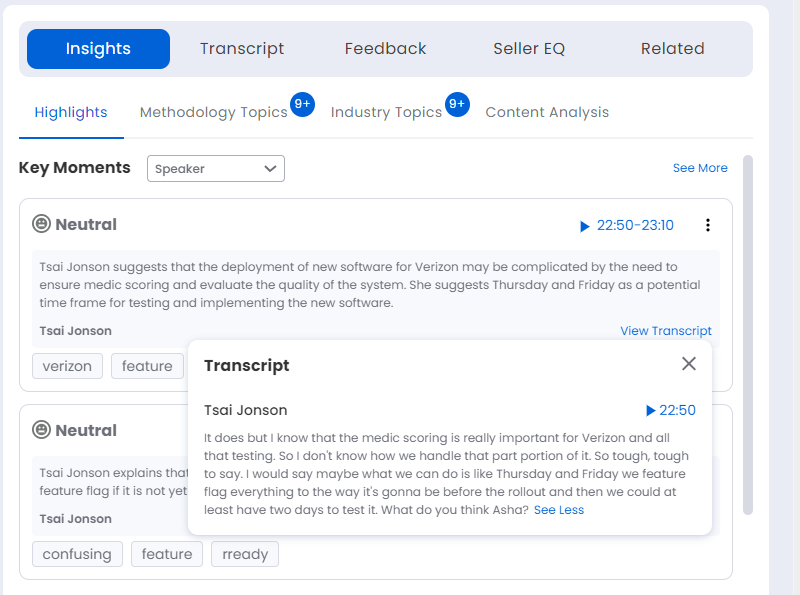
The key moments within the meeting that were either positive or negative are displayed here. This is useful for the sales reps to identify and improve the areas of improvement.
A summary of the key moment transcripts is displayed in the individual key moment which is captured using generative AI. This reduces the time and effort involved in going through the complete transcript of the key moment. The complete transcript of the key moment can also be viewed by clicking on View Transcript. Click on See More/See Less to expand/collapse the listed key moment items.
The speaker (participants in the meeting) can be selected from the Speakerdrop down box. Within each key moment item, the transcript, speaker name and the key topic associated with this key moment are shown.
Click on the vertical ellipsis icon to access the options that follow:
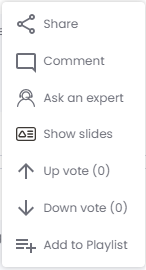
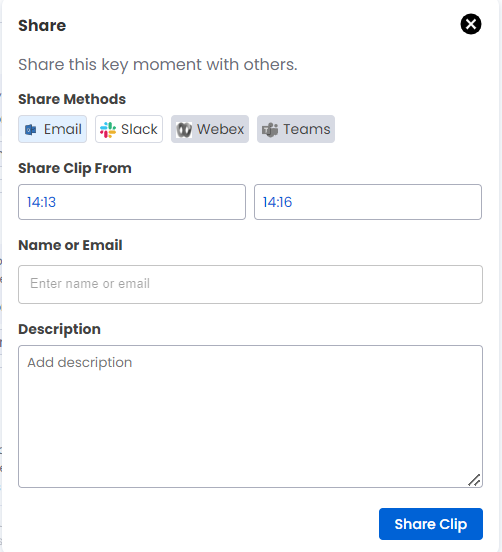
Share: Share this key moment via Email, Slack, Webex or Teams (Webex and Teams will be available soon). Enter the name or email to either choose from the available list or add a contacts email in the Name or Email dialog box. Enter the description in the Description dialog box. Click on Share Clip to share the clip.
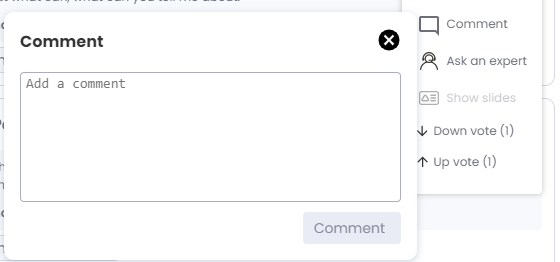
Comment: Add a comment for this key moment. The comments related to key moments are now marked with a time Stamp. You can click and go directly to the moment in the meeting where the comment is placed. It also shows weather a comment is positive, negative or neutral. Go to Feedback in the Meeting Replay section to view these comments.
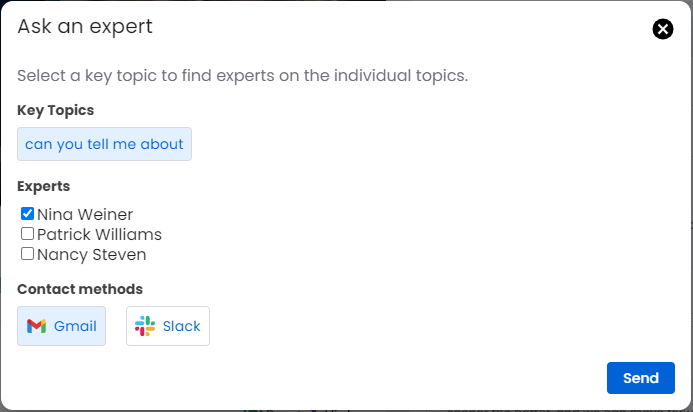
Ask an expert: Ask for an opinion about a key topic(s) from an expert from the available list of experts. Choose either Gmail or Slack from the contact methods.
Show slides: Currently this option is disabled. Will be enabled soon.
Down vote: Click to down vote the key moment. The number of down votes is displayed as a number within parentheses.
Up vote: Click to up vote the key moment. The number of up votes is displayed as a number within parentheses.
Add to Playlist:
Click to add the key moment to a playlist. When you click this option the Add to Playlist window pops out.
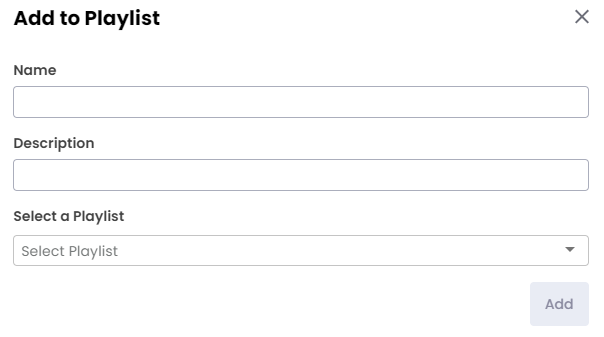
Enter the Name and Description fields.
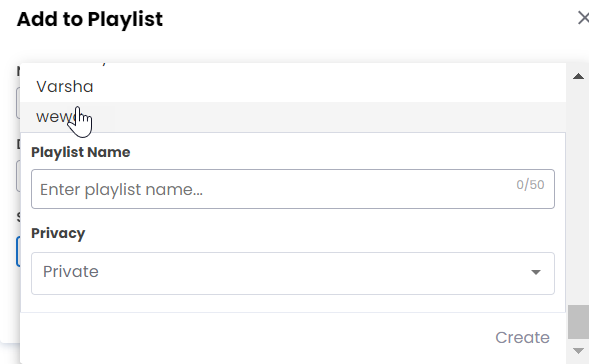
From the Select a Playlist dropdown select a playlist or click + Create a New Playlist to create a new playlist.
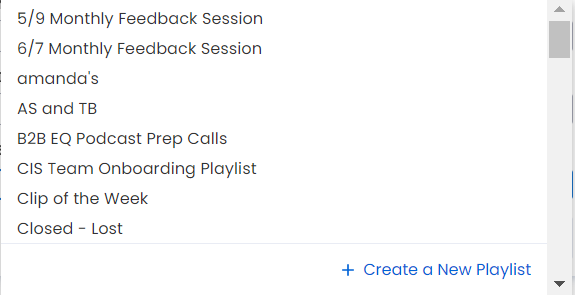
When you click + Create a New Playlist the Playlist Name and Privacy fields are displayed. Enter these fields and click Create.
2. Action Items
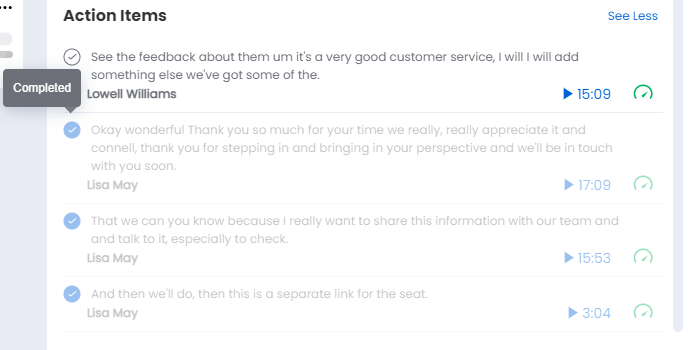
Shows the recommended actions:
A blue checkbox means an action item is completed
A white checkbox means an action item is not completed.
Click on See More/See Less to expand/collapse the action items. Click on the play button to go to the point in the Timeline Track of the meeting video when this action item was marked. Click the check mark circle to either mark the promise as completed or mark as complete.
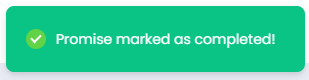
When a promise is marked as complete a pop-up message is displayed at the top right corner as follows:
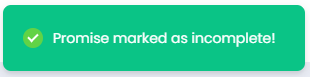
When a completed promise is marked as incomplete a pop-up message is displayed at the top right corner as follows: