Deploy Application
Once a Tenant is created for the customer, you can start deploying the application.
To deploy Conversation Insights Agent:
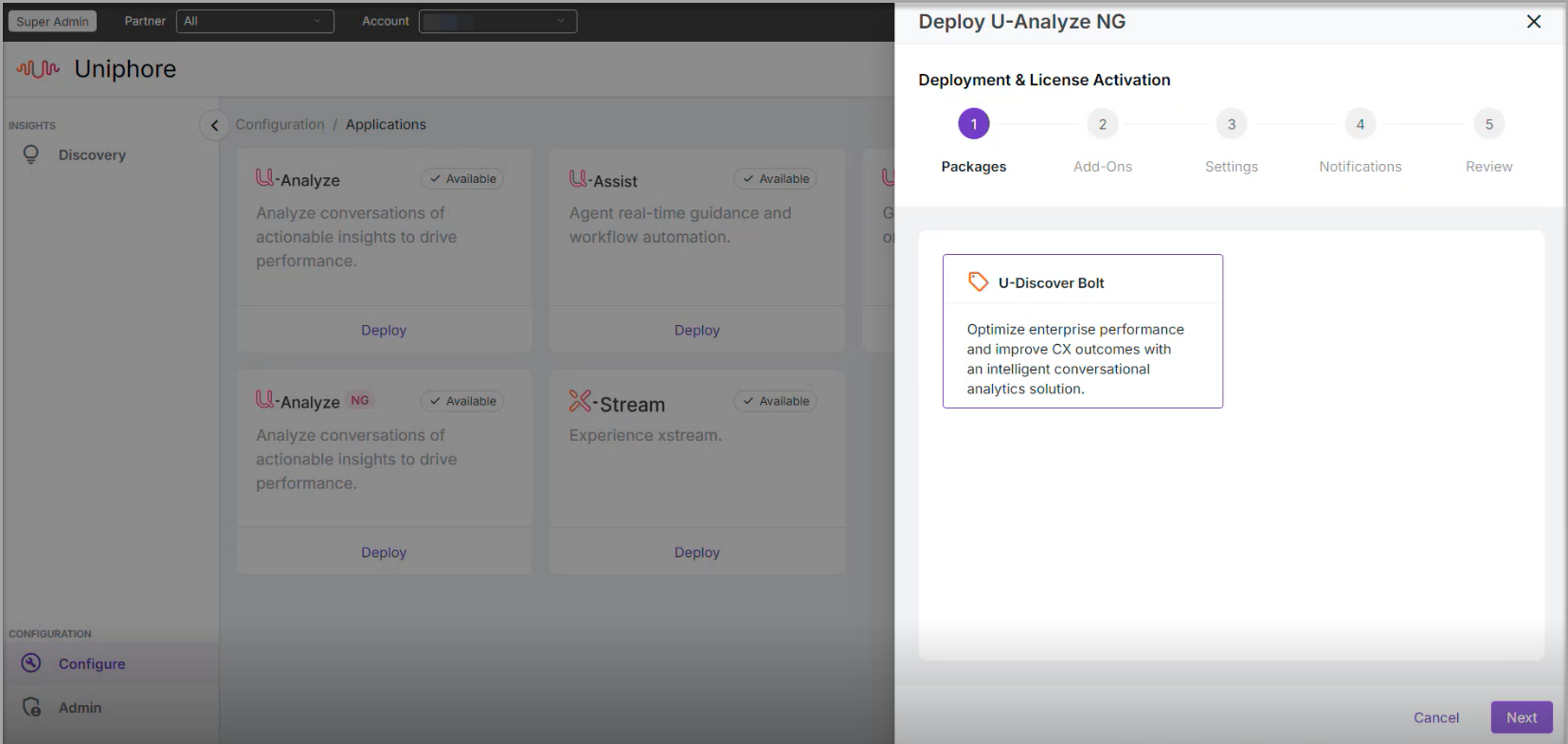
In the Add Account dialog, click the Applications icon from the left pane or Go to Configure > Applications from the left menu. The Configuration > Application screen appears.
Click the Deploy button displayed in U-Analyze NG.
In the Deployment and License Activation dialog, perform the following actions:
In Package, select U-Discover Bolt as a package. Click Next.
In Add-Ons, select any add-on, if required. Click Next
In Settings, add the below given details and click next.
Select a Deployment type - Production, Demo, Test.
Production is for customers. Salesforce URL is required when Production is selected.
Demo is used by Sales and Sales Engineering teams.
Test is used by Developers, Testers and others.
In License, enter the Contract date range, Contract type, License type, Total no. of licenses,
Contract date range: The start date and the end date of the contract.
Contract Type: When Fixed is selected, the number of agents and transactions cannot be increased or decreased. When Ramp is selected, the number of agents and transactions can be increased upon customer request. It is recommended to select Ramp.
License Type: Defining whether the license is based on the Number of agents or transactions.
Total no of licenses: Total number of licenses procured by the customer.
In Notifications, click +Add User to select the Account Administrator(s) to whom the email notification about application deployment needs to be sent. If you wish to notify other users (other than admin) or a group of people, search and select the user from the Assign other users and Assign distribution list, respectively. This is not a mandatory step. Click Next.
In the Review tab, you can view the details that have been selected and entered.
When you click Deploy and activate , the application is deployed in your tenant and will be ready for use.