Custom
Consists of the category wise list of custom key phrases that you have added and which you want the "Sales Interaction Agent" app to scan for during your meetings. The key phrases that are added by you in Industry, MEDDIC or Website Import tabs are all consolidated and listed here.
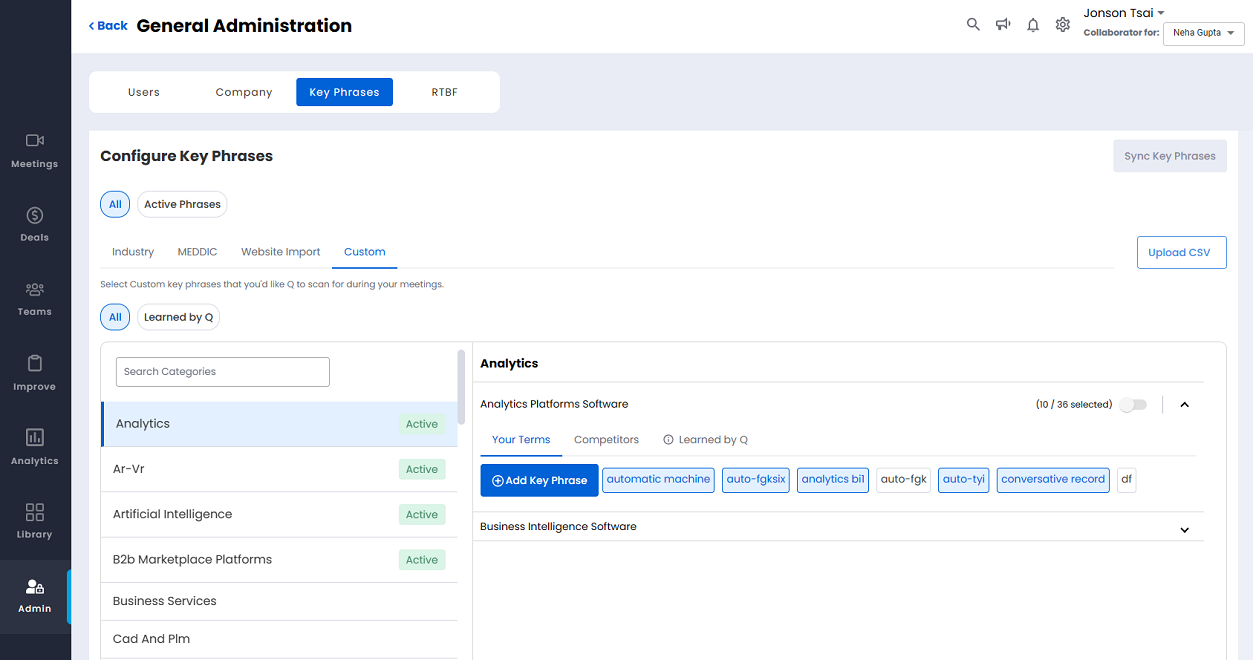
1. Search Categories
Key in the name of the category to search from the list of available categories.
2. List of Available Categories
All the available categories are listed here. The categories that are active have a green colored Active icon shown on the right side of the category.
Click the Apply button to apply the category or click Cancel if you don't wish to apply the category. Once a category is applied it can't be deleted/turned off. When a category is applied it automatically selects all of the available key phrases. After a category is applied you can unselect specific key phrases and subcategories.
3. Category Detail Pane
Shows the various subcategories of the selected category. Click the downward/upward arrow to expand/collapse the subcategories.
The number of key words/phrases selected under a subcategory is shown on the right of the subcategory along with a toggle button to activate/inactivate all the available key words/phrases.
When you toggle to activate all the available key words/phrases a pop out is displayed as shown below.
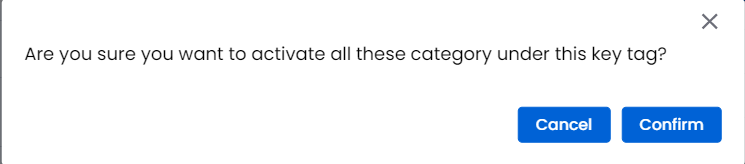
Click Confirm to activate all the available key words/phrases. Click Cancel if you don't wish to activate all the available key words/phrases.
When you toggle to inactivate all the available key words/phrases a pop out is displayed as shown below.
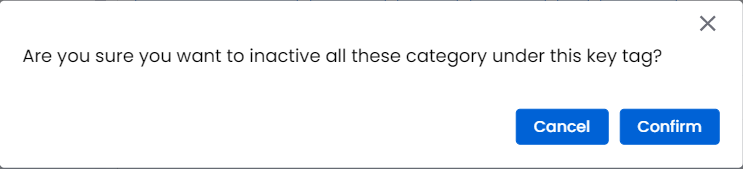
Click Confirm to inactivate all the available key words/phrases. Click Cancel if you don't wish to inactivate all the available key words/phrases.
The key words/phrases can be activated/deactivated individually as well.
Click an active key word/phrase to make it inactive. When you click an active key word/phrase a pop out is displayed as shown below.
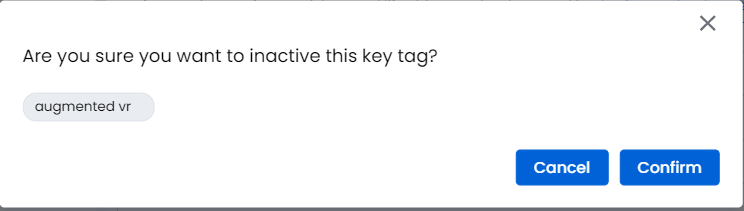
Click Confirm to inactivate the key word/phrase. Click Cancel if you don't wish to inactivate the key word/phrase.
Click an inactive key word/phrase to make it active. When you click an inactive key word/phrase a pop out is displayed as shown below.
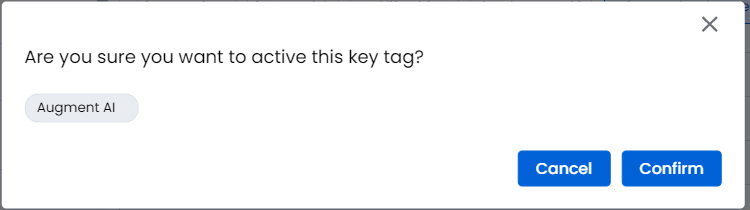
Click Confirm to activate the key word/phrase. Click Cancel if you don't wish to activate the key word/phrase.