Agent Authorization for Microsoft Teams Access
From the AI Agent Assist Application, the Agent can be authenticated with their Microsoft Account through Single Sign-On (SSO) in order to receive conversation data from Microsoft Teams calls.
Important
Before performing Agent authorization, the Microsoft user must be added and assigned an Agent role under the specific tenant in the Administration Platform.
Follow the below steps for authenticating an Agent and receive calls from Microsoft Teams:
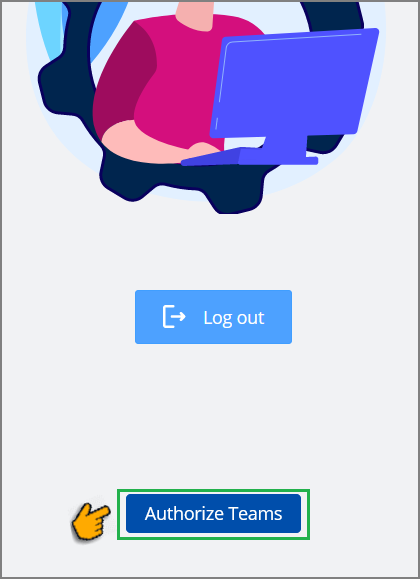
In the AI Agent Assist Application panel, click your Account Profile Picture. The Agent Profile Page is displayed.
Click Authorize Teams to access the Microsoft Account Login page.
Provide your Microsoft credentials and click Sign In.
When you try to access your Microsoft account from another device or application, you will receive a sign-in request on your mobile device. Open the app to approve the request. Make sure that the sign-in is for your account and then approve it.
After successful authentication, a pop-up will appear to check that the logged-in Microsoft Account has permission to access the Pegasus Cloud Identity Cloud Login page.
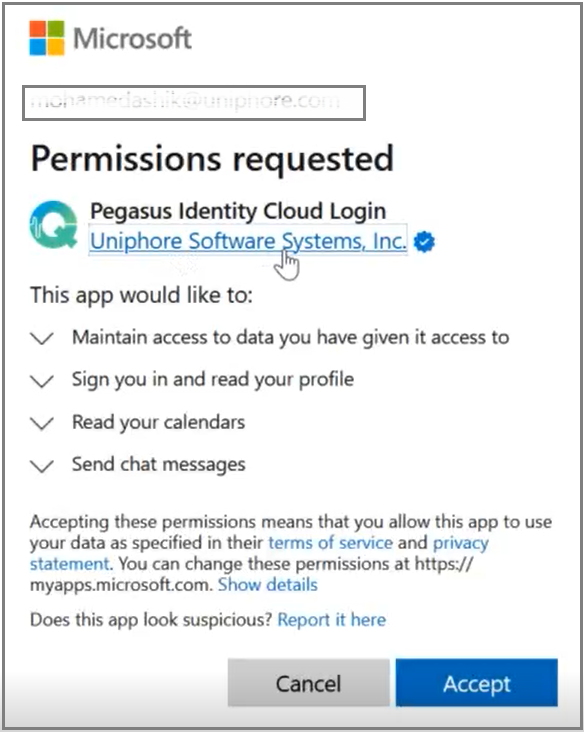
Click Accept. Now, the Agent can receive calls from Microsoft Teams and also view the conversation data in the AI Agent Assist Application.