Access Policies
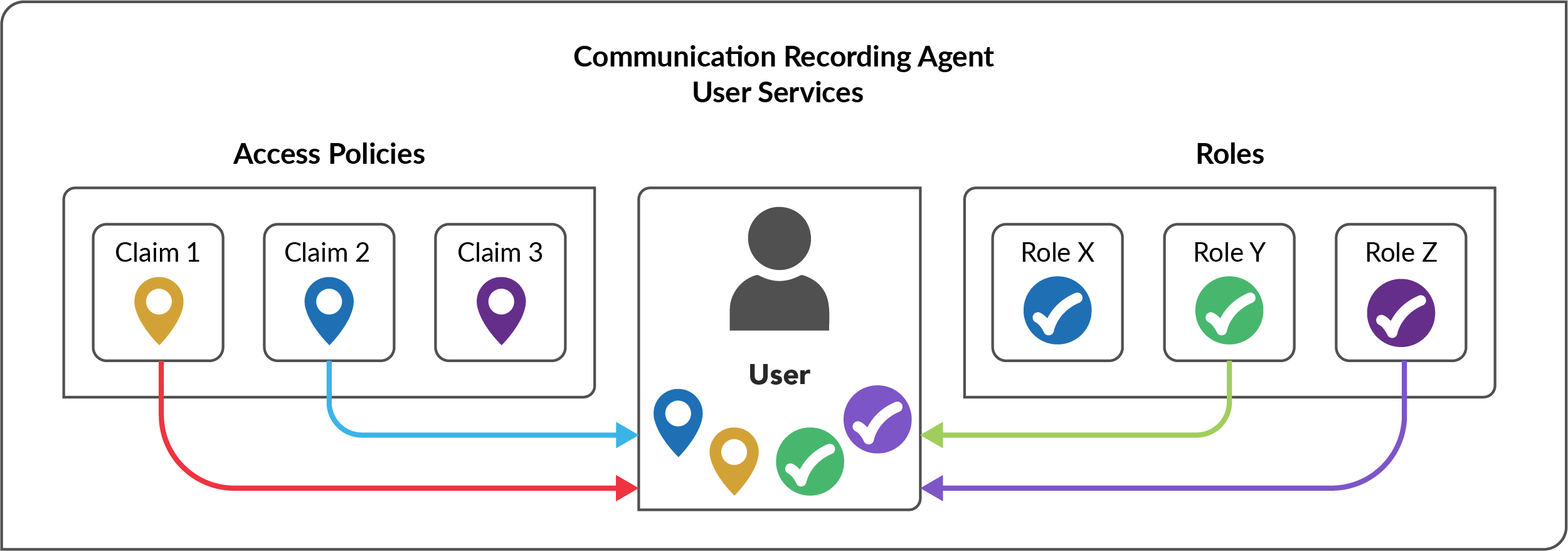
Use Access Control Policies to assign granular access permissions for your Users in Communication Recording Agent using call Filters (which calls) and Claims (which groups/users in your Organization Hierarchy).
Access control policies work together with User Roles to provide flexible control of your User access permissions. As mentioned above, these policies work on pairing call Filters and groups/users using Claims, these work on top of access permissions provided by the User's roles, for example a User could have the Manager Role with several Agents (granting the User access to the Agent's calls), this User could also be part of a wider sales team and could need access to the metadata for all sales calls, this could be provided using Access Policies.
Note
There are other types of Policies available in addition to Access Policies, see the full Manage Communication Recording Agent Policies guide for details on all the available Policies for Communication Recording Agent.
Manage Access Policies
Use Communication Recording Agent access control policies to assign granular access permissions for your Users.
Metadata and Media Playback Access: Combines the below policies to allow access to the media and metadata of your defined recordings.
To view Access Control policies, go to Configurations > Configure (under Communication Recording Agent) > Policies > Access Control. From here, you can see the list of existing Access Control policies, along with the Name, Type, Priority, and Status of each policy. To view a policy in more detail, click on the arrow to the right of the policy to open the policy properties panel.
Once a policy has been created, it can be Enabled and Disabled using the Status column.
Existing policies can't be edited, but can be duplicated by opening the policy and clicking Duplicate.
To delete a policy, click the Ellipsis
 menu and click delete. You are prompted for confirmation before the policy is deleted.
To review what recordings a policy applies to, open the policy and click either the Filters tab to see the filters for the policy, or click the Call Records tab to view the related calls.
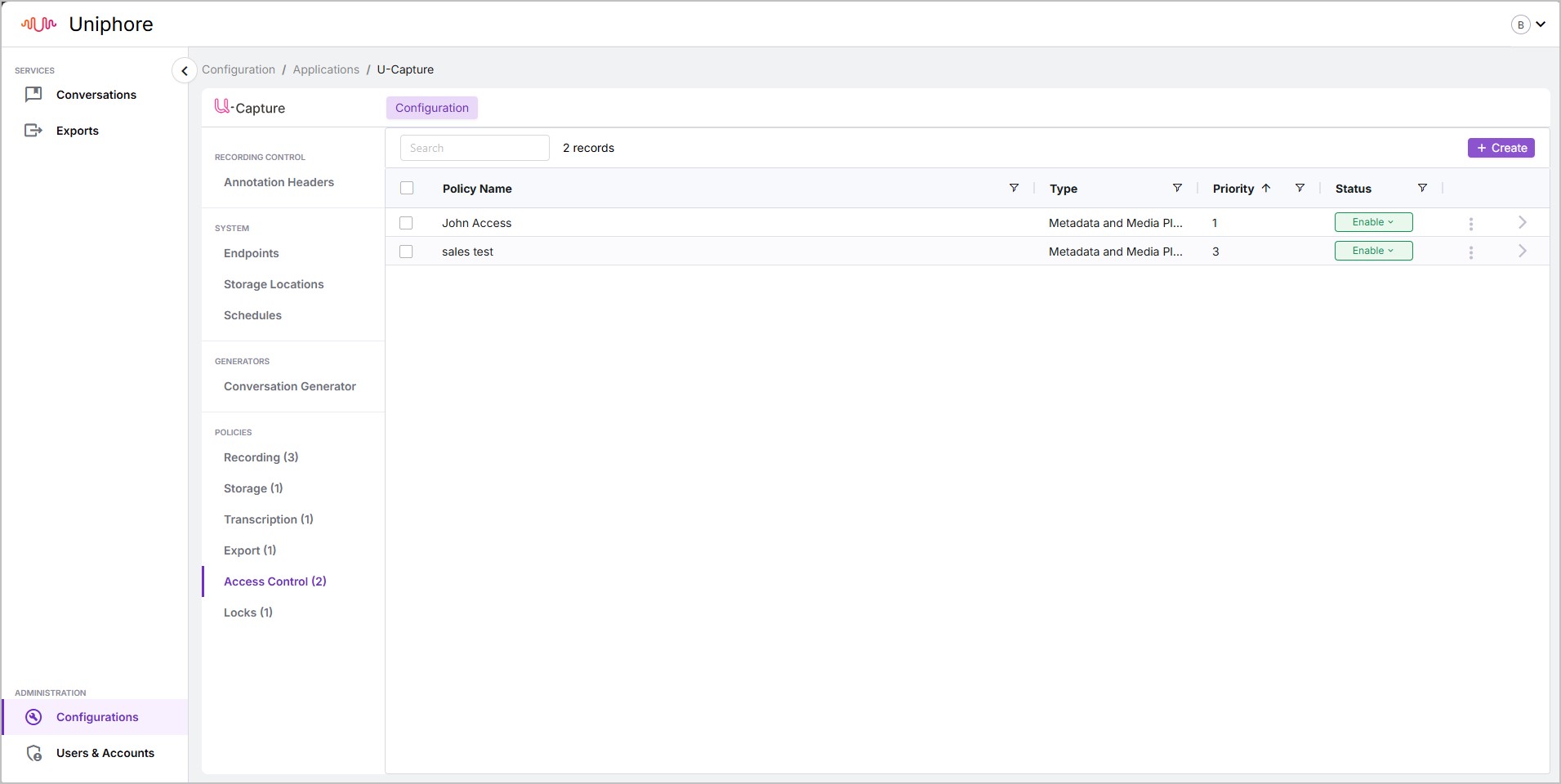
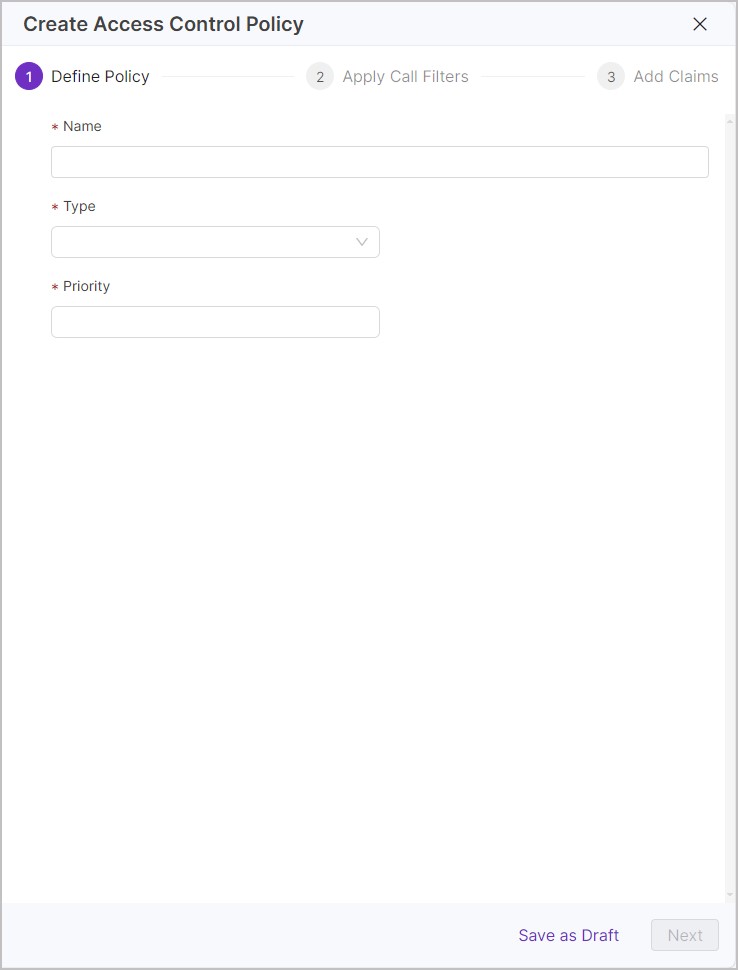
Go to Configurations > Configure (under Communication Recording Agent) > Policies > Access Control and click + Create.
Enter a useful Name for the policy.
Choose the Priority of the policy (the order in which the policies are run), 1 being priority and 2 being second priority, and so on. When ready, click Next.
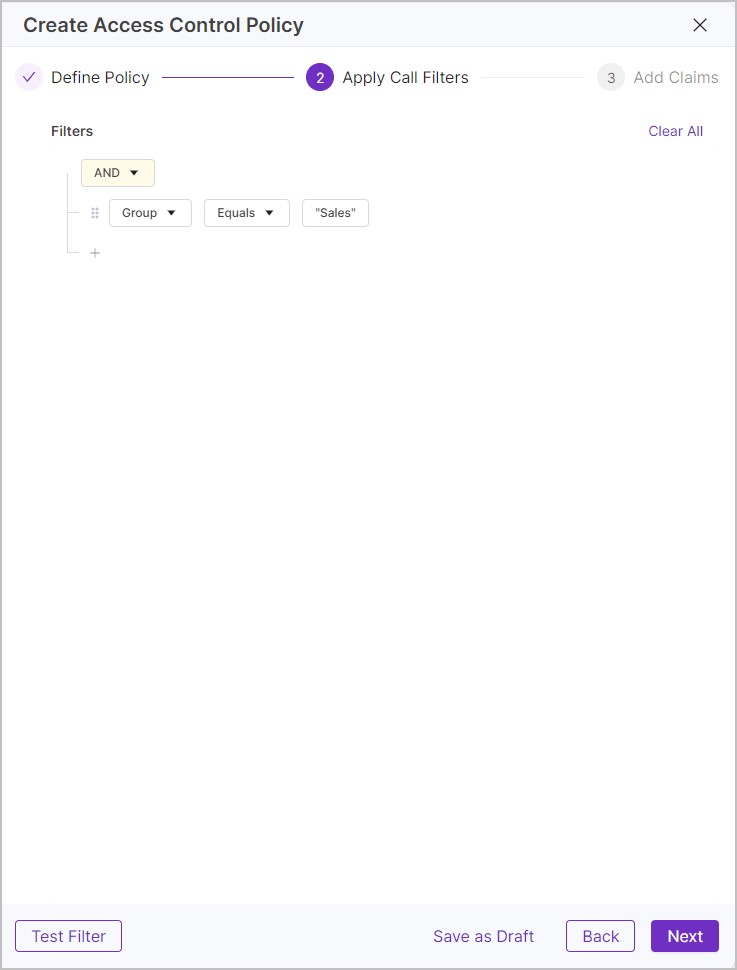
Create a Calls Filter – Add one or more metadata filters. The Calls Filter is used to define what recordings the policy applies to. Confirm that the policy applies to the correct calls, click Test Filter, then click Next. See Create a Calls Filter for more information on Calls Filters.
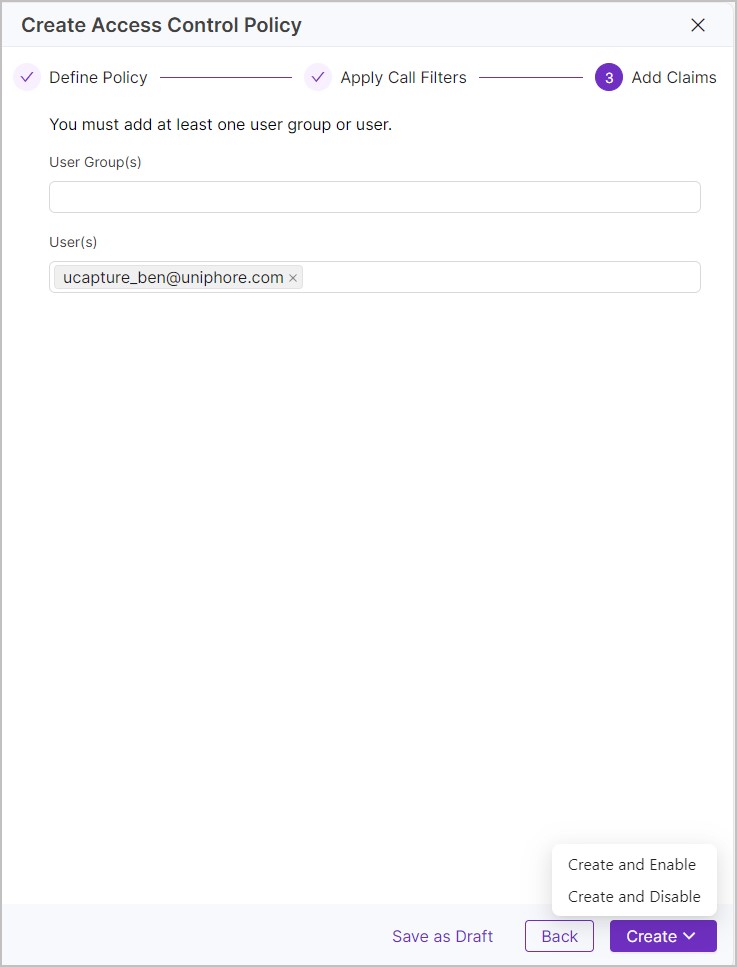
Decide what User Group(s) and/or User(s) to add a claim to. User groups and users listed here gain the level of access specified by the Type to the calls specified by the Call Filters.
Note
To view and edit your Users, go to Admin > Users.
To view and edit your User Groups, go to Admin > Organization Hierarchy.
Click Create and then select if you want the policy to be enabled (Create and Enable) or disabled (Create and Disable). You can enable or disable it later if needed.
 |  |  |