Access Business AI Cloud
You can access the platform through a web browser. To ensure optimal performance and a seamless user experience, ensure your system meets the Minimum Configuration requirements.
Caution
The Business AI Cloud standard session duration is 2 days. Once this time has elapsed, you will be required to log in again to continue using the platform.
Use the steps below to access the platform:
Locate the email from the Uniphore Business AI Cloud team in your inbox.
Open the email and find the Business AI Cloud URL.
Important
Your Tenant URL may differ depending on how your account has been deployed.
Click the URL to access the platform.
The login page opens.
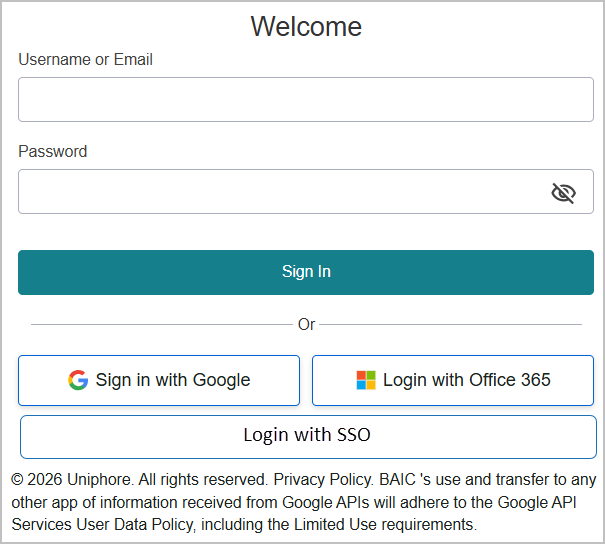
In the Username field, enter your company email address.
In the Password field, enter your password.
If prompted, select the I’m not a robot checkbox.
You may be required to complete additional verification steps.
Click Sign In.
Upon successful sign-in, you're redirected to the main page of your Business AI Cloud platform.
Warning
After four failed login attempts, the system will automatically lock your account to prevent unauthorized access.
Note
If you need assistance, please contact your Uniphore Business AI Cloud support team.
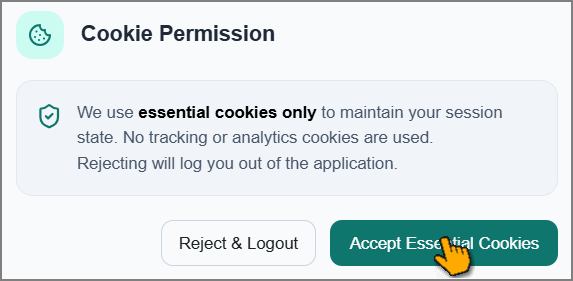
Click Accept Essential Cookies to continue your session.
Microsoft Authentication
Important
This login method is only applicable if your organization has enabled Microsoft authentication services and shared this information with the Business AI Cloud team.
The platform allows you to use Microsoft Single Sign-On (SSO) for a streamlined login experience:
Click Login with Office 365.
If your email is associated with a Microsoft account, you'll be automatically redirected to Microsoft's secure login page.
Enter your Microsoft credentials to complete the secure login process.
If you're already signed into Microsoft on the device, you'll skip this step automatically.
You'll be taken directly to the main page of your Business AI Cloud platform.
Notice
For SSO authentication issues, contact your company admin support team.
Single Sign-On
Important
This login method is only applicable if your organization has enabled OAuth 2.0 or KEYCLOAK authentication services and shared this information with the Business AI Cloud team.
The platform allows you to use Single Sign-On (SSO) for a streamlined login experience:
Click Login with Okta or Login with Keycloak.
You are redirected to the relevant login page.
Enter your organization credentials to complete the secure login process.
If you're already signed in to OAuth 2.0 or KEYCLOAK on the device, you'll skip this step automatically.
You'll be taken directly to the main page of your Business AI Cloud platform.
Notice
For SSO authentication issues, contact your company admin support team.