User Onboarding
Follow these simple steps to get started:
Visit the Orby AI platform at https://orby.ai
If your organization has enabled SAML Single Sign-on, enter your organization email, and click the "Sign in" button
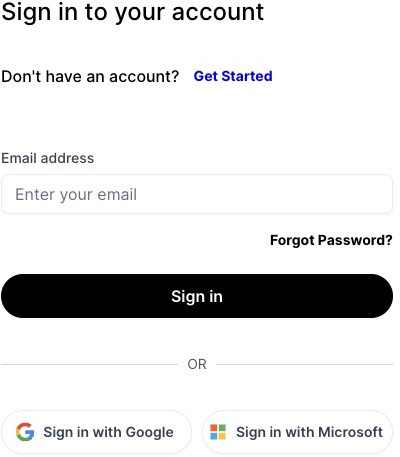
Alternatively, sign in using your Google or Microsoft account and agree to the platform's policy terms if it pops up
You will be directed to the dashboard
Installation of the Orby Chrome Extension
Required for Orby UI Automation workflow recording and executions
Both options work for Chrome and Edge browsers.
Option 1: Install the published version through Chrome Web Store:
If you already have the Orby UI automation extension installed, go to chrome://extensions in the browser, and remove the previous version
Click this link of Chrome web store and click “Add to Chrome”. This links works for Edge browser too.
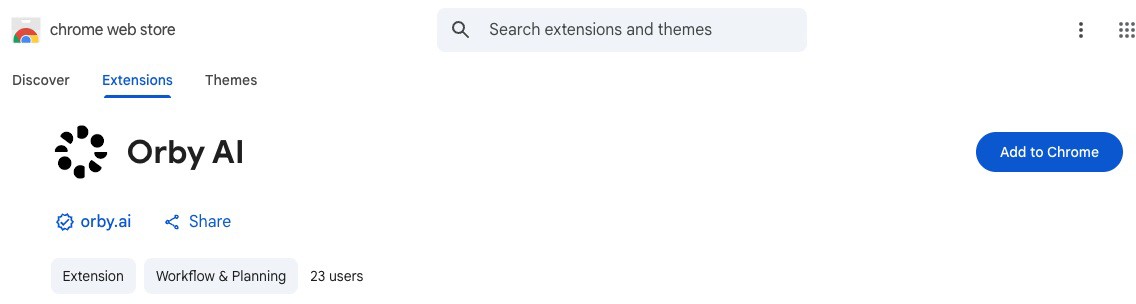
If you can't access the link, ask your point of contact to add your email and country to our chrome extension allowlist
Click the “Extensions” icon, and pin the Orby UI automation extension
 |
Option 2: Install an unpublished version (e.g. to try some latest features)
Unzip the zipped file you received from Orby
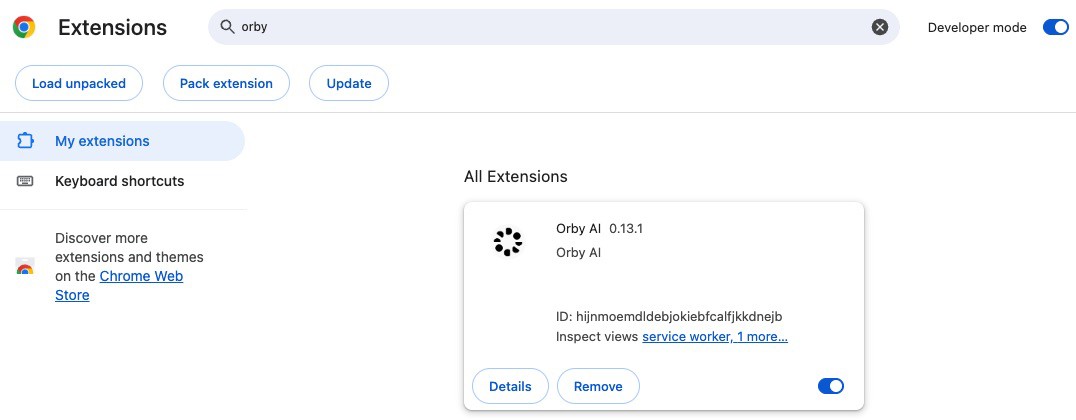
Go to chrome://extensions and enable “Developer mode” on the top right corner
Edge browser instruction: Sideload an extension for details
Delete the previous version if installed
Click “Load unpacked” on the top left corner and choose the unzipped folder of step 1
Click the “Extensions” icon, and pin the Orby UI automation extension