The Left Panel
When reviewing tasks, the left panel field list supports displaying both raw values and final values (normalized values). By default, raw values will be shown, users can toggle to show Raw Values and switch between raw and final values. Orby will remember your preference for future use. User can also sort fields in alphabetical order.
Confidence Score : Users can see Orby's average confidence for all predictions in the task. This score reflects Orby's confidence about the predictions for the overall task.
The panel can be collapsed when there are table entities
Hover over the space on the right side of the left panel, you will see a vertical indicator and can collapse the panel from there.
For Classification Workflow Tasks:
Document Type : Users will see the predicted document type automatically. They can change the document type if needed and then click "Mark Complete" to finish the task.
OrbyAll_Unknown is a special type when Orby AI can't classify the input to a predefined type.
For Orby’s prediction, users will see a “Predicted“ badge next to the predicted type.
For Extraction Workflow Tasks:
The left panel has three tabs that act as filters, all predictions are displayed by default. Users can click on these tabs to display specific groups of entities:
 |
3 tabs
" All fields" : View predictions across statuses. It is highly recommended that users review all these fields to ensure quality results
" Needs Attention" : These are the fields that require the user's immediate attention for review
For default mode, it lists all predictions under 85% confidence score
"Reviewed : Fields that have been reviewed and confirmed by the user will be categorized under this tab
Color Coding for fields on the left panel
In fields where we're more confident about the accuracy, or if the user has reviewed the field, you'll that it’s highlighted in blue on the left panel. We strongly suggest the users to review all fields to ensure accuracy.
In areas where the field is not found, you'll see a red background. This is when Orby did not find this field. If the prediction is wrong, you can adjust the bounding box position and manually edit the value of exported data.
The Document Canvas
The document canvas will present the document, a way to search keywords, as well as a way to zoom in or zoom out using the icons on the lower right corner. Upon clicking each field on the left panel, the entity pop over will appear on the right side of the document.
Performing the Annotation Task
When the entity popover appears, users have the flexibility to drag and drop the top of the pop-up to any location during the review process, and can check the following things:
A Highlight (Bounding Box): You can move and resize it to ensure it covers the correct value for that field type, or click and drag to select multiple words or paragraphs.
If the sentence or words are in two different places and can not be highlighted together, you can click the add icon to highlight another area and capture all the data.
When an entity is selected: on hovering over the document text, the word recognition outline shows up
 |
“ESC“ on keyboard would remove all active selections and show existing highlights on the document
Here are the elements of the annotation popover:
Field Name: Defined by the workflow admin during workflow creation
Confidence Score for this field, and "Not Found" when the field has an empty prediction Value fields
Raw value: it relects the source of the information
Real-time updates for final values occur when the entity value changes, either due to positional adjustments or manual edits by the user
Final value: it reflects the final value of whatthat user would like this field to be in the output
If the prediction is incorrect, users have the option to update the "Final value"
For additional information, please refer to this article under the ‘Extract Data from File‘ section
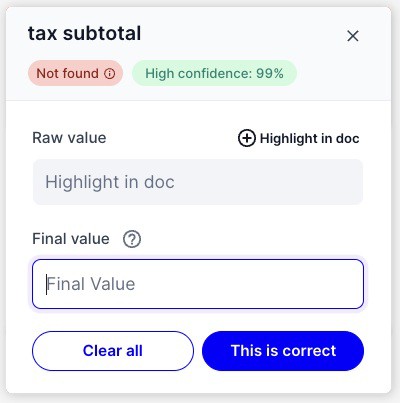 |
For individual field pop-ups, the reviewer can click “This is correct“ or “Not found in doc“ to review the field:
This iscorrect : Meaning all information is correct for this field.
Clear all: This clears all entires in the field popover
Once a field is reviewed, it will move to the “Reviewed“ tab and have a green pill in front of the name Save the Task
Users will be reminded when leaving the task with unsaved changes
When user marked the first field as correct and save, a Review In Progress label for tasks will show up, meaning at least one field is manually saved but the task is not completed yet.
 |
Click Save on top to save your annotation progress.
Complete the Task
For the overall task:
To finish the task, just click "Mark Complete" at the bottom of the left panel after checking all the fields
When hitting "Mark Complete" at the bottom, it will set all predictions' confidence score to 100%, save them as-is regardless of confirmed or not, and mark the task as complete.
Users will be reminded of unsaved changes before moving to the next entity
If you click "Decline All", the task will be declined, all the modifications on the tasks will be discarded, and there won't be any JSON output for SFTP-based workflows.
Remember to click "Mark Complete" to save any changes you made to this task
After clicking the “Mark Complete” button, the user will be redirected to the “Completed” tab. They can navigate to the “Pending Review” tab to start working on another task.
If clicking the "Decline All" button, the user will be redirected to the "Declined" tab.
Search
Users can utilize the "Control+F" shortcut (or "Command+F" on Mac) to search for keywords starting from 2-letter strings