API Key Management Guide
Orby's API keys allow secure access to our platform APIs. You can easily create, manage, and secure your API keys in our web app. Note, only organization administrators can access the API Keys management at this moment.
Creating API Keys
Step 1: Access API Key Management
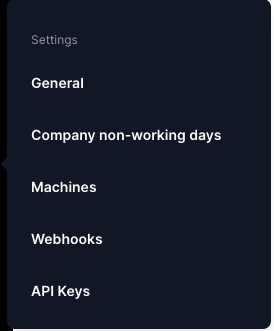
Navigate to "Settings > API Keys" in your Orby web app.
 |
Step 2: Create New API Key
Click the "Create API Key" button in the listing page.

Fill in the details:
Name: Descriptive name for the key Description (Optional): Additional context
Expiration: Choose from preset durations or set custom date
 |
Step 3: Secure Your Key
Copy the generated key immediately - it won't be shown again and there is no way to retrieve the API key after.

Store it in a secure location like a key manager for your later usage.
Managing Existing Keys
You can manage your API keys in the API Key listing. You can edit, delete or rotate your API key.
Editing an API Key
Locate the API key you want to edit
Click the "..." menu button on the right
Select "Edit"
You can modify:
Name
Description
Associated workflows
Permissions

Click "Save Changes" to apply your modifications
Note: You cannot modify the expiration date of an existing API key. If you need to change the expiration, you'll need to rotate the key.
Rotating an API Key
Key rotation helps maintain security by replacing an existing API key while keeping the same configuration.
Locate the API key you want to rotate
Click the "..." menu button
Select "Rotate"
Choose a new expiration period:
Click "Done"
Copy both the new API key and Organization ID
The old key remains active for 7 days
After 7 days, only the new key will work
Important: Copy the new API key immediately - you won't be able to see it again after closing the dialog.
Deleting an API Key
Locate the API key you want to delete
Click the "..." menu button
Select "Delete"
Confirm the deletion
Warning: Deleting an API key is permanent and cannot be undone. Any systems using this key will immediately lose access.
Admin Alerts for Departing API Creators
When an API key creator's account is deactivated due to departure, an automated email alert is sent to all administrators. Besides that:
The API key list page will indicate when a key's creator has left the organization.
The API key list page now includes a column or field displaying the workflow name(s) associated with each API key.
Troubleshooting
If an API key stops working, check:
Expiration date
Associated workflows Permissions
Whether the key has been rotated or deleted
For expired keys, create a new key
If you accidentally delete a key, you'll need to create a new one. Please contact us if the issue persists after troubleshooting for more support.